

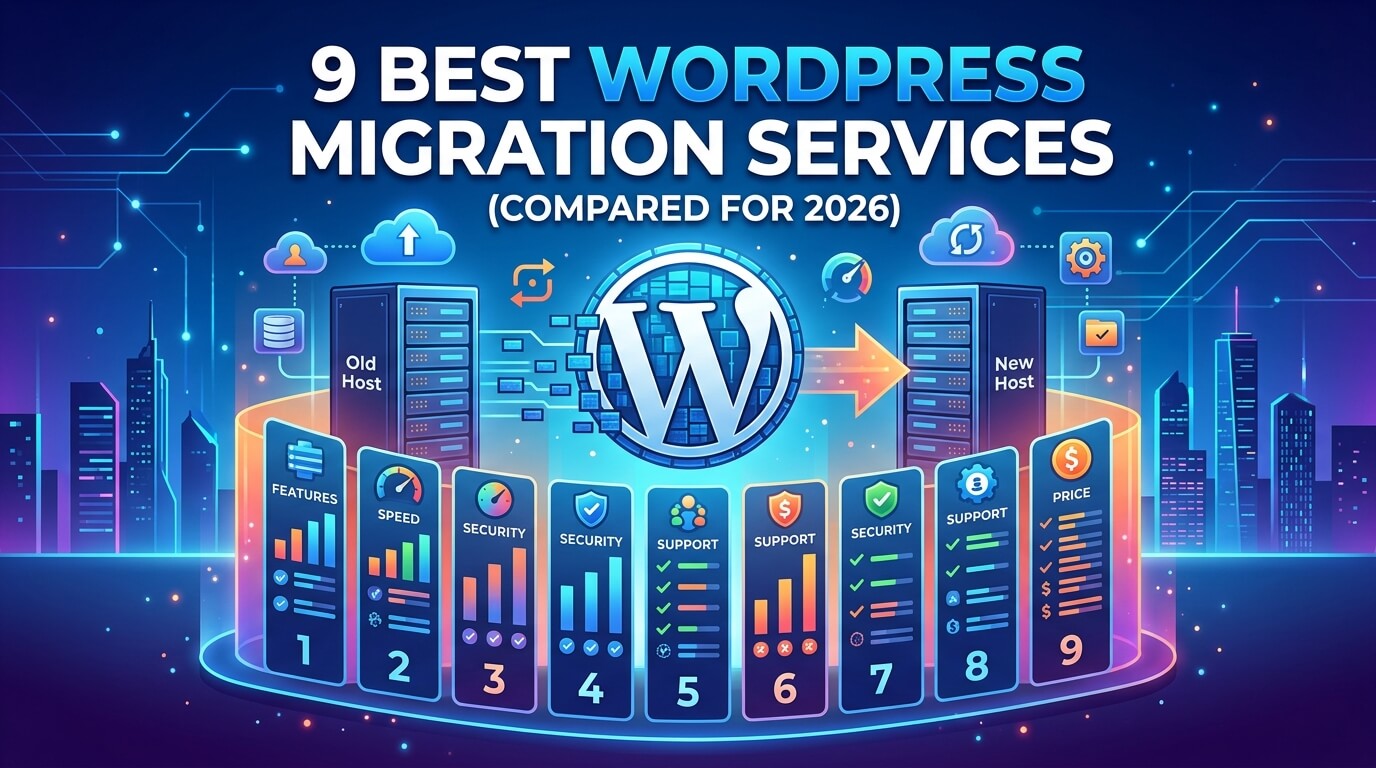
Moving a WordPress website from one host or domain to another sounds simple: copy the files, copy the database, point the domain at the new server. In practice, one missed database table can take a site offline for hours, which is why site owners and agencies turn to dedicated WordPress migration services instead of doing it by hand.
These tools automate the parts of a move that are easiest to get wrong: transferring the database without corrupting it, updating internal links, and keeping plugins and themes intact.
This article walks through nine WordPress migration services worth considering in 2026, covering what each one actually does well, where it falls short, and roughly what it costs. Whether you’re a solo blogger switching hosts for better performance or an agency managing dozens of client sites, one of these options should fit your budget and technical comfort level.
What “WordPress Migration” Actually Means
A WordPress migration moves a site’s files, database, and sometimes its domain, from one location to another, a new host, a staging environment, or a fresh domain.
The tricky part isn’t copying files, it’s the database. WordPress stores internal references, image URLs, serialized settings, permalink structures – as absolute paths tied to the old domain or server.
If those aren’t rewritten correctly, you end up with broken images, dead links, or a site that won’t load. That’s the problem most migration tools are built to solve.
Quick Comparison
| Service | Best For | Starting Price |
| Duplicator | All-around DIY migration | Free / $69.30 per year |
| InstaWP Migration Tool | Fast, automated host-to-host moves | Free tier available |
| BlogVault | Large sites, WooCommerce | $99–$499 per year |
| All-in-One WP Migration | Simple, beginner-friendly moves | Free / $69 one-time |
| Codeable | Custom, developer-led migrations | $80–$120 per hour |
| Seahawk Media | Non-WordPress to WordPress moves | Custom quote |
| WP Migrate | Developer/local workflows | Free / $49 per year |
| Jetpack | Users already on Jetpack | Free / paid tiers |
| WordHerd | Multi-CMS, SEO-sensitive moves | Custom quote |
How These Services Were Compared
Each entry was judged on the database rewrite process, support for larger or more complex sites (multisite networks, WooCommerce), how much manual work is required, and pricing transparency. Some entries are plugins you run yourself; others do the work for you.
This comparison is based on each vendor’s own documentation and pricing pages, cross-checked where possible, rather than hands-on testing of every tool where a figure couldn’t be confirmed beyond a single source, it’s noted or left out rather than stated as settled fact.
The 9 Best WordPress Migration Services
1. Duplicator — Best All-Around Plugin
Duplicator has been one of the most widely installed WordPress migration services for years, with 1 million-plus active installations confirmed on its official WordPress.org listing (Source: WordPress.org). It packages your entire site — files, database, and all — into a single archive, then walks you through installing it on the new server.
The free version, Duplicator Lite, covers basic moves: build a package, upload it, and run the installer. It requires manually creating a new database first, which trips up first-timers but isn’t hard once done.
Duplicator Pro adds drag-and-drop installs, scheduled backups, and an “Import Link” feature that migrates a site using only a URL. It also supports WordPress multisite networks, which several competitors here don’t handle well.
- Good for: developers and agencies who want one plugin that covers both simple and advanced migrations
- Limitation: Duplicator doesn’t migrate sites from other website builders — WordPress to WordPress only
- Pricing: free (Lite) or from $69.30/year (Pro)
2. InstaWP Migration Tool — Best for Speed
InstaWP built its migration tool around minimizing manual steps. You connect the source and destination, and it handles file transfer and database configuration automatically, flagging plugin or theme conflicts before they cause problems.
InstaWP markets the tool as capable of handling larger sites too, though it doesn’t publish a hard size limit for anything unusually large, its support team gets involved. It leans heavily on automation, a strength for straightforward host-to-host moves, though with less manual control than Duplicator Pro.
- Good for: agencies running frequent, similar migrations who want speed over granular control
- Limitation: no published size ceiling larger sites need manual support intervention rather than a fully automated path
- Pricing: free tier available; paid plans scale with usage
3. BlogVault — Best for Large or High-Stakes Sites
BlogVault processes migrations on its own servers rather than pulling resources from your host, which avoids the timeout errors that often derail large migrations on shared hosting. Its own pricing page lays out three tiers by site size: Personal covers sites up to 20GB, Business goes up to 50GB with multisite support for up to 25 subsites, and the WooCommerce tier covers up to 100GB with multisite support for up to 100 subsites (Source: BlogVault pricing page).
It also includes a staging environment for testing changes safely (1 day on Personal, up to 6 months on the WooCommerce tier), selective migration (move only specific files or tables), and automatic search-and-replace for URLs.
Pricing follows the same tiered structure: Personal runs $99/year, Business $299/year, and the WooCommerce tier $499/year, each for a single site (Source: BlogVault pricing page).
- Good for: WooCommerce stores, multisite networks, and any site where downtime isn’t an option
- Limitation: costs more than plugin-based alternatives, and the dashboard has a steeper learning curve
- Pricing: $99–$499/year depending on tier and site size
4. All-in-One WP Migration — Best Free, No-Frills Option
This plugin does exactly three things: export, import, and back up. Export your site into a file, then import it on the destination site with no dashboard full of settings. Its WordPress.org listing shows 5 million-plus active installations, and the developer’s own site names enterprise users including Boeing, NASA, and Harvard University (Source: WordPress.org).
The built-in find-and-replace tool updates URLs and file paths during export, handling the database-rewrite problem without manual intervention. The free version is capped by your host’s max upload size larger sites need the paid Unlimited Extension.
- Good for: beginners and small blog owners who want the simplest possible path between hosts
- Limitation: free version’s size limit makes it impractical for large media libraries without the paid extension
- Pricing: free core plugin; Unlimited Extension is a one-time $69
5. Codeable — Best for Custom or Unusual Migrations
Codeable is a marketplace that matches you with a vetted, freelance WordPress developer. You submit requirements for free, and Codeable’s own site states experts typically start reviewing a project within 3–5 hours (Source: Codeable).
Once matched, you get a fixed-price quote before work starts, and payment is held until you approve the result. This suits migrations a plugin can’t handle customized themes, unusual hosting setups, or years of technical debt a one-click tool would choke on.
- Good for: complex, non-standard sites where a plugin’s assumptions won’t hold up
- Limitation: a 17.5% service fee applies on top of the developer’s rate, and costs run well above plugin-based options
- Pricing: Codeable’s recommended range is $80–$120/hour, quoted as a fixed project price plus the 17.5% service fee (Source: Codeable)
6. Seahawk Media — Best for Switching Platforms
Moving a site to WordPress from Wix, Shopify, or Squarespace is different from moving WordPress to WordPress content and layout don’t map cleanly, and a plugin can’t bridge that gap. Seahawk Media specializes in this cross-platform move.
The process starts with a free consultation, and Seahawk’s own client list confirms DreamHost and GoDaddy among its hosting-company partnerships (Source: Seahawk Media). Seahawk also offers ongoing maintenance and SEO work afterward, functioning as a longer-term partner rather than a one-off vendor.
- Good for: business owners leaving a non-WordPress platform who want a fully managed, hands-off move
- Limitation: pricing isn’t published you need a consultation to get a quote, which slows down comparison shopping
- Pricing: custom, based on project scope
7. WP Migrate — Best for Developers
WP Migrate skips the export/import model most WordPress migration services use. Its “push and pull” feature syncs your database and files directly between two WordPress installs, which suits pulling a live site down to a local machine for testing, then pushing verified changes back up.
It includes WP-CLI support for command-line migrations and automatically handles serialized data correctly, a common cause of broken layouts when done manually. The plugin began as “WP Migrate DB Pro” under Delicious Brains and was acquired by WP Engine in June 2022 (Source: WP Engine acquisition announcement), which explains its long track record among developers.
- Good for: developers and agencies regularly moving sites between live, staging, and local environments
- Limitation: the free version only migrates the database media, themes, and plugins require the paid tier
- Pricing: free (database-only); Pro starts at $49/year
8. Jetpack — Best If You Already Use It
Jetpack treats migration as one piece of a broader backup and security toolkit. It creates a backup before a migration begins, then transfers files over encrypted connections. If something goes wrong mid-move, the restoration feature rolls the site back.
Many WordPress users already run Jetpack for performance or security monitoring, which makes migration through it the path of least resistance. It’s not the most feature-rich option here, but the built-in backup safety net is a genuine advantage.
- Good for: sites that already run Jetpack and want migration without adding another plugin
- Limitation: fewer advanced options (selective migration, multisite support) than dedicated migration tools
- Pricing: free core features; paid tiers unlock expanded backup storage
9. WordHerd — Best for Multi-CMS Migrations
WordHerd is the one entry here that isn’t primarily a WordPress specialist and that’s the point. This boutique agency migrates sites from HubSpot, Drupal, Squarespace, and other systems into WordPress, with particular attention to preserving SEO metadata, forms, and media assets that commonly get dropped during a platform switch.
Their team built proprietary migration automation and has publicly documented projects in exactly the sectors it claims to specialize in moving Phoenix Children’s Hospital off a legacy CMS, converting Stevenson University’s site from ColdFusion, and consolidating 250+ department sites for Northern Arizona University into one multisite install (Source: WordHerd’s own project pages). Every migration is scoped individually, so pricing requires a consultation.
- Good for: organizations migrating from a non-WordPress CMS where SEO rankings and form data need to survive intact
- Limitation: no published pricing, and the boutique/custom approach means longer lead times than a plugin
- Pricing: custom quote based on scope
What a Typical Migration Actually Involves
Regardless of which tool or service you pick, most WordPress migrations follow the same basic sequence:
- Back up the source site. Every tool above either creates one automatically or strongly recommends it before touching anything; this is the fallback if something goes wrong midway.
- Set up the destination. A new database and, in some cases, a fresh WordPress install need to exist on the target host before files or data can land there.
- Transfer files and database. This is where the tools differ most: a single-archive export/import (Duplicator, All-in-One WP Migration), a direct sync (WP Migrate’s push/pull), or a background transfer run entirely on the provider’s own servers (BlogVault, InstaWP).
- Rewrite URLs and paths. Every reference to the old domain gets swapped for the new one — the database rewrite step described earlier, and the one most likely to go wrong in a manual migration.
- Test before going live. This is where a staging environment earns its keep checking that pages load, forms submit, and checkouts work before pointing the live domain at the new site.
- Update DNS and confirm SSL. The final step, covered in more detail just below, since it happens outside any migration tool’s control.
Knowing this sequence explains why some tools cost more than others the ones that manage steps 3 through 6 for you (BlogVault, Codeable, Seahawk Media) charge more than the ones that just automate step 3 and leave the rest to you (Duplicator Lite, All-in-One WP Migration).
Migrating a WooCommerce Store: What’s Different
A WooCommerce store isn’t just a WordPress site with more database tables it has moving parts a blog doesn’t. A few things worth checking before and after any migration:
- Order and customer data. Orders, customer accounts, and product variations live in the database alongside regular posts, so any tool that skips selective table handling risks missing or duplicating records on a busy store.
- Payment gateway settings. API keys for Stripe, PayPal, or other gateways are often environment-specific-some need to be re-entered or re-verified on the new host rather than simply carried over.
- Session and cart data. Active shopping carts and sessions typically don’t survive a migration cleanly, which is one reason migrating during low-traffic hours matters more for a store than a static blog.
- SSL and checkout. Since checkout pages require a valid SSL certificate, the gap described below is a bigger deal for WooCommerce than for a blog; an unresolved certificate can block purchases outright, not just show a warning.
This is part of why BlogVault and Duplicator Pro specifically call out WooCommerce support, and why a plain free plugin can technically move a store but may leave a few of these details for you to check manually afterward.
What Happens After the Files Move: DNS and SSL
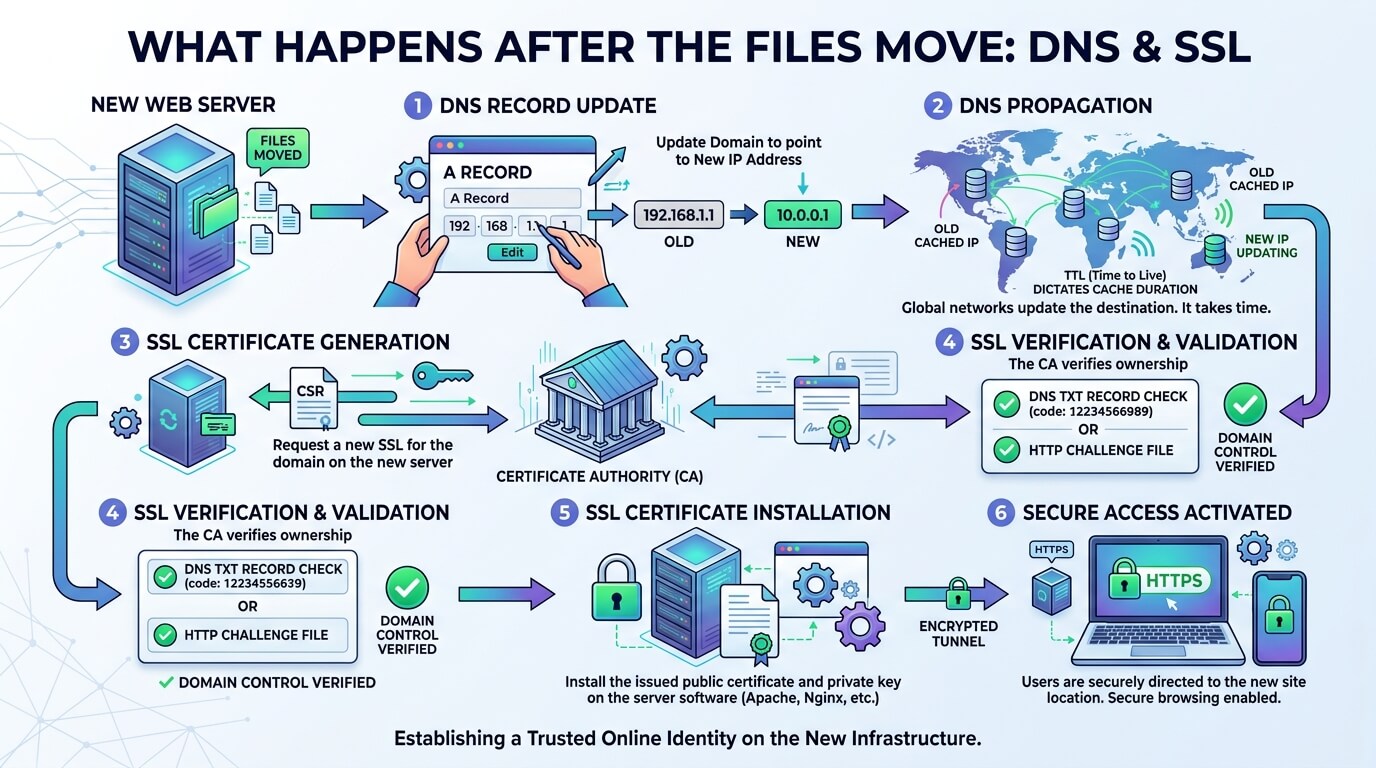
Copying files and the database is only part of a host-to-host move. Once the new site is live, your domain still has to point visitors to it — two steps outside any tool’s control matter here:
- DNS propagation: updating your domain’s nameservers or A record doesn’t take effect everywhere instantly — it can take minutes to 48 hours. During that window, some visitors may still land on the old server.
- SSL certificates: most hosts auto-issue a new certificate once your domain resolves to them, but on a host that doesn’t, your new site can briefly show a “not secure” warning.
Neither is something any tool here fixes for you — they’re host and domain-level steps around the migration. Keeping the old site untouched until DNS fully propagates is the simplest way to avoid a visible gap.
Don’t Overlook Free Migration From Your Host
Before paying for any tool, check whether your new host already includes migration:
- Bluehost, SiteGround, DreamHost: each offer their own migration plugin.
- GreenGeeks: provides free migration on request.
- GoDaddy: includes a free automatic migration tool.
- HostGator: covers migration free on VPS/dedicated plans within 30 days of signup.
This won’t help if you’re leaving WordPress altogether, but for a plain host switch, it can make the tools above unnecessary.
How to Choose Among These WordPress Migration Services
- Site size: small blogs need little more than a free plugin; large libraries or multisite networks need services built to avoid server timeouts.
- Technical comfort: if editing a database sounds unappealing, a managed service or automated tool removes that step.
- Downtime tolerance: businesses that can’t go offline should prioritize services built around zero-downtime transfers.
- Source platform: leaving WordPress-to-WordPress territory calls for a cross-platform specialist, not a standard plugin.
Common Migration Mistakes Worth Avoiding
No plugin or service fully protects you from user error. A few recurring mistakes:
- Skipping a full backup before starting, leaving no fallback if the migration fails
- Not checking file size limits ahead of time, which stalls free-tier migrations mid-transfer
- Forgetting hardcoded URLs in theme files, which search-and-replace tools won’t always catch
- Not testing in staging before pointing the live domain at the new site
Key Takeaways
- For a plain host-to-host move, a free plugin like Duplicator or InstaWP usually handles it without extra cost.
- Large sites, WooCommerce stores, or multisite networks are safer with a service built for scale, like BlogVault free plugins can hit size or timeout limits.
- Moving from a non-WordPress platform (Shopify, Wix, HubSpot) needs a cross-platform specialist such as Seahawk Media or WordHerd; standard WordPress plugins can’t do this.
- A migration tool only handles files and the database DNS propagation and SSL setup happen separately and aren’t covered by any tool on this list.
- Before paying for anything, check whether your new host already includes free migration.
Frequently Asked Questions
How much does a WordPress migration typically cost?
Costs span a wide range — free plugins handle basic moves at no cost, while managed services like Codeable or Seahawk Media run from around $80 an hour to several hundred dollars per project.
Will my site go offline during migration?
It depends. InstaWP and BlogVault are built to minimize downtime, while simpler migrations may involve a short window while DNS or files finish updating.
Can these tools handle WooCommerce stores?
Most can, though not equally well. BlogVault and Duplicator Pro support larger, transaction-heavy sites, while free plugins may struggle with very large catalogs.
Do I need coding knowledge to migrate a WordPress site, and what’s the difference between a plugin and a managed service?
No — All-in-One WP Migration and InstaWP guide you through a mostly automated process, no code required. A plugin (Duplicator, WP Migrate, Jetpack) puts you in control and costs less; a managed service (Codeable, Seahawk Media, WordHerd) hands the work to someone else, costing more but suiting complex or heavily customized sites.
Can I migrate from a non-WordPress platform, and how do I pick the right service?
Yes, but standard plugins won’t do it; you’ll need a specialist like Seahawk Media or WordHerd. For repeat, same-platform work, InstaWP or Duplicator Pro’s automation saves time; for heavily customized sites, Codeable is safer.
Read More: https://linkneon.com/parallel-vs-concurrent-processing/
Conclusion
There isn’t one right answer among these nine services. The best choice depends on your site’s size, how much manual control you want, and whether you’re staying within WordPress or switching platforms.
For a straightforward host-to-host move, Duplicator or InstaWP will likely get the job done without much fuss. For anything with real business risk attached to a busy WooCommerce store, a multisite network, or a jump from a different CMS a managed option like BlogVault, Codeable, or WordHerd is worth the extra cost.
The mistakes list above is worth revisiting once before you start: skipping the backup and skipping a staging test are the two most avoidable failure points, and also the easiest to build into your process ahead of time.
Picking the right tool only gets you through the technical part of the move — rankings can still slip if redirects, your sitemap, or Search Console aren’t updated afterward. For that side of things, see our post-migration SEO checklist.