

WordPress migration services move your website to a new host, domain, or platform without losing files, database content, or search rankings.
A good service handles the technical steps for you: exporting data, rewriting URLs, and testing the site on the new server before visitors ever reach it. WordPress powers about 40% of all websites, so a website migration is a routine but high-stakes task for millions of site owners.
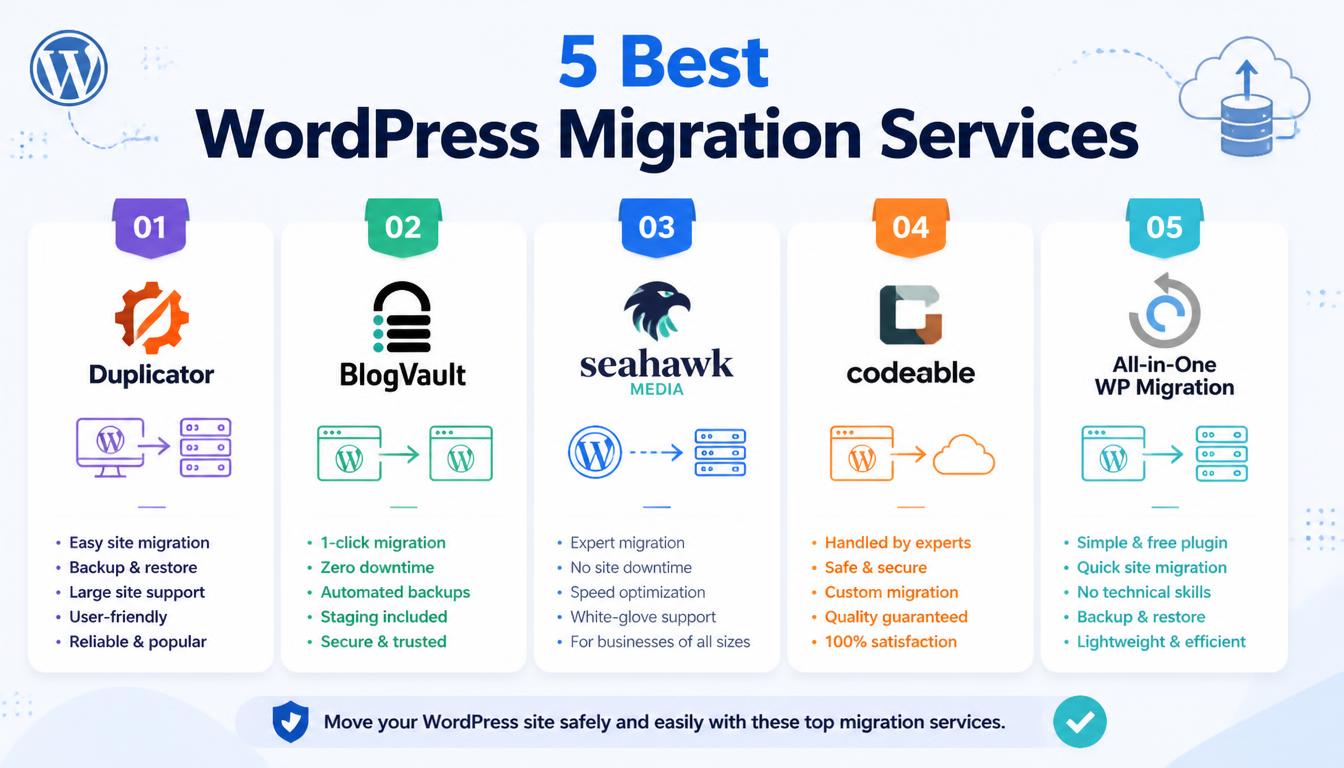
This guide compares the five best WordPress migration services for 2026: Duplicator, BlogVault, Seahawk Media, Codeable, and All-in-One WP Migration.
You’ll get current pricing, a quick comparison table, the right use case for each option, and practical sections on cost, timelines, SEO protection, and post-migration fixes. It’s written for US site owners who are comfortable in the WordPress dashboard but aren’t developers, and who want to switch hosts without losing traffic, sales, or data.
Quick Comparison: Best WordPress Migration Services at a Glance
| Service | Type | Best For | Starting Price | Free Option |
| Duplicator | Plugin + done-for-you service | Best overall | Migration Service from $149 | Yes (Duplicator Lite) |
| BlogVault | SaaS backup + migration | Large sites, WooCommerce, multisite | Personal: $49.50/yr per site (discounted from $99) | Yes (Migrate Guru) |
| Seahawk Media | Agency service | Wix, Squarespace, Shopify to WordPress | From $499 | Consultation |
| Codeable | Vetted freelance experts | Custom, complex migrations | 120/hr (17.5% fee included in estimate) | No |
| All-in-One WP Migration | Plugin | Small sites on a budget | Unlimited Extension: $69/yr | Yes (size-limited) |
Prices were checked on official vendor pages in October 2026 and may change.
What Are WordPress Migration Services?
WordPress migration services are plugins, platforms, or professional teams that copy a WordPress site from one environment to another and make it work there.
A proper migration involves more than moving files. It also covers search and replace across the database, safe handling of serialized data, and updates to configuration files such as wp-config.
A typical migration follows five stages:
- Package or connect: The tool bundles the site into an archive or links the two servers directly.
- Transfer: Files and database tables move to the destination.
- Rewrite: Old URLs and file paths are replaced with new ones.
- Verify: The site is tested on a temporary URL or staging site.
- Cutover: DNS records are updated to point to the new server.
People usually migrate for one of these reasons:
- Upgrading from shared hosting to managed hosting or a VPS
- Rebranding to a new domain while keeping SEO equity
- Leaving a website builder such as Wix, Squarespace, or Shopify
- Consolidating several sites or moving into a multisite network
- Cloning a live site to localhost for development
DIY Migration Plugins vs. Done-for-You Migration Services
WordPress migration services fall into two camps. Either you run a plugin yourself, or you pay someone to do the work.
| Factor | DIY Migration Plugins | Done-for-You Services |
| Cost | Free to about $250/yr | Roughly $149 to several thousand dollars |
| Skill needed | Low to moderate | None |
| Control | Full | Delegated |
| Risk on complex sites | Higher | Lower |
| Best for | Blogs and small business sites | Stores, multisite, cross-platform moves |
DIY migration works well when your site is small, you’re moving WordPress to WordPress, and you’re comfortable entering FTP or hosting credentials.
Hiring experts makes more sense when your WooCommerce store takes orders around the clock, your theme is heavily customized, or you’re switching from another CMS and need redirect mapping.
Criteria Used to Compare These WordPress Migration Services
We compared each option on the factors that most often decide whether a migration goes smoothly:
- Ease of use: Can a non-developer finish the job?
- Site-size limits: Does it handle large media libraries?
- Downtime: Does it keep the original site live during the copy?
- Data integrity: Does it replace serialized data safely?
- Security: Does it offer encryption and secure storage?
- Pricing transparency: Are renewal costs clear?
- Support: Can you get help when something breaks?
This comparison is based on published features, official documentation, and current pricing, not on timed test migrations.
The 5 Best WordPress Migration Services Compared
1. Duplicator – Best Overall WordPress Migration Plugin and Service
Duplicator earns the top spot because it covers both paths: a capable plugin for DIY moves and an expert team for people who’d rather not touch it.
The plugin bundles your site into a package, an archive plus an installer file, that you deploy on the new server through a guided wizard. Duplicator reports that more than one million professionals use it.
Duplicator becomes especially useful when you manage several websites. Once you’ve created a package, you can reuse it as a site template to launch new projects with your preferred theme, plugins, and settings already in place.
That makes it a practical choice for freelancers and agencies who build similar sites often. Because the same tool also handles automated backups, you won’t need a separate backup plugin after the move is finished.
Key features:
- Free Duplicator Lite for basic backups and moves
- Duplicator Pro adds scheduled backups, cloud storage (Google Drive, Dropbox, OneDrive, Amazon S3), Recovery Points for instant rollback, and multisite support on higher-tier plans
- Import by link or URL for faster server-to-server moves
- Handles both serialized and base64-serialized replacements
Pricing: Duplicator Pro has four plans, with these regular yearly prices:
| Plan | Regular Price | Sites |
| Basic | $79/yr | 2 |
| Plus | $199/yr | 5 |
| Pro | $399/yr | 20 |
| Elite | $599/yr | 100 |
Duplicator often runs introductory discounts, but renewals are billed at the full price. Pro users can also buy a done-for-you migration starting at $149, handled by the Duplicator team.
| Pros | Cons |
| Free and paid tiers | Renewals cost more than year one |
| Expert service available | Some features locked to higher tiers |
| Strong backup and rollback tools | Large packages can hit host upload limits |
Skip it if: You’re a developer who needs ongoing database sync between local, staging, and live environments.
2. BlogVault – Best for Large Sites, WooCommerce Stores, and Multisite
BlogVault is built for sites that break ordinary plugins, and it’s the option to consider first if your site is too big for the other WordPress migration services on this list.
Instead of running the migration on your web host, it does the heavy processing on its own servers, which avoids the timeouts and memory errors common on large sites.
That design also means your live site keeps running normally during the transfer. Your current server isn’t doing the heavy lifting, so visitors and customers won’t notice slowdowns while the copy is in progress.
This matters most for online stores, where even a few minutes of lag or checkout errors can mean lost orders. After the migration, the same dashboard keeps watching your site with daily backups and security tools, so the protection continues after the move.
Key features:
- One-click migration with automatic URL replacement
- Incremental backups, built-in staging, and WooCommerce backups at the order level
- Zero-downtime migration designed for business-critical sites
- Support for subdomain and subdirectory multisite
Pricing: BlogVault bills yearly. These are the per-site prices currently shown with a 50% discount:
| Plan | Discounted Price | Regular Price |
| Personal | $49.50/yr | $99/yr |
| Business | $149.50/yr | $299/yr |
| WooCommerce | $249.50/yr | $499/yr |
Every plan includes a 14-day money-back guarantee, and you can run your first backup without a credit card. Sites over 100 GB, or accounts with more than five sites, get custom pricing.
Free alternative: BlogVault’s sister plugin, Migrate Guru, handles one-time moves for sites up to 200 GB and can move a 1 GB site in under 30 minutes.
| Pros | Cons |
| Handles very large sites | Per-site pricing adds up for agencies |
| No load on your live server | WordPress only |
| Strong WooCommerce protection | Ongoing backups require a paid plan |
Skip it if: You run a small blog and only need one move. Migrate Guru alone covers that.
3. Seahawk Media – Best for Moving From Wix, Squarespace, or Shopify to WordPress
Seahawk Media is an agency, not a plugin, and that’s exactly why it’s on this list. Moving away from a website builder means rebuilding the design and mapping content into a new structure, which a standard WordPress-to-WordPress plugin can’t do on its own.
What sets an agency apart is the planning that happens before any data moves. A website builder stores your pages, blog posts, product listings, and images in its own format, so each one has to be placed correctly in WordPress.
A skilled team also rebuilds the layout so returning visitors find a familiar site, while you gain WordPress’s flexibility and plugin ecosystem. If you don’t have the time or technical skills to rebuild a site from scratch, an agency can save you weeks of work.
What it offers:
- Migration to WordPress from Joomla, Drupal, Shopify, Wix, Squarespace, and custom CMS platforms, with pricing starting at $499
- A pre-migration audit and planning stage, followed by data migration and testing
- A stated zero-downtime process
- A client base the company puts at more than 1,000 brands
Pricing: The $499 starting price covers simpler moves. Larger catalogs, custom designs, and integrations are quoted separately, so request a written scope before you commit.
| Pros | Cons |
| Handles non-WordPress platforms | Costs more than any plugin |
| Design and SEO handled together | Final price depends on scope |
| Clear starting price | Rebuilds take weeks, not hours |
Skip it if: You’re simply changing hosts. A plugin is faster and far cheaper.
4. Codeable – Best for Custom, Expert-Led WordPress Migrations
Codeable works differently from the other WordPress migration services here. Instead of selling software, it connects you with vetted freelance developers who work exclusively on WordPress. It’s the strongest choice when your site has custom code, an unusual server setup, or integrations that automated tools tend to break.
Codeable is also a smart choice when a previous migration attempt has already gone wrong. If your site shows broken pages, database errors, or missing content after a failed move, a developer can diagnose and repair the damage instead of starting over.
You talk directly with the expert, which makes it easier to explain special requirements, such as keeping a custom checkout, a membership area, or third-party API connections working. Many site owners keep the same developer for ongoing maintenance once the migration is done.
How it works:
- Post your project for free.
- Experts ask questions to define the project scope.
- You receive a single estimate, even if several developers bid.
- Funds are held in escrow until you approve the work.
Pricing: Recommended rates run 120 per hour, depending on scope, complexity, and urgency. The estimate already includes Codeable’s 17.5% service charge, which pays for the satisfaction guarantee and escrow. That fee is non-refundable, even if you receive a refund for the work itself.
| Pros | Cons |
| Vetted WordPress specialists | Higher cost than plugins |
| One clear estimate | Service fee is non-refundable |
| Payment protected until approval | Overkill for simple moves |
Skip it if: Your site is a standard blog. A free plugin will do the job.
5. All-in-One WP Migration – Best Budget Option for Small Websites
For a small site, few tools are simpler. You export the whole site to a single file, install the plugin on the new site, and drag the file into the importer. URL replacement happens automatically during export.
The plugin’s clean interface is its main strength. There are no server settings to configure and no command line to learn, so even first-time users can finish a move in a few clicks. The .wpress export file also works as a portable backup you can keep on your computer or in the cloud. The main thing to watch is your site’s file size. If your media library is large, plan to buy the Unlimited Extension or choose a different tool before you start.
Key features:
- Single-file export and drag-and-drop import
- Unlimited find-and-replace operations during export, with automatic serialization fixes
- Optional extensions for cloud storage, scheduled backups, and multisite
Pricing:
- Free version with an upload size limit
- Unlimited Extension: $69 per year for up to 50 sites
- Multisite Extension: $319 per year for up to 50 sites
- Pro license: $99 per year for up to 50 sites, with the Unlimited Extension included
| Pros | Cons |
| Extremely easy for beginners | Free version is size-limited |
| Low-cost upgrades | Multisite costs extra |
| Works on most hosts | Big imports can stall on cheap hosting |
Skip it if: Your site runs to many gigabytes. Server-side tools handle that better.
Honorable Mentions: WP Migrate, Migrate Guru, Jetpack, and Free Platform Tools
- WP Migrate (Delicious Brains): A developer favorite for pushing and pulling databases, media, themes, and plugins between local, staging, and production There’s a free WP Migrate Lite version. Paid licenses currently start at $49 for one site (discounted from $99) and go up to $219 for unlimited sites, with a 60-day money-back guarantee.
- Migrate Guru: The best free choice for large one-time moves, as covered in the BlogVault section.
- Jetpack VaultPress Backup: Real-time cloud backups, one-click restores, and site migrations, starting at $4.95 per month for the first year (billed yearly) and renewing at $9.95 per month. It doesn’t currently support multisite.
- Import Shopify to WP: A free importer for moving products, customers, and orders into WooCommerce.
- Medium to WordPress: Converts a Medium export so the built-in WordPress importer can read it.
Free Migration From Your Web Host: Is It Enough?
Many hosts now include migration with their plans. Hostinger, for example, offers unlimited free website migrations on its plans and says a simple automatic WordPress migration usually takes under two hours. SiteGround provides its own Migrator plugin for the same purpose.
Host migration is usually enough when:
- You’re moving a standard WordPress site between hosts
- Your theme and plugins are common and well supported
- You can wait for the host’s schedule
It falls short when:
- You’re leaving Wix, Squarespace, or Shopify
- You run a large multisite network or a busy online store
- You need redirect mapping or an SEO audit
Terms vary by host and plan, so check the details before choosing free host help over dedicated WordPress migration services.
How to Choose the Right WordPress Migration Service
| Your Situation | Best Choice |
| Small blog, tight budget | All-in-One WP Migration or Duplicator Lite |
| Large site or busy store | BlogVault or Migrate Guru |
| Hands-off WordPress-to-WordPress move | Duplicator Migration Service |
| Leaving Wix, Squarespace, or Shopify | Seahawk Media |
| Custom code or unusual servers | Codeable |
| Developer syncing environments | WP Migrate |
Beyond your situation, weigh these factors:
- Total cost, including renewals after year one
- Built-in backup and rollback options
- Compatibility with your new host’s PHP and database versions
- Quality of documentation and customer support
How Much Does a WordPress Migration Cost?
| Method | Typical Cost |
| Free plugins and host migrations | $0 |
| Premium plugins | About 249 per year |
| Done-for-you plugin service | From $149 |
| Agency cross-platform move | From $499 |
| Freelance expert | 120/hr, fee included |
Most WordPress migration services price by site size and complexity, so a simple host change can often cost nothing. Costs climb when a project needs design work, content mapping, or custom development. Before comparing quotes, confirm whether redirects, email setup, and post-launch fixes are included.
How Long Does a WordPress Migration Take?
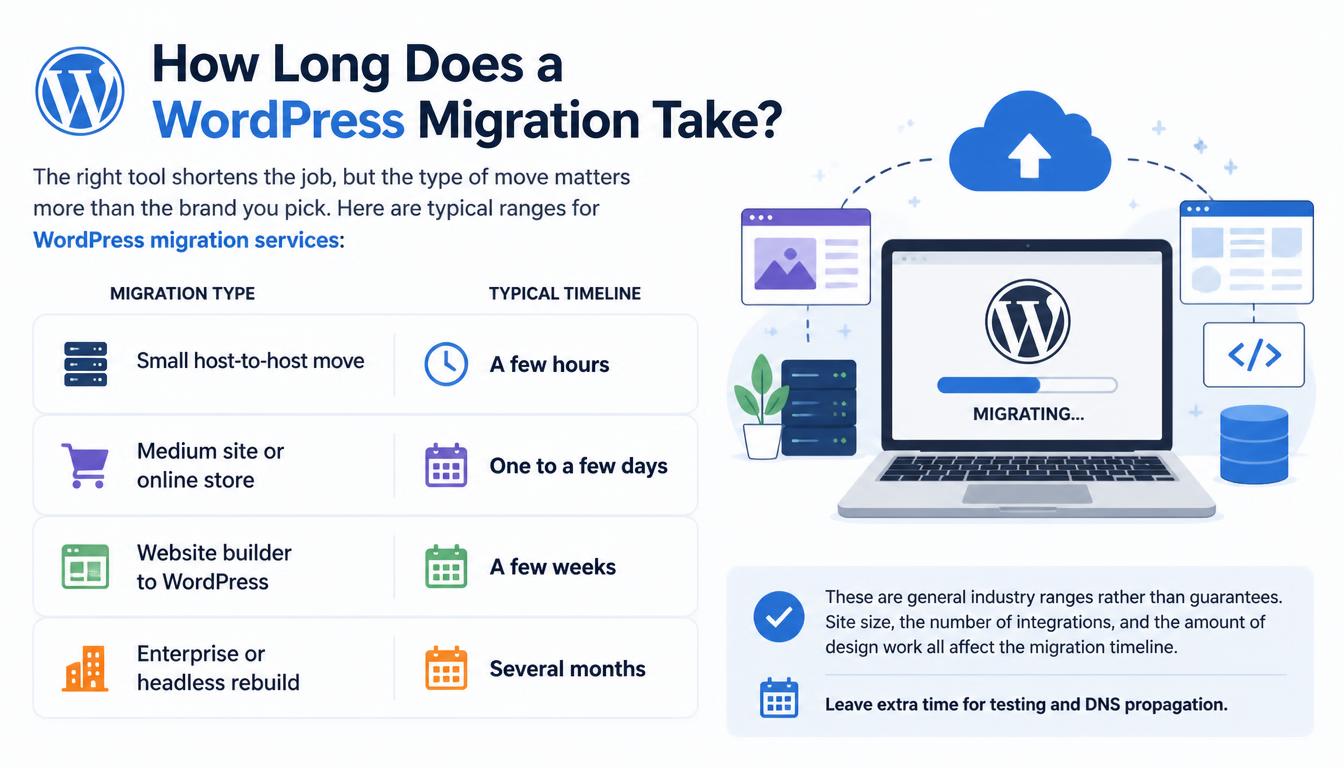
The right tool shortens the job, but the type of move matters more than the brand you pick. Here are typical ranges for WordPress migration services:
| Migration Type | Typical Timeline |
| Small host-to-host move | A few hours |
| Medium site or online store | One to a few days |
| Website builder to WordPress | A few weeks |
| Enterprise or headless rebuild | Several months |
These are general industry ranges rather than guarantees. Site size, the number of integrations, and the amount of design work all affect the migration timeline. Leave extra time for testing and DNS propagation.
Pre-Migration Checklist: 6 Steps to Protect Your Website
Complete these steps before you run a plugin or hand your site to one of these WordPress migration services:
- Back up everything. Store files and the database off-site, not just on the old server.
- Record your baseline. Export your URLs, top pages, and traffic data from Google Search Console and analytics.
- Check compatibility. Match PHP and database versions on the new host.
- Lower your DNS TTL. Do it a day or two ahead so the switch spreads faster.
- Test on staging. Run the full move there first and click through key pages and forms.
- Choose a quiet window. Cut over when traffic and orders are lowest, and pause content updates.
How to Protect SEO Rankings During a WordPress Migration
Even the best WordPress migration services can’t guarantee your rankings unless the SEO basics are verified after the move. Check each of these:
- Keep URLs identical wherever possible, and add 301 redirects for any that change.
- Make sure “Discourage search engines” is unchecked under Settings > Reading.
- Review txt so it doesn’t block important pages.
- Resubmit your XML sitemap in Search Console.
- Use Google’s Change of Address tool if you moved to a new domain.
- Confirm that title tags, meta descriptions, and canonical tags carried over.
- Monitor crawl errors and keyword rankings for several weeks. A short dip after a domain change is normal.
Common Post-Migration Problems and How to Fix Them
| Problem | Likely Cause | Fix |
| 404 errors | Permalinks not regenerated | Settings > Permalinks > Save Changes |
| Timeout errors | Host script limits | Use a server-side tool like Migrate Guru |
| White Screen of Death | Plugin conflict or PHP mismatch | Disable plugins via FTP; match PHP versions |
| Missing images | Old URLs in the database | Run a database search and replace |
| “Not Secure” warning | Mixed content after HTTPS | Update http:// links or use an SSL plugin |
| Email stops working | MX records not updated | Recreate mailboxes and update MX records |
Final Verdict: Which WordPress Migration Service Should You Choose?
- Best overall: Duplicator, for its mix of free plugin, Pro features, and expert service.
- Best for large sites and stores: BlogVault, with Migrate Guru as the free option.
- Best for leaving website builders: Seahawk Media.
- Best for complex custom builds:
- Best on a budget: All-in-One WP Migration.
Picking between these WordPress migration services comes down to site size, budget, and how much risk you’re willing to handle yourself. Whatever you choose, back up first, test on staging, and watch your rankings after launch.
Read More: https://linkneon.com/fastest-wordpress-page-builder/
FAQs About WordPress Migration Services
How much do WordPress migration services cost?
Free plugins and many host migrations cost nothing. Premium plugins run about 249 per year, done-for-you services start at $149, agency moves from website builders start around $499, and Codeable experts charge 120 per hour.
Can I migrate my WordPress site for free?
Yes. Migrate Guru handles sites up to 200 GB at no cost. Duplicator Lite, the free version of All-in-One WP Migration (with size limits), WP Migrate Lite, and many hosts also offer free options.
Which WordPress migration service causes the least downtime?
Server-side tools such as BlogVault and Migrate Guru keep your original site live while they copy it. Combine one with a staging test and an off-peak DNS switch, and downtime can be close to zero.
Will migrating my WordPress site hurt my Google rankings?
Not if it’s done carefully. Keep URLs the same, redirect any that change, and resubmit your sitemap. A domain change can cause a temporary dip while Google processes the redirects.
Do I need technical skills to migrate a WordPress site?
No. One-click tools only need basic dashboard skills, and done-for-you WordPress migration services need none at all.
Can a migration service move my site from Wix or Shopify to WordPress?
Yes, but you’ll need an agency like Seahawk Media or a dedicated importer. Standard WordPress migration plugins can’t read other platforms’ data.
Is my data secure during a migration?
Reputable tools transfer data over encrypted connections and let you keep an off-site backup. Use well-known services, avoid sharing admin passwords over email, and change your credentials after the move.
Should I use migration software or hire an agency?
Migration software is the right fit for WordPress-to-WordPress moves with the same content structure. An agency is the better choice when you’re changing platforms or redesigning the site.
Does a WordPress migration also move my email accounts?
Usually not. Most tools move only website files and the database. Email migration is a separate step: you’ll need to recreate your mailboxes and update your MX records.
Is it better to use a migration plugin or migrate manually via FTP?
For most people, a plugin is safer and faster. Manual migration through FTP and phpMyAdmin gives full control but raises the risk of human error, especially with serialized data.