

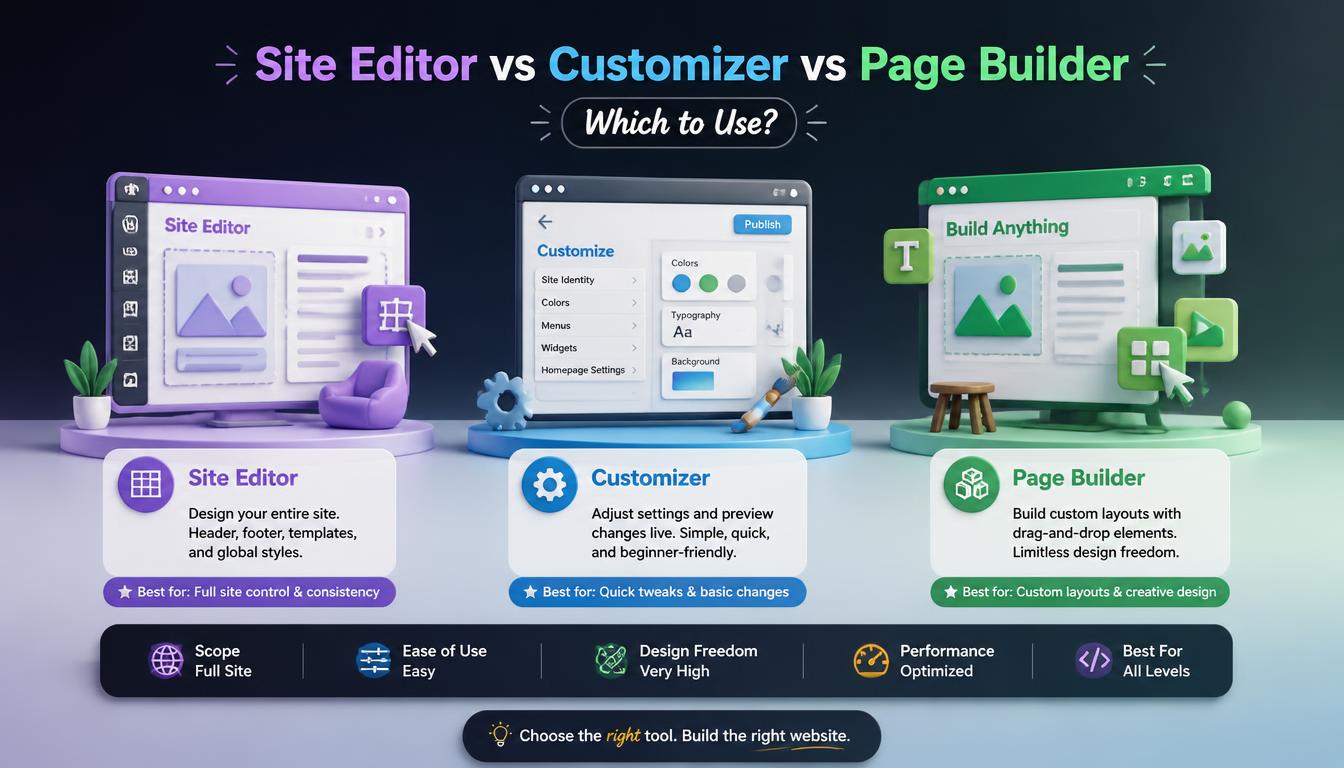
The Site Editor vs Customizer question is the first design decision most WordPress owners face, and a page builder adds a third option. The Site Editor edits block themes with blocks, the Customizer changes settings in classic themes, and a page builder replaces both with its own drag-and-drop interface.
This article compares Site Editor vs Customizer vs page builder from a decision point of view rather than as a tutorial. You will see what each tool controls, how they differ in coding, speed and flexibility, which one fits common situations, and what happens when you switch from one tool to another.
Site Editor vs Customizer: The Core Difference
The biggest difference in the Site Editor vs Customizer comparison is what each tool can reach. The Site Editor lets you change templates and template parts, which means you can redesign the structure of any page. The Customizer only exposes the settings a theme developer chose to offer.
- Site Editor: visual editing of templates, headers, footers, patterns and site-wide styles
- Customizer: a settings panel with a live preview, limited to the options your theme adds
- Theme type decides the tool: block themes use the Site Editor, classic themes use the Customizer
In practice, the Site Editor gives you more freedom, while the Customizer gives you fewer choices that are harder to get wrong.
Another way to see the difference is scope. The Customizer edits settings that a theme author decided to expose, so you can only change what the theme allows. The Site Editor edits the templates themselves, which means you can add, remove or rearrange any block in the header, footer or page layout without waiting for the theme author to add an option.
Where Page Builders Fit
A page builder such as Elementor, Divi or Beaver Builder sits on top of your theme. It brings its own editor, its own global styles and, in pro versions, its own theme builder for headers, footers and templates.
Page builders mainly compete with the Site Editor, not the Customizer, because both aim to give visual control over layouts. The key difference is that page builder layouts are stored in the builder’s own format, while Site Editor layouts use native WordPress blocks.
If you already use a page builder, you do not have to replace it to try the Site Editor. You can keep existing builder pages, build new pages with blocks, and decide later whether a full move is worth the effort and the rebuild time.
Side-by-Side Comparison
| Factor | Site Editor | Customizer | Page builder |
| Works with | Block themes | Classic themes | Most themes |
| What you can edit | Templates, parts, styles | Theme options only | Pages and, with pro, templates |
| Coding needed | No | No | No |
| Learning curve | Medium | Low | Medium |
| Extra code loaded | None beyond core | None beyond the theme | Builder scripts and styles |
| Lock-in | Low, native blocks | Low | High, builder format |
| Cost | Free | Free | Free versions; pro plans cost extra |
The table shows the real trade-off: page builders offer the most visual freedom, but they add their own code and make it harder to change tools later. The two native tools are lighter but less flexible.
Mobile control is another difference the table does not fully show. The Customizer and the Site Editor both offer device previews, and many blocks adapt automatically to smaller screens. Page builders go further with separate sizes, spacing and visibility for each device, which gives more control but also more settings to maintain.
Site Editor vs Customizer for Common Tasks
| Task | Block theme (Site Editor) | Classic theme (Customizer) |
| Change site colors | Styles > Colors | Colors panel, if the theme offers it |
| Change fonts | Styles > Typography | Typography panel, if the theme offers it |
| Edit the header layout | Header template part | Header options or a header builder |
| Design a custom 404 page | Edit the 404 template | Usually needs code or a plugin |
| Add a site-wide notice bar | Add a block to the header part | Depends on theme options |
This comparison shows why the Site Editor vs Customizer choice matters most for layout changes. For simple color and font changes, both tools work well; for structural changes, the Site Editor is far more capable without code.
For tasks not listed here, ask whether the change affects one page or the whole site. Site-wide changes, such as colors, fonts and the header, belong in the theme’s own tool. One-off layouts, such as a campaign page, are where a page builder or a custom block pattern usually saves the most time.
Which Tool Should You Use?
The right answer depends on your site, your team and your plans for the next few years.
Also consider who will maintain the site in two years. If a new developer or agency may take over, native tools are easier to hand over, because anyone familiar with WordPress can edit blocks and Customizer settings without learning a specific builder.
Starting a New Site
A new site with a block theme and the Site Editor is the most future-facing option, because WordPress development is focused on blocks. You avoid builder lock-in and keep the site light. Choose a page builder only if you already know one well and need complex marketing layouts.
A new block-based site also benefits from the newest WordPress design tools, such as style variations, the Font Library and improved patterns. These features arrive in the Site Editor first, so starting there keeps your site aligned with the direction of WordPress development.
Running an Existing Classic Theme Site
If your site already runs a classic theme such as Astra or GeneratePress, keep using the Customizer and the theme’s own options. Switching to a block theme means redesigning templates, so plan it as a project rather than a quick change.
To prepare for a future move, start using reusable block patterns for new content, even on a classic theme. Patterns work with any theme, so content built this way moves to a block theme later with far less rebuilding.
Building Many Landing Pages
Marketing teams that publish landing pages every week often prefer a page builder, because it offers ready-made widgets, forms and popup tools. The Site Editor with good block patterns can also work, especially if speed is a priority.
If you build many landing pages without a page builder, create a small library of block patterns for heroes, feature grids and calls to action. Patterns give marketers a fast starting point while keeping the site free of extra builder code.
Managing Client Sites
For agencies, the deciding factor is who edits the site after launch. The Customizer’s limited options protect clients from breaking layouts, while the Site Editor and page builders need more training. Some agencies lock down templates and give clients pattern-based page editing only.
Whatever you choose for clients, write short editing guidelines that explain which tool controls each area of the site. Clear rules stop clients from adding page builder layouts to a block-based site and keep the design consistent long after handover.
What Happens When You Switch Tools
Switching tools is where the Site Editor vs Customizer vs page builder decision has the biggest long-term cost.
- Classic theme to block theme: your posts and pages stay, but Customizer settings do not carry over. You rebuild colors, fonts, header and footer in the Site Editor.
- Page builder to Site Editor: pages built with the builder must be rebuilt with blocks, because the builder’s layout format does not convert automatically.
- Site Editor to page builder: native block content stays readable, so this direction is easier, but templates still need rebuilding in the builder.
Before any switch, list every page that uses custom layouts and estimate the rebuild time. This simple list often decides whether a switch is worth it.
Plan content checks as part of any switch. Tools change the design, not your addresses, but rebuilt pages can lose elements such as custom forms, anchor links or embedded media, so compare the old and new versions page by page before launch.
Common Myths About These Tools
- “The Customizer is deprecated.” WordPress still includes it for classic themes. Block themes simply do not need it.
- “The Site Editor requires coding.” It does not. Templates, parts and styles are all edited visually.
- “Page builders always make sites slow.” Builders add code, but a light theme, few add-ons and optimized images keep many builder sites fast.
Myths like these push people toward the wrong tool. Judge each option by what your site needs, who will edit it and how often the design will change.
How Each Tool Saves Your Changes
Knowing where your work is stored explains why some changes survive a theme switch and others do not.
| Tool | Where changes are stored | What happens if you switch themes |
| Site Editor | Custom templates, template parts and Global Styles saved in the database as special post types | Edited templates stay tied to the old theme and do not appear in the new one |
| Customizer | Theme modifications (theme_mods) saved as a database option for each theme | Settings and Additional CSS stay with the old theme |
| Page builder | Layout data saved in post meta for each page, plus builder templates | Pages keep their layouts as long as the builder plugin stays active |
This storage model is one of the most practical points in the Site Editor vs Customizer debate. Because the Site Editor saves templates as database entries, you can open a template’s revisions and roll back to an earlier version, something the Customizer does not offer for its settings.
Page builders sit apart from both tools. Their layouts depend on the plugin, so if you deactivate the builder, pages lose their design and may show leftover shortcodes or plain content. Keep that dependency in mind before you build hundreds of pages with one builder.
Performance: Which Tool Produces Faster Pages?
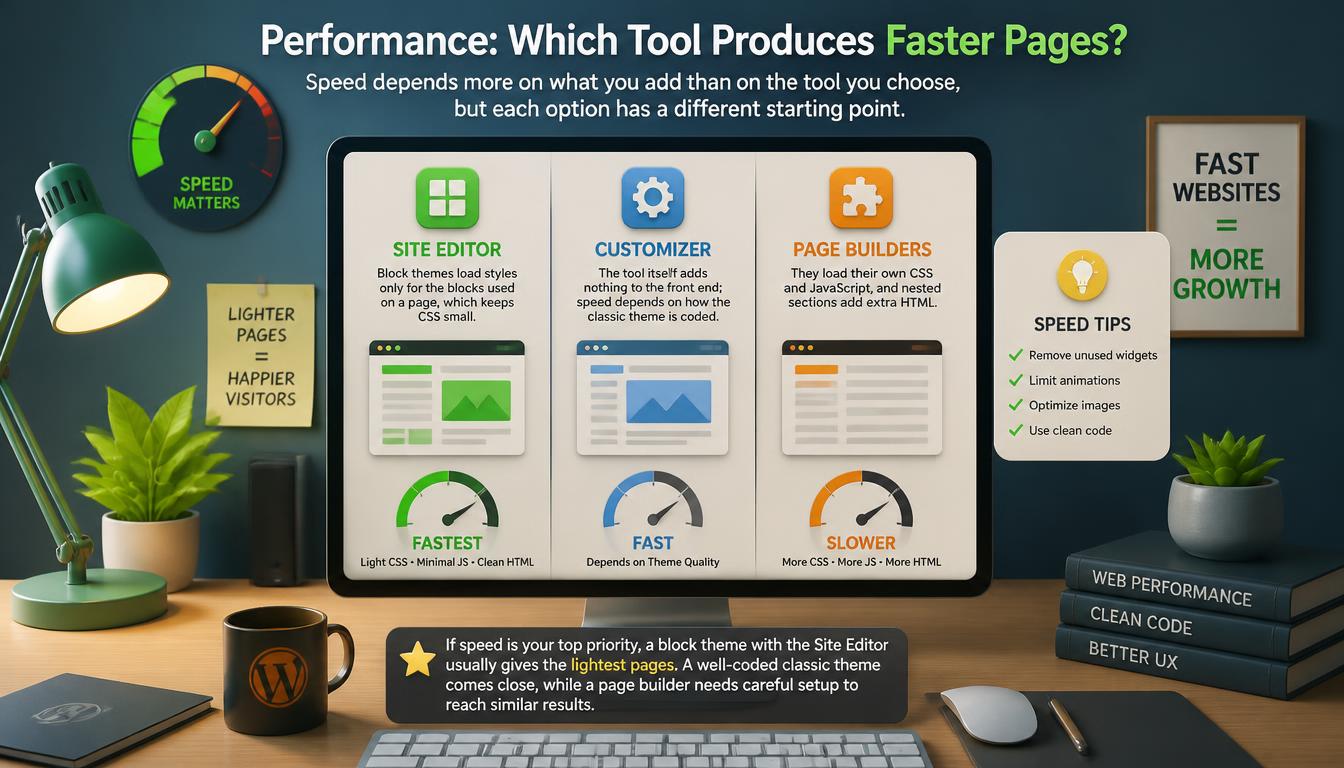
Speed depends more on what you add than on the tool you choose, but each option has a different starting point.
- Site Editor: block themes load styles only for the blocks used on a page, which keeps CSS small.
- Customizer: the tool itself adds nothing to the front end; speed depends on how the classic theme is coded.
- Page builders: they load their own CSS and JavaScript, and nested sections add extra HTML.
If speed is your top priority, a block theme with the Site Editor usually gives the lightest pages. A well-coded classic theme comes close, while a page builder needs careful setup, such as removing unused widgets and limiting animations, to reach similar results.
Cost of Each Option
The Site Editor and the Customizer are part of WordPress core, so they cost nothing beyond your hosting and theme. Page builders usually offer a free plugin with paid plans that unlock features such as theme building, popups and advanced widgets.
- Site Editor: free, included with WordPress and any block theme.
- Customizer: free, included with WordPress; premium classic themes may add paid panels.
- Page builders: free versions are limited, and most theme-building features require a paid plan.
When you compare costs, include the time needed to maintain the site. A paid builder can save hours on complex landing pages, while a free block theme can be cheaper over several years because there are fewer subscriptions to renew and fewer plugins to update.
Questions to Ask Before You Choose
A few honest answers make the Site Editor vs Customizer decision much easier.
- Is my current theme a block theme or a classic theme?
- Do I need to edit templates, such as the 404 page or single posts, or only colors and fonts?
- Who will edit the site after launch, and how comfortable are they with blocks?
- How many custom landing pages will I build each month?
- Am I willing to pay for and maintain a page builder plugin?
- Do I plan a full redesign in the next year or two?
If most answers point to templates, full control and long-term flexibility, the Site Editor is the better fit. If the answers point to quick settings on an existing classic site, the Customizer remains a practical decision for now.
A Simple Migration Path From Customizer to Site Editor
Moving from a classic theme to a block theme does not have to happen in one weekend. A gradual plan keeps the site stable.
- Note your current colors, fonts, logo and menu structure.
- Install a block theme on a staging site.
- Recreate the palette and typography in Global Styles.
- Rebuild the header and footer as template parts.
- Import your classic menu into the Navigation block.
- Review key pages, then launch during a quiet period.
This path lets you test each piece before visitors see it. Keeping the old classic theme installed but inactive for a few weeks also gives you a quick fallback if an unexpected problem appears after launch.
Frequently Asked Questions
Is the Customizer being removed from WordPress?
WordPress still includes the Customizer for classic themes. Block themes use the Site Editor instead, so the Customizer is simply hidden or limited when a block theme is active.
Can I use the Site Editor with a classic theme?
Not fully. Some classic themes support block template parts and every site can manage patterns, but editing full templates in the Site Editor requires a block theme.
Can I use a page builder with a block theme?
Yes. Most page builders run on block themes, but the Site Editor and the builder’s theme builder overlap, so pick one of them to control headers, footers and templates.
Which is better for beginners: Site Editor vs Customizer?
The Customizer is easier at first because it shows a short list of settings. The Site Editor takes a little longer to learn but gives far more control once you understand templates.
Which tool is best for SEO?
None of them improves rankings on its own. What matters is the result: fast pages, clear headings, mobile-friendly layouts and accessible design, which all three tools can produce.
Read More: https://linkneon.com/mastering-parallel-programming/
Final Thoughts
The Site Editor vs Customizer choice is decided mainly by your theme type, while a page builder is an optional layer for teams that need more visual freedom. Choose the Site Editor for new block-based sites, keep the Customizer for existing classic sites, and add a page builder only when its features clearly justify the extra code and lock-in.
Whichever tool you pick, use it consistently across the site. Mixing Site Editor templates, Customizer settings and builder layouts for the same header or footer creates conflicting styles that are hard to trace, so give every design area one clear owner and document that choice for your team.