

You open your inbox in the morning and find dozens, sometimes hundreds, of Failed Order alerts for orders placed overnight, many of them for the same low-priced product and none from a real customer.
That is the signature of WooCommerce failed order spam bots: automated scripts that hammer your checkout with purchase attempts that were never meant to succeed. Most of them run card testing attacks, pushing lists of stolen card numbers through your payment gateway to learn which ones still work.
Most attempts fail quietly, yet each one still writes an order record, fires off an email and burns server resources, and a wave left unchecked can put your processor account, your fees and your reputation at risk.
The good news is that these attacks follow predictable patterns, and a store that knows them can shut most of them down. This guide shows how WooCommerce failed order spam bots operate, how to tell an attack apart from a genuine payment failure, and what to do in the first half hour while a wave is still running.
You will then build a six-layer defense, from edge filtering and human verification to gateway fraud rules, and finish with safe cleanup, recovery steps and the weekly checks that make your store a far harder target next time.
Quick Answer: How to Stop WooCommerce Failed Order Spam Bots
The fastest way to stop WooCommerce failed order spam bots is to stack six defenses, so each layer catches what the one before it missed.
| Layer | What it does | Where it runs |
| 1. Edge protection | Filters scripted traffic before it reaches your host | Cloudflare or another web application firewall |
| 2. Human verification | Asks every checkout visitor to prove they are a person | Turnstile, reCAPTCHA or hCaptcha |
| 3. Checkout hardening | Removes easy entry points such as anonymous purchasing | WooCommerce settings |
| 4. Code-level detection | Traps, throttles and tags script-submitted orders | Small PHP snippets |
| 5. Protection plugins | Scores, blocks and blocklists suspicious orders | Anti-spam and anti-fraud plugins |
| 6. Gateway controls | Declines bad cards before an order completes | Stripe Radar, PayPal, other processors |
Think of the stack as a layered defense against malicious bots and automated attacks. No single spam protection plugin or round of JavaScript challenges stops every carding attack. Together, though, the layers protect genuine customers and keep database clutter and Failed Order notifications under control.
They also shield your store reputation, site performance and payment gateways from financial losses and chargebacks. Most waves exploit weak security settings and poor validation, so combining bot protection at the edge with server-level security, geographic rules and targeted IP blocking shuts down many fraud schemes built on stolen credit card data.
If an attack is running right now, start with the emergency lockdown below, then build the layers in order.
What Are WooCommerce Failed Order Spam Bots?
WooCommerce failed order spam bots are scripted programs that submit purchase attempts with no plan to buy anything. Most payments are declined, and WooCommerce still saves every attempt as an order with a failed status. Unlike a single declined card from a real shopper, this traffic arrives in waves, repeats the same patterns and aims straight at the payment step.
How Card Testing and Carding Attacks Use Your Checkout
Criminals buy lists of compromised card numbers and need to know which ones are still live. Your checkout gives them a free answer.
A declined charge tells them a number is dead, while an approved charge tells them a number is worth reselling or using elsewhere. Either way, your store pays for the attempt through gateway fees, server load and cleanup time.
That is why most of these orders end as failures. For the attacker, a failure is still useful data.
Because each run arrives from different IP addresses and different browsers, basic pattern detection often misses it, and the automated checkout requests keep hitting your REST API endpoints until something blocks them. The bill arrives later as failed transactions, extra checkout database entries and a growing pile of failed order emails.
The 3 Phases of a Bot Attack: Reconnaissance, Volume Testing and Exploitation
- Probing the store: a small batch of attempts maps which payment options you accept, whether shoppers can buy without an account and whether any human check stands in the way. These early orders are commonly reported to reuse one low-priced item and similar addresses.
- Mass attempts: if the probe works, the script cycles through its card list at high speed. It switches IP addresses and throwaway email addresses between attempts and keeps each charge small to stay under fraud thresholds.
- Cash-out: cards that passed are resold at a premium or used for purchases on other sites before the owner notices.
Store owners commonly report being hit again weeks after a first wave, likely because that wave showed the attacker the checkout was open.
Spam Orders vs Fraudulent Orders vs Genuine Failed Payments
These three look alike in the orders list, but they need different responses.
| Type | Who creates it | Goal | Typical signs | Main risk to you |
| Junk submission | Scripted traffic | Clutter or probe the store | Gibberish names, throwaway inboxes, cash-on-delivery or free-item abuse | Wasted admin time, database bloat |
| Card validation attack | Scripted traffic using compromised cards | Find working card numbers | Dozens of failures in minutes, one cheap item, rotating details | Gateway penalties, account suspension |
| Stolen-card purchase | A person or script with a working card | Get goods paid for with someone else’s card | Order succeeds, billing and shipping don’t match | Disputes, refunds, lost goods |
| Real failed payment | A genuine shopper | Buy something | One or two attempts, normal browsing, clear decline reason | A lost sale if nobody follows up |
In practice, mismatched billing and shipping addresses, unusually large orders and a gap between IP geolocation and the card’s country point to a stolen-card purchase, while sequential numbered emails and disposable email domains usually mark junk traffic.
Why Spam Bots Target WooCommerce Stores

Attackers rarely pick a store by name. They scan large numbers of shops and focus on checkouts that accept submissions with the least resistance. WordPress sites as a group draw heavy automated traffic. In the fourth quarter of 2024, 98% of HTTP requests to the /wp-admin/ path were part of DDoS attacks, and across 2024 Cloudflare blocked about 21.3 million DDoS attacks, up 53% on 2023.
Open Checkout Endpoints and the WooCommerce Store API
WooCommerce exposes its cart and checkout through the public Store API, so the block checkout can work without page reloads. Any script that knows the route can send a checkout request directly and skip your product pages entirely.
Each request triggers real store events, including a new order record, a status change and an admin alert. No browsing is required, so the script never loads the page code, trackers or forms a human would see. General security plugins often watch login forms and comments rather than checkout API calls, which leaves this path open.
These requests also skip the browser cookies, session page views and device fingerprint that a real visit leaves behind. That is how malicious bots create fake orders at scale, and why stores often see suspicious traffic patterns in their server access logs before anyone notices the orders.
Block-Based Checkout and the Security Plugin Blind Spot
Moving from the shortcode checkout to the block checkout changes how an order is placed. The classic form submission is replaced by Store API requests, so protection that only hooks into the classic form can miss them. If you switched checkout types, re-test every protection you rely on, including human verification widgets and custom validation code.
Is Your Store at Risk? Quick Vulnerability Self-Check
The more rows that describe your store, the more attractive it is to a script.
| Risk factor | Why it attracts attackers | Quick fix |
| Shoppers can buy without an account | No account history to track or ban | Require accounts or add a human check |
| PayPal on-site card fields without 3D Secure | Scripts can hit the card endpoint directly | Require 3D Secure or turn the card fields off |
| Block checkout with old protection | API requests bypass classic form hooks | Re-test and add API-level rules |
| Very low-priced items | Small charges rarely trigger fraud flags | Add per-order minimums or extra checks |
| Shipping to every country | More addresses to rotate through | Limit selling locations |
| No human check at checkout | Scripts submit freely | Add a challenge widget |
| No edge firewall | All traffic reaches your server | Put a WAF in front of the site |
Why Attacks Return After the First Wave
The first wave is often described as a probe. If it works, attempts are commonly reported to come back later, sometimes from new regions after you block the old ones. Treat a quiet week after an attack as a pause, not a fix.
Card lists change hands on dark web marketplaces, where validated cards sell for more than leaked credit cards, so cybercriminals can return to a store that worked before with a fresh batch of stolen credit card numbers.
The Real Cost of Failed Order Spam on Your Business
Failed orders never turn into revenue, but each one that WooCommerce failed order spam bots create still costs you resources, money and trust. The damage builds quietly until the store slows down or your merchant account is at risk.
Server Overload, Database Bloat and Slow Page Speed
Every scripted attempt runs PHP, writes an order row plus its order meta, and may create a customer profile.
Thousands of extra rows make order tables heavier and admin screens slower, and reports and searches take longer because they scan junk records. During a wave, busy CPU and memory can also slow the storefront for real shoppers.
A large wave can create hundreds of transactions in minutes. Each one leaves order rows and order item meta behind, which drags down database performance and makes a careful database backup essential before any cleanup.
Payment Gateway Fees, Rate Limits and Account Suspension Risk
Some processors charge per authorization attempt, approved or not. A sudden spike in declines also raises your decline ratio, which can trigger rate limits, a warning or a suspension of your merchant account. One store owner reported that PayPal warned them about their account after more than 50 failed orders arrived in under an hour.
Processors already treat card-not-present transactions as higher risk and watch high-risk transactions closely, so a run of AVS mismatch declines or CVV failures can trigger a fraud review of your account.
Email Floods, Misleading Analytics and Lost Real Customers
Each failed order sends a notification to the shop owner, so a single wave can push hundreds of messages into your inbox and outgoing mail. Checkout and conversion reports also fill with fake attempts, which hides how real shoppers behave. In another reported case, genuine buyers could not complete purchases during an attack of more than 200 failed orders over about five hours.
The flood also buries the alerts you actually need, such as a customer error message from a real buyer, under hundreds of Pending payment to Failed notes.
SEO and Reputation Damage From Slow Loads and Email Blacklisting
A server under constant load responds slowly, which weakens page experience and Core Web Vitals. A large burst of outgoing alerts can also hurt your domain’s sending reputation, so real order confirmations start landing in spam folders. Shoppers who hit a broken or blocked checkout may leave a poor review on top of the lost sale.
Is It a Bot Attack or Something Else?
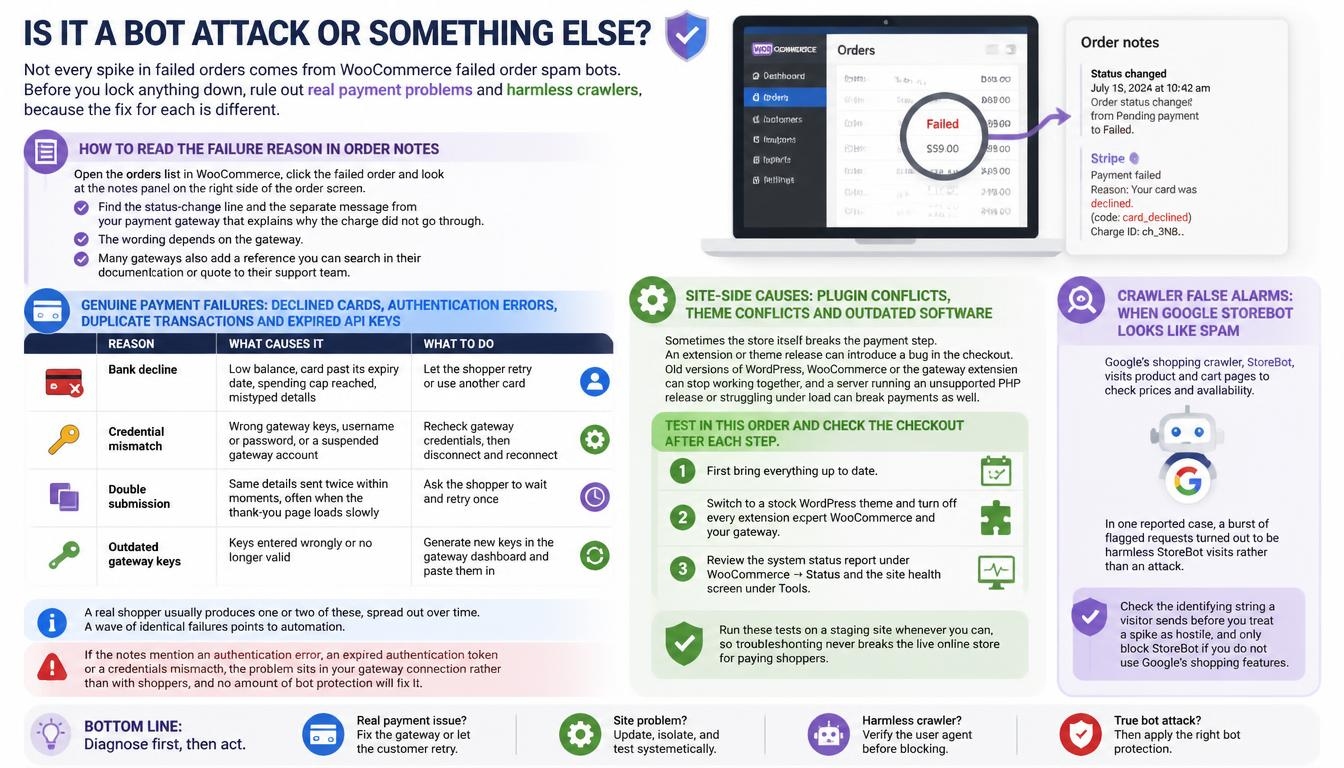
Not every spike in failed orders comes from WooCommerce failed order spam bots. Before you lock anything down, rule out real payment problems and harmless crawlers, because the fix for each is different.
How to Read the Failure Reason in Order Notes
Open the orders list in WooCommerce, click the failed order and look at the notes panel on the right side of the order screen. Find the status-change line and the separate message from your payment gateway that explains why the charge did not go through.
The wording depends on the gateway. Many gateways also add a reference you can search in their documentation or quote to their support team.
Genuine Payment Failures: Declined Cards, Authentication Errors, Duplicate Transactions and Expired API Keys
| Reason | What causes it | What to do |
| Bank decline | Low balance, card past its expiry date, spending cap reached, mistyped details | Let the shopper retry or use another card |
| Credential mismatch | Wrong gateway keys, username or password, or a suspended gateway account | Recheck gateway credentials, then disconnect and reconnect |
| Double submission | Same details sent twice within moments, often when the thank-you page loads slowly | Ask the shopper to wait and retry once |
| Outdated gateway keys | Keys entered wrongly or no longer valid | Generate new keys in the gateway dashboard and paste them in |
A real shopper usually produces one or two of these, spread out over time. A wave of identical failures points to automation.
If the notes mention an authentication error, an expired authentication token or a credentials mismatch, the problem sits in your gateway connection rather than with shoppers, and no amount of bot protection will fix it.
Site-Side Causes: Plugin Conflicts, Theme Conflicts and Outdated Software
Sometimes the store itself breaks the payment step.
An extension or theme release can introduce a bug in the checkout. Old versions of WordPress, WooCommerce or the gateway extension can stop working together, and a server running an unsupported PHP release or struggling under load can break payments as well.
Test in this order and check the checkout after each step. First bring everything up to date, then switch to a stock WordPress theme and turn off every extension except WooCommerce and your gateway. Finally, review the system status report under WooCommerce → Status and the site health screen under Tools.
Run these tests on a staging site whenever you can, so troubleshooting never breaks the live online store for paying shoppers.
Crawler False Alarms: When Google StoreBot Looks Like Spam
Google’s shopping crawler, StoreBot, visits product and cart pages to check prices and availability. In one reported case, a burst of flagged requests turned out to be harmless StoreBot visits rather than an attack. Check the identifying string a visitor sends before you treat a spike as hostile, and only block StoreBot if you do not use Google’s shopping features.
6 Warning Signs of WooCommerce Failed Order Spam Bots
WooCommerce failed order spam bots leave a recognizable trail. One sign alone can be a coincidence; three or more together strongly suggest automation.
Unknown Origin in Order Attribution Data
WooCommerce records where each buyer came from, such as search, email or social media. Orders sent straight to the checkout API never pass through the storefront, so their origin shows as “Unknown” and the device type is often blank. Check the Origin column in the orders list first, but remember that express wallet payments and some custom checkout layouts can also show “Unknown”, so combine this sign with the others.
5+ Failed Orders Inside a 10-Minute Window
Real declines are usually spread across the day. A rule of thumb commonly shared by store owners is that five or more failures within ten minutes, especially overnight, point to a script cycling through cards.
Clusters like this tend to reuse the same payment methods and arrive through rotating IPs, which sets them apart from ordinary payment errors.
Disposable, Generated and Sequential Email Addresses
Watch for addresses that come from throwaway inbox services, random strings at free mail providers, or names that differ only by a number. Several of these in a row are rarely a coincidence.
These auto-generated names and random email addresses often sit beside nonsense contact details and fake addresses in the same order, a mix fraudsters use because it costs nothing to produce.
The Same Cheap Product Ordered by Different “Customers”
Store owners commonly report that scripts pick their lowest-priced item, likely because a small charge is less likely to trigger a fraud alert. Many orders for one inexpensive product, each under a different name and card, point to a card validation attack.
Missing or Identical Device and Browser Fingerprints
Real shoppers use different phones, laptops and browsers. Script orders often have no device type at all, or show the exact same display size and browser build across many orders, with only one page viewed before checkout.
A user agent string that never changes across dozens of orders is a classic trace of non-human user agents at work.
Repeated IPs, Devices and Odd Card BIN Patterns
Many attempts from one IP address or one device are an obvious flag. So are card numbers from unrelated issuing banks appearing in quick sequence, since the first six digits, the BIN, show the issuer. One device registering several accounts under different addresses completes the pattern.
Watch for repeat offenders as well: the same card fishing bot often comes back through IP rotation while keeping the same shipping details.
Where to Investigate: Orders List, Gateway Logs, WooCommerce Logs and Server Logs
| Where | How to open it | What to look for |
| Orders list | The orders screen, failed view | Clusters by time, unknown origin, repeated items |
| Gateway dashboard | Your processor’s transaction log | Repeated declines, similar card ranges |
| WooCommerce logs | The Logs tab under WooCommerce’s Status screen | Gateway errors for each attempt |
| Hosting logs | Your host’s access log | Many POST requests to the checkout API from few addresses |
| Edge firewall | Your firewall’s event log | Challenged or blocked requests on checkout paths |
Emergency Lockdown: Stop an Active Bot Attack in 30 Minutes
When alerts arrive faster than you can read them, WooCommerce failed order spam bots are already inside your checkout. Work through these steps in order. Every one of them can be reversed once the wave stops.
Think of these steps as emergency preparation: each one buys time while attack pattern analysis and longer-term prevention measures turn your shop into a hardened store.
Step 1: Turn On Cloudflare Under Attack Mode (2 Minutes)
If your domain runs through Cloudflare, open Security → Settings and raise the security level to “I’m Under Attack”. Every visitor then sees a short browser check before the site loads. Real browsers pass it automatically, and most scripts cannot. Expect a brief extra screen for shoppers while it is on.
The mode works through JavaScript challenges placed in front of every page, including /wp-login.php and /my-account/, so while it is on it also slows brute-force attacks and fake registrations.
Step 2: Disable Guest Checkout (3 Minutes)
Go to WooCommerce → Settings → Accounts & Privacy and untick “Enable guest checkout” (older versions label it “Allow customers to place orders without an account”). Scripts that rely on fast anonymous attempts lose their easiest path. You can turn it back on later if your other layers hold.
Step 3: Pause the Targeted Payment Gateway (2 Minutes)
Open WooCommerce → Settings → Payments and switch off the method being hit, which is often PayPal’s on-site card fields. Keep one well-protected method active so real buyers can still pay.
If you also take cards through Stripe, its machine learning fraud checks keep running while other methods are paused.
Step 4: Apply IP-Based Rate Limiting (5 Minutes)
If you have a firewall, add a rate limiting rule that caps checkout POST requests per IP address per minute and blocks offenders for a short period. Without a firewall, stores on the block checkout can go to WooCommerce → Settings → Advanced → Features and enable “Rate limiting Checkout block and Store API”, which limits Place Order requests to 3 per 60 seconds.
Step 5: Export, Then Bulk Delete Failed Orders (10 Minutes)
Export the failed orders to a CSV file before you remove anything. Names, emails, IPs and timestamps from that file will feed your blocklists later. Then clear the orders with one of the cleanup methods later in this guide.
That file doubles as attack documentation, because it records the attack duration, the total failed orders and the geographic source of the wave for your post-mortem analysis.
What Not to Do During a Live Attack
Don’t block whole regions you sell to, because attackers simply switch to new IP ranges while real buyers get locked out. Don’t switch off every payment method either, since you still need to take real orders. Finally, don’t treat the quiet afterwards as the end; build the six layers below before the next wave.
Layer 1: Edge Protection With Cloudflare and a Web Application Firewall
Edge protection is the strongest first layer against WooCommerce failed order spam bots, because it filters requests before they ever reach your hosting account. Scripted checkout traffic is stopped at the network edge, so WooCommerce never creates the order and your server never does the work.
Filtering at the edge also lowers web server strain and hosting costs, because blocked requests never use your server power, and it reduces the slow load times that come with a flooded checkout.
Enable Bot Fight Mode and Block AI Bots
In the dashboard, open Security → Bots (in the newer dashboard, Security → Settings, filtered by bot traffic). The free toggle there challenges known automated clients across the whole site. The switch next to it stops aggressive AI crawlers, which do not create orders but can eat server resources with large bursts of requests that bypass the cache.
Custom WAF Rules for Checkout, Cart and My Account Pages
Open Security → Security rules and create a rule that targets the pages scripts abuse most.
Match requests whose path contains checkout, cart or my-account, and also match the Store API checkout route used by the block checkout (wc/store) and the wc-ajax query string used by the classic checkout. Set the action to a challenge rather than a block so real shoppers can still get through. Deploy it, then watch the rule’s activity log for a day to confirm it is catching scripts and not buyers.
Pair the rule with velocity controls inside WooCommerce and your gateway, so a script that slips past the edge still meets a second throttle.
JS Challenge vs Managed Challenge on Checkout
| Challenge type | What the visitor sees | Best use |
| JavaScript check | A short automatic browser test that takes a second or two | Strict protection for the checkout during attacks |
| Managed (adaptive) check | Nothing for most visitors; an interactive test only when the platform suspects a script | Everyday protection with the least disruption |
An adaptive check is usually the better default. Switch to the stricter JavaScript check while a wave is running.
Both checks keep real humans moving while stopping most automated bots, and they add far less checkout friction than a visible puzzle.
Country and Region-Based Checkout Rules
If you only sell to a few countries, challenge checkout requests from everywhere else instead of blocking the whole site. That keeps product pages open for search crawlers and foreign visitors while making script attempts from outside your market much harder. Keep the rule narrow, and review it whenever you add a new shipping zone.
This approach suits domestic-only retailers best, while international retailers need nuanced geographic rules that match every market they serve.
Non-Cloudflare Options: AWS WAF, Sucuri, Hosting Firewalls and .htaccess
Amazon’s firewall service works with Amazon’s own delivery network and supports its own rule sets plus location matching. Website firewall vendors offer cloud firewalls with bot filtering and location rules for WordPress stores, and many managed WordPress hosts include built-in firewalls with bot filtering, so ask your host what is already active. On Apache-based hosting, server configuration rules can restrict paths by address, but address lists need constant upkeep and are far weaker than a cloud firewall.
Layer 2: Human Verification With CAPTCHA
A human check is the second barrier against WooCommerce failed order spam bots that slip past the edge. It asks each visitor to prove they are a person before an order, an account or a password change is accepted. Add it to the checkout, the account sign-up form and the sign-in form, and pick only one service so the widgets do not clash.
Human verification closes doors that brute-force bots and card testing bots depend on, and it cuts bot registrations and fake accounts created through the sign-up form.
How to Set Up Cloudflare Turnstile on WooCommerce
- In the Cloudflare dashboard, open Turnstile and create a new widget.
- Name it, add your store’s domain, and choose the “Managed” setting, which only shows a test when a visitor looks automated.
- Copy the public and private keys the dashboard generates.
- In WordPress, install a Turnstile integration plugin from the plugin directory and paste both keys into its settings.
- Enable it for the WooCommerce sign-in, sign-up and checkout forms, save, then place a test order to confirm the widget appears.
How to Set Up Google reCAPTCHA on Checkout and Registration
Sign in to Google’s admin console for the service and register a new site. Choose version 2 for a visible tick-box test or version 3 for an invisible score that runs in the background, then add your domain and copy the public and private keys. Install an integration plugin in WordPress, paste the keys and switch the test on for the checkout and account sign-up forms. Finally, load the checkout in a private window to confirm the test appears and orders still go through.
Whichever version you choose, keep rate limiting in place too, since solving services can carry advanced scripts past the test.
Turnstile vs reCAPTCHA vs hCaptcha Compared
| Feature | Turnstile | Google’s service | The image-puzzle alternative |
| Shopper experience | Usually invisible | Tick box (v2) or invisible score (v3) | Image tasks for flagged visitors |
| Privacy focus | Strong; no tracking for ads | Tied to Google’s network | Strong |
| Best fit | Stores already using Cloudflare | Stores already in Google’s tools | Stores that want a non-Google option |
No human check stops every script. Solving services and newer automation can pass some tests, so treat this layer as one part of the stack, not the whole defense.
That is why stores relying on a single widget still report spam orders and voided payments during heavy waves.
Layer 3: Checkout and Account Hardening in WooCommerce Settings
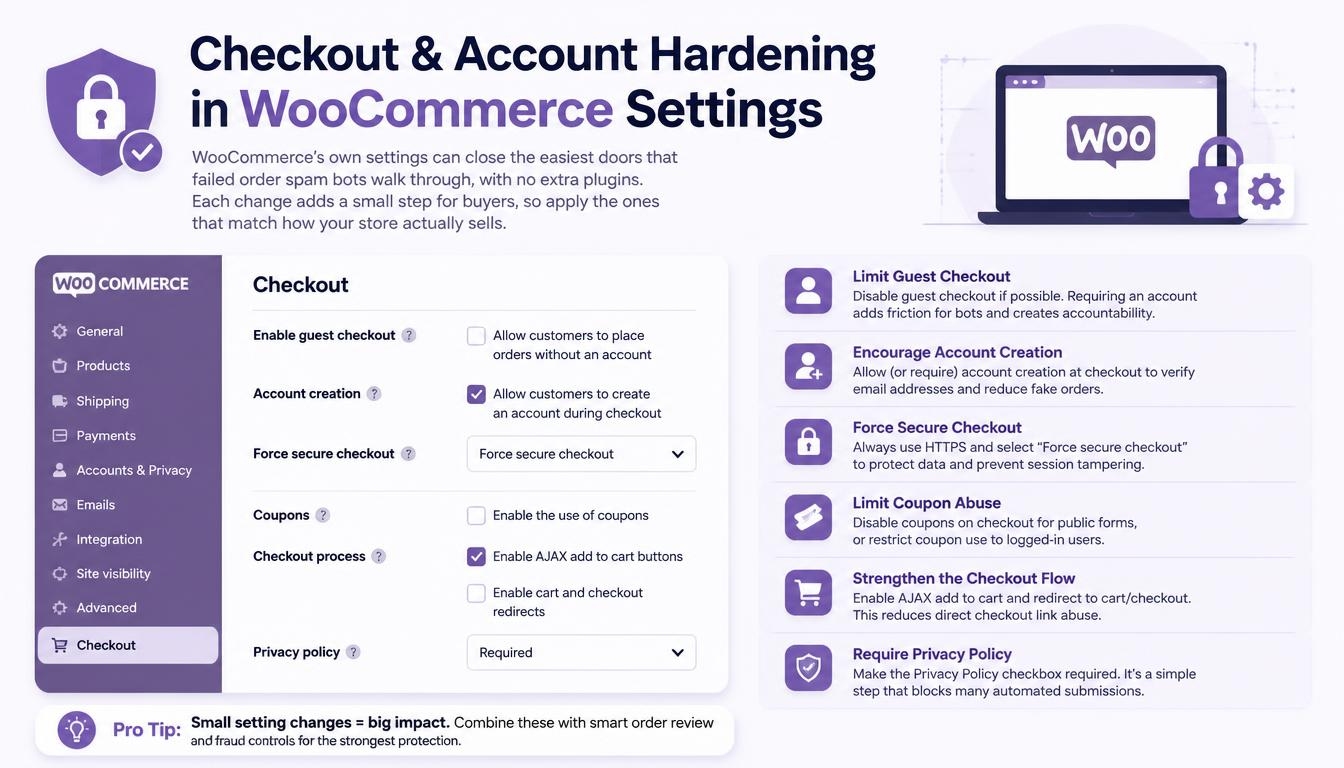
WooCommerce’s own settings can close the easiest doors that WooCommerce failed order spam bots walk through, with no extra plugins. Each change adds a small step for buyers, so apply the ones that match how your store actually sells.
Disable Guest Checkout or Require Login at Checkout
Go to WooCommerce → Settings → Accounts & Privacy and untick the option that lets shoppers buy without an account. Scripts can no longer fire anonymous orders, and every buyer leaves a profile you can review or ban.
Fewer anonymous orders also mean fewer junk orders, zero-value checkouts and fake COD requests reaching your team.
Keep the option that lets shoppers sign in during checkout switched on, so returning buyers are not slowed down. If many of your buyers purchase only once, pair this change with a human check rather than relying on it alone.
Restrict Selling and Shipping Locations
Under WooCommerce → Settings → General, limit the countries you sell to and ship to. Orders with billing or shipping addresses outside those countries are rejected at checkout, which removes a large share of random international addresses that scripts rotate through.
It also cuts international shipping exposure and limits the address rotation that scripts depend on.
Email Verification and Manual Review for High-Risk Orders
Ask new account holders to confirm their address through an emailed link before their first purchase. Set cash-on-delivery and unusually expensive orders aside for review by hand before you ship anything, and use the processing queue to check billing and shipping details on any order that looks out of pattern.
Before approving anything, check the billing address match, the customer account age and the order velocity of each new customer.
Secure the WordPress Login Page and Disable XML-RPC
Scripts that cannot buy anonymously often try to open accounts or break into existing ones next.
Limit repeated failed sign-in attempts so password guessing stops quickly, and move the admin sign-in screen to a less predictable address with a security plugin. Turn off XML-RPC if no app or service you use depends on it, because it lets scripts try many passwords in one request.
Together these steps reduce scripted login attempts and support website hardening across the whole site.
Layer 4: Code-Level Bot Detection Without Plugins
Small code snippets catch WooCommerce failed order spam bots that behave differently from browsers, at no cost and with no visible change for shoppers. Add them through a code snippets plugin or your child theme’s functions file, and test each one on a copy of the site first.
Code-level checks are useful when WordPress security plugins do not watch the open checkout endpoint at all.
Add an Invisible Honeypot Field to Checkout
A hidden trap field is invisible to people but visible to scripts that fill in every input they find. If the field arrives filled, the order is rejected. The example below works on the classic (shortcode) checkout; the block checkout needs an API-level check instead.
Because scripts fill every input they find, the trap catches checkout-based spam without showing anything to shoppers.
// Print a hidden trap field on the classic checkout
add_action( ‘woocommerce_after_order_notes’, function () {
echo ‘<p style=”display:none” aria-hidden=”true”><label for=”hp_company_site”>Company site</label><input type=”text” name=”hp_company_site” id=”hp_company_site” tabindex=”-1″ autocomplete=”off”></p>’;
} );
// Stop the order if the trap field was filled
add_action( ‘woocommerce_checkout_process’, function () {
if ( ! empty( $_POST[‘hp_company_site’] ) ) {
wc_add_notice( ‘We could not process this order.’, ‘error’ );
}
} );
Turn On WooCommerce Store API Rate Limiting
WooCommerce includes an optional request limiter for the Store API that is switched off until you enable it.
For the block checkout, turn on the checkout-only version under WooCommerce → Settings → Advanced → Features, which allows 3 Place Order requests per minute. Developers can enable the full version through an options filter; its default is 25 requests in 10 seconds, counted per user ID for signed-in buyers and per IP address for everyone else. If the store sits behind a proxy, load balancer or CDN, enable proxy support so the real visitor address is counted, and hook into the woocommerce_store_api_rate_limit_exceeded action to log the addresses that hit the limit.
Fingerprint Rate Limits With IP, User-Agent and Language
Scripts that rotate IP addresses can slip under a per-IP limit. WooCommerce provides a companion filter that groups requests by any value you choose, such as the browser identification header combined with the language header. A script that changes its address but keeps the same headers is then throttled as one visitor.
This helps against scripts that rotate addresses but keep sending the same browser version string.
Block REST API Orders Missing Browser Cookies
Real shoppers collect several cookie values while they browse: cart, session, consent and analytics. A script posting straight to the checkout API usually carries almost none. Pick one cookie your site always sets on the first page view, such as your consent banner’s, and reject Store API checkout requests that arrive without it. Confirm the cookie name in a private browser window first, and remember that some privacy tools strip stored values.
The check targets automated checkout requests sent straight to the API, which never visit a product page first.
Block Orders With Unknown Origin and No Device Type
WooCommerce stores attribution details on every order, including source type and device type. A rule that fails new orders whose origin is marked as unknown and whose device type is empty catches many API-only scripts. Use it with care. Orders paid through express wallets such as Apple Pay or Google Pay, and orders from some custom checkout layouts, can also arrive with no attribution. For that reason, many stores switch this rule on only during an attack.
Before switching it on, check what share of recent orders shows Origin: Unknown in the orders list, so you know how many real buyers it might catch.
Build an Automated Attack Detector and Checkout Lockdown
A small custom function hooked to the failed order status can count how many orders failed in the last minute. When the count passes a set limit, such as three, it closes checkout for a short period and emails you. Raise the limit on busy stores so a normal run of declines does not lock out real buyers.
It works best when you also review failed order patterns each week and adjust the limit to match your store.
Layer 5: Anti-Spam and Anti-Fraud Plugins
Plugins add a layer that sees inside WooCommerce: names, emails, order history and payment details. That makes them good at catching WooCommerce failed order spam bots that already passed the edge and the human check.
They also keep the records you need for attack pattern analysis and post-attack defenses.
Anti-Spam Plugins: CleanTalk, OOPSpam, Akismet and Wordfence
Cloud anti-spam services check each checkout and sign-up submission against a shared database of known spam sources and stop matches without showing shoppers a puzzle, so turn on every WooCommerce option the service offers, not just the defaults.
API-aware anti-spam tools go further by rejecting orders that arrive with no attribution or no device type, which targets script traffic sent straight to the checkout API. Akismet filters spam in forms and comments as a supporting layer, while Wordfence adds a site firewall, known bad-address blocking and protection for the sign-in screen.
Anti-Fraud Plugins With Risk Scoring and Order Holds
Anti-fraud plugins rate every order on several signals and act on high scores before you ship.
- Billing and shipping details that do not match.
- An IP location that differs from the billing country.
- How many orders one address placed in a short period.
- How new the account and its email domain are.
- An order value far above that buyer’s history.
High-scoring orders can be blocked outright or held so you can check them first.
Holding an order is safer than auto-approving it when stolen card data is involved, because a held order can still be cancelled before anything ships.
Blocklisting IPs, Email Domains and ZIP Codes
When the same sources keep returning, add them to a block list: single IP addresses, throwaway email domains and the postal codes scripts reuse. Keep the list narrow and start with the most obvious repeats, because broad address ranges can catch real buyers who share a network.
Build the first version of the list from your CSV export of past waves.
Free vs Premium Protection Plugins Compared
| Tool type | Free option | Paid option | Main job |
| Cloud anti-spam service | Limited monthly checks on some services | Higher or unlimited check volumes | Stop junk submissions at checkout and sign-up |
| Site security suite | Core firewall and sign-in protection | Faster threat-list refreshes | Block known bad addresses and password guessing |
| Anti-fraud plugin | Basic block lists | Order scoring, holds, reports | Catch stolen-card orders and repeat sources |
How to Avoid Security Plugin Conflicts
Two tools doing the same job can break the checkout or lock you out of your own admin. Choose one main security suite, turn off overlapping features in the others, and test a full order after every change. If your host ships its own security plugin, check whether it duplicates what you just installed.
Favor tools that stay light on database performance and do not slow the checkout page.
Layer 6: Payment Gateway Fraud Controls
Your payment processor sees every card attempt across thousands of merchants, so its own fraud tools can stop WooCommerce failed order spam bots before a charge goes through. Many stores leave these settings at their defaults, and that gap is what attackers count on.
Gateway rules also cut payment fees and protect your payment gateway reputation, because fewer bad attempts reach the card issuer.
Stripe Radar Rules That Stop Card Testing
Radar is built into every Stripe account, scores each payment for risk and blocks the top risk tier by default, so keep that default rule switched on.
Custom rules need the paid Radar for Fraud Teams upgrade. With it, you can block cards that fail the security code check, for example with Block if :cvc_check: = ‘fail’. You can also block repeat charges from one IP address within an hour and request 3DS authentication for regions or amounts you consider high risk.
Because Radar acts before the payment completes, many scripted attempts are declined at the gateway without extra cleanup in WooCommerce.
Radar can also reference lists, so blocked IP ranges and repeat email domains can be managed in one place.
PayPal Advanced Card Processing and 3D Secure
WooCommerce’s own documentation warns that card-testing scripts can send cards straight to the endpoint behind PayPal’s on-site card fields, skipping normal checkout checks. In the WooCommerce PayPal Payments plugin, require 3DS authentication on every card payment so stolen cards fail the issuer’s challenge.
If attacks continue, switch the on-site card fields off. Shoppers can still pay by card through PayPal’s own pop-up window, which scripts find much harder to abuse.
Velocity Controls on Authorize.net, Square and Braintree
Each of these processors includes its own fraud filters. Turn on the card security code check and the address check, set both to decline on failure, and add attempt limits per card and per IP address where the dashboard allows. A cap such as a handful of attempts from one address in a few minutes stops most automated cycling.
Set these filters so fraud alerts reach you by email, and review declined attempts in your payment gateway logs every week.
Gateway Fraud Settings at a Glance
| Processor | Where to look | Key settings to enable |
| Stripe | Radar → Rules | Keep the default top-tier block; add custom rules (paid upgrade) for failed security codes and 3DS |
| PayPal | WooCommerce PayPal Payments, advanced card settings | 3DS on every card payment; card fields off if attacks continue |
| Other card processors | Fraud or security section of the dashboard | Security code and address checks set to decline, attempt limits per card and IP |
How to Clean Up Thousands of Failed Spam Orders Safely
Clean up only after your defenses are in place. Otherwise WooCommerce failed order spam bots will refill the orders list within days. Before any method below, take a full backup of the site and export the failed orders to a spreadsheet file for your records.
Cleanup clears database clutter and shrinks bloated database tables, which speeds up admin screens and reports.
Method 1: Bulk Delete From the WooCommerce Dashboard
Open the orders screen in WooCommerce, switch to the failed status view and select every order on the page with the select-all box in the header row. Choose the trash action from the actions menu and apply it, then open the trash view and empty it to remove the orders for good.
This works for a few hundred orders. With thousands, the screen can stall, so use one of the methods below.
Method 2: WP-CLI or a Bulk Delete Plugin
WordPress’s command-line tool, run over SSH, can list every order with the failed status and remove them in one pass, with no browser screens to time out, and many hosts include it on their plans.
Bulk-cleanup plugins are the alternative: they filter orders by status and remove them in smaller groups, which avoids overloading the server. Remove the plugin when the job is done.
On managed hosting, ask hosting provider support whether command-line access is part of your plan.
Method 3: SQL Cleanup With Backup and Staging
Direct database queries are the fastest option for very large volumes, and the riskiest.
Run the queries on a copy of the site first, never straight on the live store. Remove data in the right order (order item details, then order items, then order details, then the orders themselves) inside one transaction, so a failure rolls everything back.
Check your table prefix, which is not always wp_. Also check where your store keeps orders: stores using High-Performance Order Storage (HPOS) keep them in dedicated order tables rather than the older posts tables, so queries written for one layout miss the other.
If you are not comfortable with SQL, hand this method to a developer.
Cleanup Methods Compared: Speed, Risk and Skill Level
| Method | Best for | Speed | Risk | Skill needed |
| Dashboard | Up to a few hundred orders | Slow | Low | None |
| Cleanup plugin | Hundreds to a few thousand | Medium | Low | Basic |
| Command line | Thousands | Fast | Medium | Intermediate |
| Direct SQL | Tens of thousands | Fastest | High | Advanced |
Post-Attack Recovery and Long-Term Monitoring
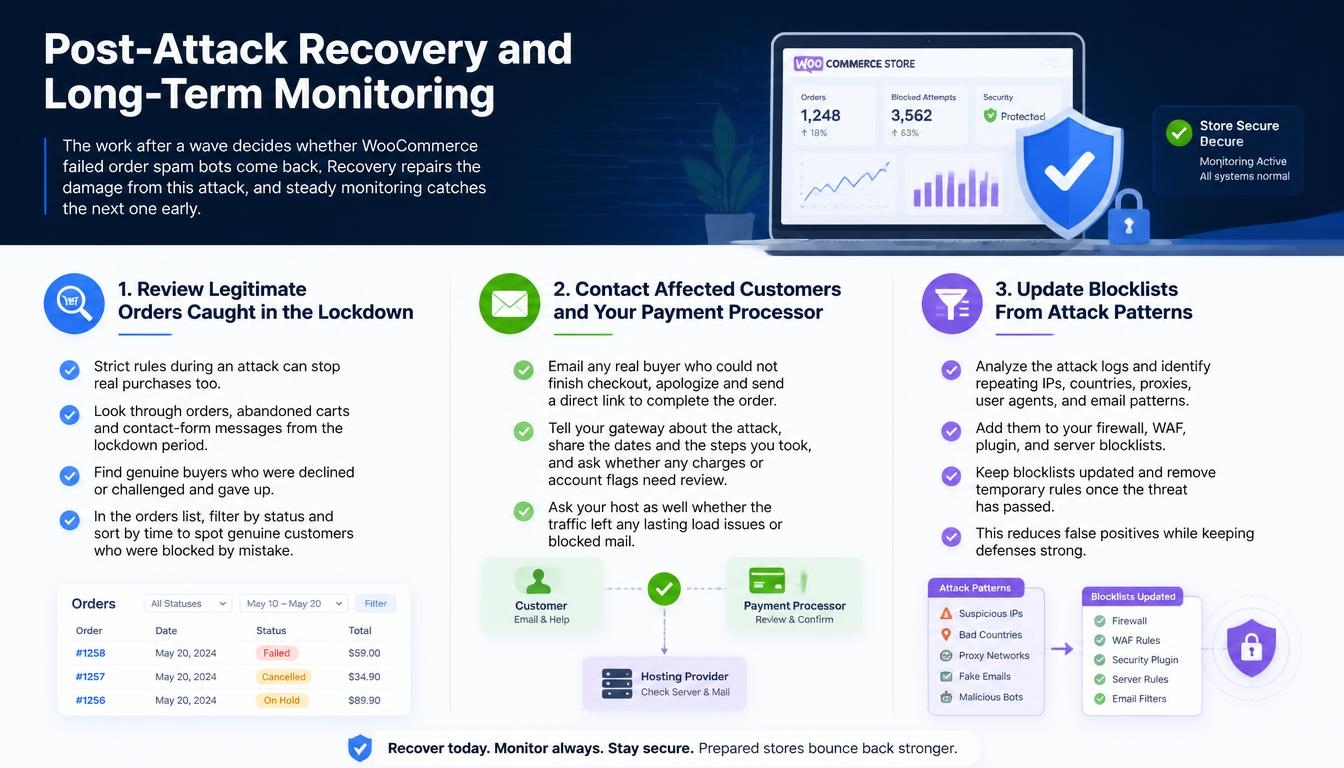
The work after a wave decides whether WooCommerce failed order spam bots come back. Recovery repairs the damage from this attack, and steady monitoring catches the next one early.
Review Legitimate Orders Caught in the Lockdown
Strict rules during an attack can stop real purchases too. Look through orders, abandoned carts and contact-form messages from the lockdown period, and find genuine buyers who were declined or challenged and gave up.
In the orders list, filter by status and sort by time to spot genuine customers who were blocked by mistake.
Contact Affected Customers and Your Payment Processor
Email any real buyer who could not finish checkout, apologize and send a direct link to complete the order. Tell your gateway about the attack, share the dates and the steps you took, and ask whether any charges or account flags need review. Ask your host as well whether the traffic left any lasting load issues or blocked mail.
Update Blocklists From Attack Patterns
Use the export you made before cleanup. Sort it by email domain, IP address and product, and add the repeat sources to your firewall and anti-fraud deny lists. Remove broad entries later if they start catching real shoppers.
Keep your email blocklisting and IP entries in one shared list so every tool works from the same data.
Weekly Failed Order Monitoring Checklist
- Filter the orders list by failed status and look for bunches of failures close together.
- Check whether one payment method is taking most of the declines.
- Look for billing countries you do not ship to.
- Look for one item showing up again and again in failed orders.
- Review your firewall’s challenge and block counts for checkout paths.
Server Log and Email Domain Pattern Analysis
If you can read your host’s access logs, count requests to the Store API checkout route by IP address. A real shopper sends a few; an address sending dozens is a script. Export failed orders to a spreadsheet and split each email at the @ sign to count domains. Domains that keep appearing with numbered usernames belong on your deny list.
Also watch for suspicious traffic patterns, a repeated device fingerprint and the same customer name across many failed orders.
Quarterly Checkout and Defense Testing
Test your protection before attackers do. Send a quick burst of checkout requests from a test tool and confirm your limits kick in. Place a real test order on a phone and a laptop, in the main browsers, from inside and outside your selling countries. Then confirm real orders still complete and alerts still reach you.
Test every payment gateway plugin and the full confirmation page flow, not only the card form.
Keep WordPress, WooCommerce, Themes and Plugins Updated
Old software is the easiest way in. Turn on automatic updating for plugins and themes you trust, apply WordPress and WooCommerce releases promptly after a quick test, and remove extensions you no longer use. Protect admin accounts with long unique passwords and 2FA, and keep tested off-site backups.
Updates close the site vulnerabilities that scripts scan for, and removing unused extensions shrinks the attack surface.
Write an Attack Response Playbook
A one-page plan turns a panic into a routine.
List your contacts first: host, gateway and developer, with their fastest support channels. Add the five lockdown steps from this guide with links to each setting, then the recovery steps: export, clean up, review genuine orders, message buyers and update deny lists. Close with a short review section that records when the wave started and ended, how many orders it created, which methods and regions it used, what it cost and what you changed afterwards.
Choosing the Right Defense Stack for Your WooCommerce Store
There is no single tool that stops WooCommerce failed order spam bots on its own. The right mix depends on how many orders you process, how often you are attacked and how much technical help you have.
The realistic goal is sufficient deterrence: make your store slower and costlier to attack than the next one, instead of chasing a store no script can touch.
Recommended Security Stack by Store Size
| Store size | Edge layer | Checkout layer | Plugins | Gateway |
| Small store, low order volume | Free edge plan with the bot toggle on | A human check on checkout plus a hidden trap field | A free anti-spam service | Default fraud tools switched on |
| Growing store, regular orders | Paid edge plan with request throttling rules | Human check plus API-level code checks | Paid anti-spam service plus a risk-scoring plugin | Custom risk rules and 3DS for risky payments |
| High-volume store | Business-grade edge plan with support | All checkout checks plus an automatic checkout lockdown | Risk scoring, block lists and reporting | Full rule set reviewed every month |
Start with the free layers, then upgrade the layer that keeps letting attacks through.
Revisit the stack during quarterly security reviews, and move up a tier when high spam volumes start costing more than the upgrade.
Checkout Friction vs Conversion Rate: Finding the Balance
Every check adds a small step for buyers, and every step can cost a few sales. Skipping them all costs more: cleanup hours, gateway charges and the risk of losing your merchant account.
Put checks where scripts strike, such as checkout and account sign-up, and keep product browsing open. Prefer invisible checks that only challenge suspicious visitors, tighten rules during an attack and relax them when things are quiet. Then compare completed orders before and after each change, and roll back anything that hurts real buyers without stopping scripts.
Track cart abandonment and customer experience feedback after each change so you can see the real cost of every check.
Frequently Asked Questions
Can WooCommerce failed order spam bots bypass CAPTCHA?
Yes, some can. Solving services and newer automation get past a share of human checks, so a challenge widget works best combined with edge filtering, a hidden trap field, request throttling and gateway fraud rules.
Adding IP blocklisting and a Stripe Radar or PayPal 3D Secure rule narrows the remaining gap.
What is the difference between a spam order and a fraudulent order?
A spam attempt is junk that scripts submit to clutter or probe a store, and it is not meant to be paid. A stolen-card purchase uses a working card that belongs to someone else, so it can succeed and later turn into a dispute, a refund and lost goods.
Stolen-card purchases often show mismatched billing and shipping addresses, while junk attempts lean on disposable email services.
Will blocking IPs or countries stop real customers from buying?
It can, if rules are too broad. Block single addresses that keep returning, challenge checkout traffic from outside your market instead of blocking whole regions, and check completed orders after every change.
Prefer geolocation filtering on checkout and rate limiting rules over blanket bans.
How do I delete all failed orders in WooCommerce at once?
Filter the orders list to the failed status, select every order on the page, send them to the trash and then empty it. For thousands of orders, use WordPress’s command-line tool or a tested database query on a copy of the site, after a full backup.
Does a flood of failed orders mean my site is hacked?
Usually not. These waves use your public checkout exactly as it was built, so nobody needs access to your admin area. It is still worth running a security scan and checking your admin user list for accounts you do not recognize.
Scanning your files for malicious scripts confirms that nothing was planted on the site.
Why do bots choose the cheapest product in my store?
A small charge is less likely to trigger the cardholder’s bank or your gateway’s fraud filters, and it still proves whether a card works. That is why many store owners report waves of failed orders for their lowest-priced item.
Small charges also keep fraud alerts quiet while helping scripts sort valid cards from dead ones.
What does each WooCommerce order status mean?
An awaiting-payment order exists, but no money has arrived yet. In an unsuccessful-payment order, a charge was attempted and then declined or returned an error. A paid order moves into preparation, an order paused for checks needs action from you (such as confirming a bank transfer), and a finished order needs nothing more from you. Orders can also be cancelled, refunded or left as a draft when a block checkout session never finishes.
Does WooCommerce email customers when an order fails?
No. Out of the box, the unsuccessful-order message goes only to the shop owner’s address set under WooCommerce → Settings → Emails. To tell buyers about a declined payment, use an email automation extension.
Why is my WooCommerce checkout page endlessly loading?
A script error on the page is the most common cause, usually two extensions or the site design loading code that clashes. Open your browser console to see the error, then test with only WooCommerce and your gateway active.
Do WooCommerce Subscriptions retry failed payments automatically?
Yes. The official recurring-billing extension can try a failed renewal again on a schedule you control. If every try fails, the plan is paused or ended.
Shoppers can avoid missed renewals by keeping their saved cards up to date.
Read More: https://linkneon.com/wordpress-support-plans/
Conclusion
WooCommerce failed order spam bots treat your checkout as a free testing ground, and the cost lands on your server, your gateway account and your time. The fix is not one plugin but a sequence: confirm it is really an attack, lock down fast, then build six layers from the network edge to the payment gateway.
Edge protection stops most scripted traffic before WooCommerce sees it, while human verification and checkout hardening close the easy entry points. Code-level checks and protection plugins catch what slips through, and gateway fraud rules decline bad cards before a charge completes.
Bot tactics keep changing, so follow security advisories from WooCommerce and your gateway, read the WooCommerce Developer Blog, and watch community spaces such as r/woocommerce and the WooCommerce Community Slack for new attack campaigns.
Pair those layers with careful cleanup, a written response plan and weekly checks, and WooCommerce failed order spam bots will find your store far harder to use than the next one on their list.