

To customize a WordPress theme means changing how your website looks and works without building a new theme from scratch. You can adjust the color palette, typography, header, footer, page layout and templates from the WordPress dashboard, and the tools you use depend on whether your site runs a block theme or a classic theme.
This guide explains every practical way to customize a WordPress theme, from the no-code Site Editor and Customizer to child themes, custom CSS and page builders. You will also learn what to prepare before you start, how to keep your changes safe after a theme update, and which mistakes slow your site down.
What Does It Mean to Customize a WordPress Theme?
A WordPress theme controls the presentation of your site, while your posts, pages and media are stored separately in the database. When you customize a WordPress theme, you change that presentation layer and leave your content untouched.
A theme usually controls these areas:
- Visual style: the color scheme, fonts, spacing and buttons
- Site structure: the header, footer, sidebar and navigation menus
- Templates: the homepage, single post, archive page and 404 page
- Features: extra functions a theme adds through its functions.php file
Customizing is also different from switching themes. Switching replaces the entire design, while customizing keeps the theme’s code and adjusts its settings, styles and templates. This saves time and keeps the familiar user interface that returning visitors already recognize.
Why Customize a WordPress Theme?
A theme gives every site the same starting point, so thousands of websites can look alike out of the box. When you customize a WordPress theme, you turn that shared starting point into a design that fits your brand, your audience and your goals.
- Brand identity: your logo, colors and fonts make the site instantly recognizable.
- User experience: clear menus and layouts help visitors find what they need faster.
- Accessibility: readable text sizes and strong contrast make the site usable for more people.
- Conversions: well-placed buttons and forms turn visitors into leads or customers.
- Campaigns and seasons: temporary banners or color accents support launches and holiday sales.
Keep in mind that a theme controls design, while new features usually come from plugins. If you need a booking system, an online store or a contact form, add a plugin for that job and use the theme only to make it look consistent with the rest of the site.
Block Theme vs Classic Theme: Check Which One You Have
Open Appearance in your dashboard. If you see Editor, you are running a block theme; if you see Customize, you are running a classic theme. As of October 2026, Twenty Twenty-Five is still the default WordPress theme and it is a block theme. WordPress skipped a Twenty Twenty-Six theme, and Twenty Twenty-Seven is planned for WordPress 7.2, with release targeted for December 2026.
| Feature | Block theme | Classic theme |
| Main customization tool | Site Editor (Appearance > Editor) | Customizer (Appearance > Customize) |
| Site-wide colors and fonts | Global Styles | Customizer panels (vary by theme) |
| Header and footer | Template parts built with blocks | Theme options in the Customizer |
| Menus | Navigation block | Appearance > Menus |
| Widgets | Blocks placed inside templates | Appearance > Widgets |
| Custom CSS | Styles > Additional CSS | Customizer > Additional CSS |
| Theme file editor | Tools > Theme File Editor | Appearance > Theme File Editor |
Knowing your theme type is the first step, because it decides which method you use to customize a WordPress theme.
Some themes are hybrid themes, which stay classic but borrow block features such as theme.json or block template parts. If your dashboard shows Customize along with some block options, check the theme’s documentation, because hybrid themes split their settings between the Customizer and the block editor.
What to Do Before You Customize a WordPress Theme
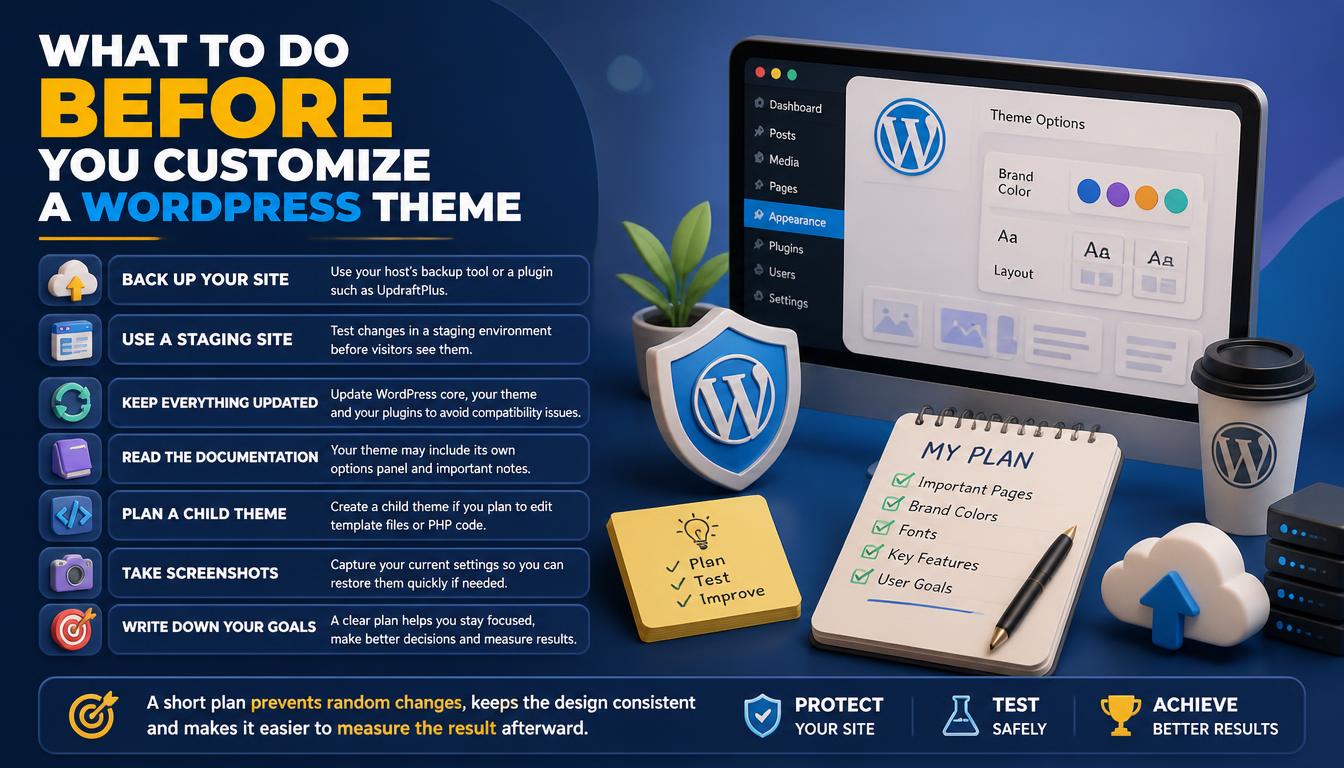
A few minutes of preparation protects your live site from broken layouts and lost work.
- Back up your site with your host’s backup tool or a plugin such as UpdraftPlus.
- Use a staging site so you can test changes before visitors see them.
- Update WordPress core, your theme and your plugins to avoid compatibility issues.
- Read your theme’s documentation, because many themes add their own theme options panel.
- Plan a child theme if you intend to edit template files or PHP code.
- Take screenshots of your current settings so you can restore them quickly.
Write down your goals before you start. Decide which pages matter most, which brand colors and fonts you need, and which features visitors actually use. A short plan prevents random changes, keeps the design consistent and makes it easier to measure the result afterward.
5 Ways to Customize a WordPress Theme
Each method suits a different skill level and theme type. Start with the simplest option that does the job.
Many site owners combine two or three of these methods. For example, you might set Global Styles in the Site Editor, fix one detail with Additional CSS and add a small function through a child theme. The right mix keeps your site flexible and easy to maintain.
1. Use the Site Editor (Block Themes)
The Site Editor gives you visual control over every part of a block theme, including headers, footers and templates, without code.
- Go to Appearance > Editor.
- Open Styles to change site-wide colors, typography and layout.
- Open Templates to edit the homepage, single post or archive design.
- Open Patterns to edit reusable template parts such as the header and footer.
- Click Save to publish your changes.
Global Styles requires a block theme and WordPress 5.9 or higher. Color and typography style variations were added in WordPress 6.6, so you can switch preset palettes and font pairs in one click.
The Site Editor also includes a Style Book, which previews every block with your current styles in one view. Use it to check headings, buttons, quotes and lists together before saving, so you catch spacing or color problems across the whole site at once.
2. Use the WordPress Customizer (Classic Themes)
The Customizer shows a live preview while you edit, which makes it the easiest way to customize a WordPress theme that does not support full site editing.
- Go to Appearance > Customize.
- Edit Site Identity to add your logo, site title, tagline and site icon.
- Adjust Colors, Menus, Widgets and Homepage Settings.
- Add small style changes in Additional CSS.
- Click Publish, or use Save Draft and Schedule to publish later.
The options you see depend on your theme, so a theme like Astra shows far more panels than a basic theme.
Customizer settings are stored as theme modifications for the active theme, so they do not carry over when you switch themes. A plugin such as Customizer Export/Import can save these settings to a file, which helps when you rebuild a site or move it to a new host.
3. Create a Child Theme
A child theme inherits everything from its parent theme and keeps your code changes safe when the parent theme updates. It is the safest way to customize a WordPress theme when you need to edit files.
- Create a new folder in wp-content/themes, for example astra-child.
- Add a style.css file with a header that names the parent theme in the Template line.
- Add a functions.php file that loads the parent stylesheet.
- Go to Appearance > Themes and activate the child theme.
/*
Theme Name: Astra Child
Template: astra
*/
<?php
add_action( ‘wp_enqueue_scripts’, function() {
wp_enqueue_style( ‘parent-style’, get_template_directory_uri() . ‘/style.css’ );
} );
WordPress loads a template file from the child theme first and falls back to the parent theme when the file is missing.
Keep your child theme small and documented. Add a short code comment above each function and store the folder in version control such as Git. A tidy child theme is much easier to debug when the parent theme releases a major update.
4. Add Custom CSS
Custom CSS is the fastest way to fix one small detail, such as a button color or a hidden page title.
- In a block theme, go to Appearance > Editor > Styles, open the three-dot menu and choose Additional CSS.
- In a classic theme, go to Appearance > Customize > Additional CSS.
- Use your browser’s Inspect tool to find the right CSS selector before you write a rule.
.wp-block-button__link {
background-color: #1d6b8c;
border-radius: 6px;
}
Write CSS that is as specific as it needs to be, and no more. Short, clearly named selectors are easier to maintain than long chains. Group rules by area, such as header, content and footer, and delete old rules after a redesign so the stylesheet stays clean.
5. Use a Page Builder
A page builder lets you design pages with drag and drop. Popular options include Elementor, Divi Builder, Beaver Builder, Spectra and Kadence Blocks. Some builders also include a theme builder for headers, footers and templates, such as Elementor Pro’s Theme Builder and the Divi Theme Builder.
Before you commit to a page builder, check mobile editing, loading speed and how easily you could move content later. Page builders store layouts in their own format, so switching builders usually means rebuilding the affected pages.
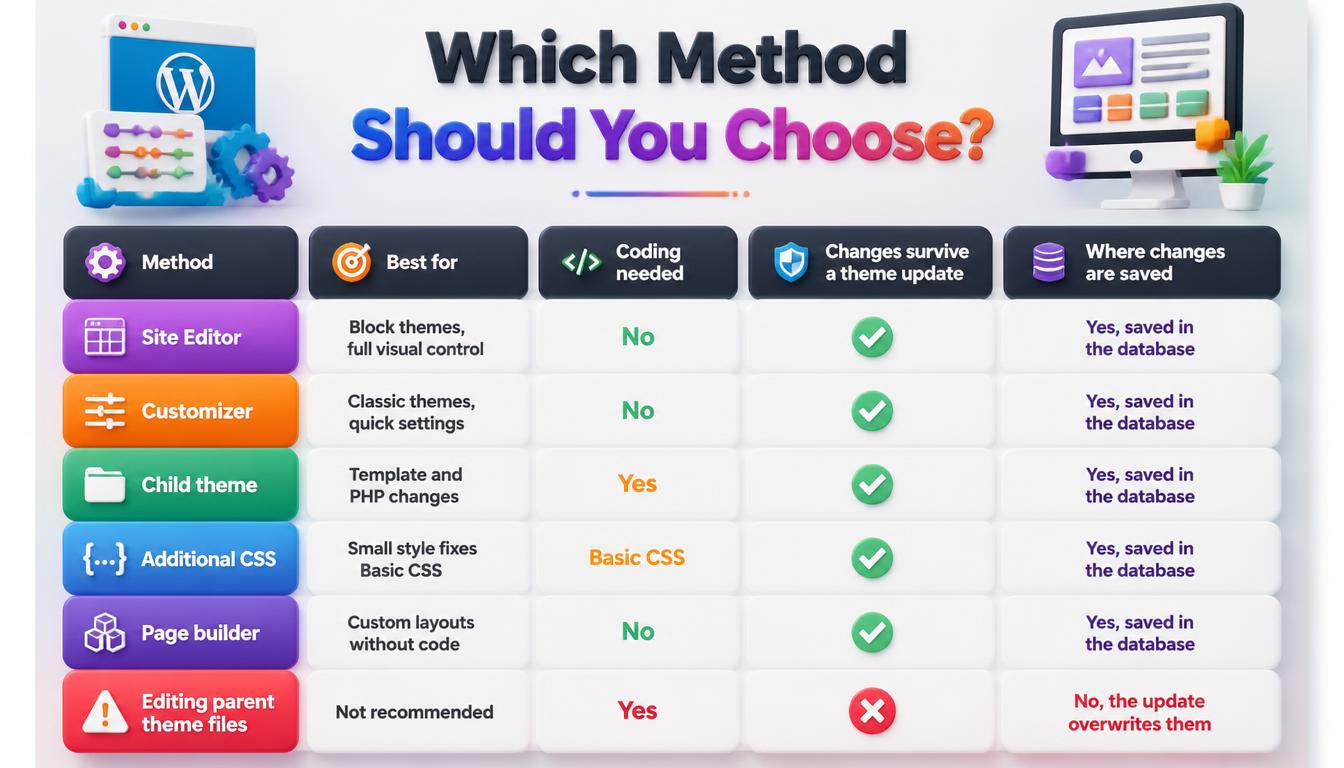
| Method | Best for | Coding needed | Changes survive a theme update |
| Site Editor | Block themes, full visual control | No | Yes, saved in the database |
| Customizer | Classic themes, quick settings | No | Yes, saved in the database |
| Child theme | Template and PHP changes | Yes | Yes |
| Additional CSS | Small style fixes | Basic CSS | Yes, saved in the database |
| Page builder | Custom layouts without code | No | Yes, saved in the database |
| Editing parent theme files | Not recommended | Yes | No, the update overwrites them |
If you are unsure, start with the built-in tool for your theme type. The Site Editor and the Customizer handle most design changes without any risk to your theme files. Move to code or a page builder only when a specific change cannot be done with them.
What You Can Change When You Customize a WordPress Theme
Most changes fall into six areas. Work through them in order, starting with site-wide settings and ending with individual pages. Changes to global colors, fonts and layout affect every page, while page-level changes only fix one screen at a time.
Header, Logo and Site Identity
- Upload a logo and a site icon of at least 512 × 512 pixels.
- Change the header layout, or add a sticky or transparent header.
- Add a call-to-action button to the header.
Keep the header light. A clean header with a logo, a short menu and one button loads faster and is easier to use than a crowded one. Many themes also let you choose a different mobile header layout for small screens.
Colors and Fonts
- Set a brand color palette in Global Styles or the Customizer.
- Pair one heading font with one body font for clean readability.
- Keep text contrast at 4.5:1 or higher for normal text.
Limit your palette to a primary color, an accent color and neutral shades for text and backgrounds. Record each HEX code in a simple style guide, so every page, button and graphic uses the same values and your brand stays consistent.
Layout and Spacing
- Choose a full-width layout or a boxed layout.
- Adjust content width, padding and margins.
- Remove or add a sidebar on specific pages.
Match the width to your content type. Long articles read best in a narrower column, while landing pages, portfolios and product grids benefit from a full-width layout. Many themes let you set a different layout for posts, pages and archives.
Menus and Navigation
- Edit the Navigation block in a block theme, or Appearance > Menus in a classic theme.
- Set up a mobile menu and a dropdown menu.
Keep the main menu short so visitors can scan it quickly. Group related pages under dropdown menus, place important actions such as Contact at the end, and move legal pages and secondary links to a footer menu.
Homepage, Blog and Shop Pages
- Choose a static front page or your latest posts in Reading Settings.
- Edit the blog layout, featured images and post meta.
- Style WooCommerce shop, product and cart pages.
Each of these page types uses its own template, so a change to the blog layout does not affect the shop or the homepage. In block themes, find them under Templates in the Site Editor; in classic themes, look for Blog or WooCommerce panels in the Customizer.
Footer
- Add footer widgets, social icons and contact details.
- Replace the default copyright text with your own.
The footer is also a good place for trust signals, such as business hours, a short address and a link to your privacy policy. Keep it organized in a few clear columns so visitors can find information quickly.
How to Customize a WordPress Theme Without Losing Changes
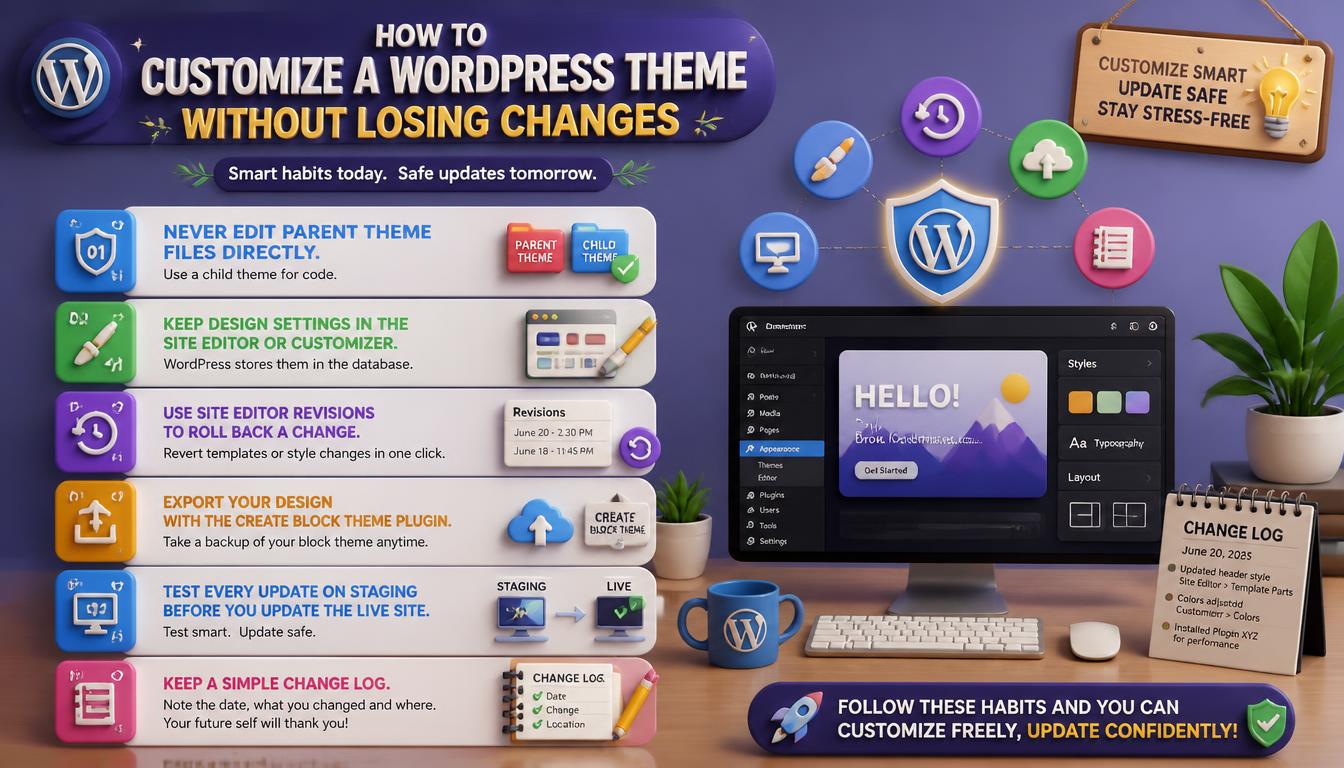
Theme updates replace the theme’s files, so changes you make inside those files disappear. Use these habits to customize a WordPress theme safely:
- Never edit parent theme files directly. Use a child theme for code.
- Keep design settings in the Site Editor or Customizer, because WordPress stores them in the database.
- Use Site Editor revisions to roll back a template or style change.
- Export your design with the Create Block Theme plugin when you finish a block theme.
- Test every update on staging before you update the live site.
Keep a simple change log as well. Note the date, what you changed and where you changed it. If a problem appears weeks later, this record shows exactly which setting, file or plugin to check first.
Why You Should Avoid the Theme File Editor
WordPress includes a Theme File Editor, under Appearance in classic themes and under Tools in block themes, that lets you change theme code directly in the dashboard. It looks convenient, but it is the riskiest way to customize a WordPress theme.
- There is no undo button, so one typo in PHP can lock you out of the dashboard.
- Edits to a parent theme are erased by the next theme update.
- The editor keeps no version history to compare old and new code.
Make code changes on a local development copy of your site instead, using a free tool such as Local, or on a staging site created by your host or a plugin like WP Staging. Test the change there, then copy it into a child theme on the live site.
Common Mistakes to Avoid
- Using too many fonts. Two font families are usually enough.
- Ignoring mobile view. Preview every change on mobile, tablet and desktop.
- Adding heavy plugins for small changes. A few lines of CSS often replace a whole plugin.
- Editing functions.php on a live site. One PHP syntax error can cause a critical error.
- Forgetting accessibility. Low color contrast and tiny text hurt user experience.
Another common mistake is copying code from random tutorials without understanding it. Outdated snippets can conflict with current WordPress versions or with your theme. Use code from trusted sources, such as the official WordPress Developer Resources.
Theme Customization and Site Speed
Every font, script and animation you add affects page speed. Google measures real-user experience with Core Web Vitals.
| Core Web Vital | What it measures | Good score |
| Largest Contentful Paint (LCP) | Loading speed of the main content | 2.5 seconds or less |
| Interaction to Next Paint (INP) | Response time to clicks and taps | 200 milliseconds or less |
| Cumulative Layout Shift (CLS) | Visual stability while loading | 0.1 or less |
- Host Google Fonts locally or use system fonts.
- Compress images and serve them in WebP format.
- Avoid loading a page builder on pages that do not need it.
Measure speed before and after major design changes with PageSpeed Insights, which shows Core Web Vitals from real users when enough data exists. If a new font, slider or script slows the page, replace it with a lighter option.
Frequently Asked Questions
Can I customize a WordPress theme without coding?
Yes. The Site Editor, the Customizer and page builders let you change colors, fonts, layouts, headers and footers with no code.
Will I lose my changes when I update my theme?
Settings saved in the Site Editor, Customizer and Additional CSS stay in the database and survive updates. Edits made directly inside the parent theme’s files are overwritten.
Do I need a child theme?
You need a child theme only when you edit template files or PHP. For colors, fonts and layout settings, the built-in tools are enough.
Why can’t I find Appearance > Customize?
You are probably using a block theme. Block themes replace the Customizer with the Site Editor under Appearance > Editor.
Is it allowed to customize a WordPress theme I bought?
Yes. Themes listed in the WordPress.org directory use the GPL license, which allows you to modify them. For premium themes, check the license terms from the seller.
Can I customize a WordPress theme on WordPress.com?
Yes. WordPress.com sites can use the Site Editor and Global Styles, but some features, such as installing plugins, uploading custom themes or adding custom CSS, depend on your plan.
Read More: https://linkneon.com/wordpress-migration-services/
Final Thoughts
You can customize a WordPress theme at any skill level. Start with the Site Editor or Customizer for colors, fonts and layout, add custom CSS for small details, and move to a child theme only when you need code. Back up first, test on staging, and check your Core Web Vitals after each major change.
Treat customization as an ongoing process. Review your theme settings after each major WordPress release, because new versions often add design tools, such as style variations or the Font Library, that can replace custom code or extra plugins your site relies on today.