

Most people don’t think about their WordPress files until something goes wrong. A page starts sending visitors to a spam site, a paid PDF turns up on some forum, or your host emails to say your account has been suspended. Knowing how to protect WordPress files is what keeps you out of that mess. It really comes down to three questions: which files hold your sensitive data, who can reach them, and what stops a stranger from opening, changing, or downloading them. Your configuration file stores your database credentials. Your Media Library holds every image and PDF you’ve ever uploaded. Your plugins run code every time a page loads. Leave even one of these open, and a small gap can end in a full takeover of your website.
In this guide, I’m going to walk you through how to protect WordPress files one step at a time. We’ll start with file permissions and your wp-config.php, then cover blocking direct file URLs, switching to HTTPS, picking safer hosting, and setting up backups and monitoring. You’ll also get copy-and-paste rules for Apache and Nginx, a review list you can run through today, and answers to the questions site owners usually ask.
Why Protecting WordPress Files Matters More Than Ever
WordPress runs a huge part of the web, and that’s exactly what makes it a target. As of October 2026, it powers about 40% of all websites. With that many sites on one platform, a single bot can scan millions of them for the same weakness in one go. The number of weak spots keeps climbing, too: 11,334 new security flaws turned up across the WordPress ecosystem in 2025, 42% more than the year before.
Most attacks aren’t clever. Someone finds an old plugin, a reused password, or a file you forgot about, and uses it to slip a malicious script onto your server. What happens next depends on your file protections. Can that script run? Can it read your database? Can it leave a backdoor behind? That’s why there’s no single answer to how to protect WordPress files. You need a few layers, so if one gives way, the next one catches it.
Then there’s the problem nobody thinks of as hacking at all. Everything you upload is public by default, so anyone with the link can open the file. If you sell digital products, run online courses, or send confidential documents to clients, one shared URL is all it takes for your paid work to end up everywhere.
The WordPress Files and Folders Attackers Target First
Before you start changing settings, it helps to know where the trouble actually comes from. That’s a big part of how to protect WordPress files without wasting your effort, and the answer is rarely WordPress itself. Of the 7,966 new flaws logged in 2024, 96% were in plugins, 4% were in themes, and only seven were in the core software. About a third of them still had no patch when they went public. Cross-site scripting (XSS) made up more than half of new WordPress vulnerabilities in 2023, with SQL injection, CSRF, and broken access control not far behind. Bots also run credential stuffing attacks nonstop, trying usernames and passwords leaked from other websites.
Once they’re in, these are the places attackers head for:
- wp-config.php: your database name, username, and password, plus the secret keys that sign login cookies
- .htaccess: the file that handles redirects, access rules, and permalinks on Apache
- /wp-admin/: your dashboard and the scripts behind it
- /wp-includes/: core functions nobody should ever open straight from a browser
- /wp-content/uploads/: the one folder built to accept new files, which makes it a favorite hiding place for disguised scripts
- /wp-content/plugins/ and /wp-content/themes/: where almost every known vulnerability lives
- Leftovers: old .zip backups, .sql database dumps, and debug.log files sitting in public folders
That last one catches a lot of people out. If a full backup is sitting in your public_html folder, anyone who finds it gets every file and your whole database in one download.
Set the Right File and Folder Permissions
Permissions decide what each account on your server is allowed to do with a file: look at it, change it, or run it. You’ll see them written as three numbers. The first is for the account that owns the file, the second is for its group, and the third is for everyone else. Set them too loose, and any process on the server, even a hijacked one, can rewrite your site. If you only fix one thing on your way to learning how to protect WordPress files, make it this.
The official WordPress hardening guide recommends 755 for directories, 644 for regular files, and 440 or 400 for wp-config.php. Every server is set up a little differently, though, so some hosts need wp-config.php at 600, 640, or 644 for things to work.
| File or Folder | Recommended Setting | What It Means |
| Every folder | 755 | Your account has full control, while everyone else can only open and browse |
| Every file | 644 | Your account can edit, while everyone else can only view |
| wp-config.php | 440 or 400 (600 or 640 if your host requires it) | Only your account (plus its group, with 440) can view it, and no one can edit it |
| .htaccess | 644, or 444 when nothing needs to update it | WordPress can update permalinks while others only view it |
| /wp-content/uploads/ | 755 | WordPress can save new media, while visitors can only view it |
Never, ever use 777. It gives full control to every account on the machine. On shared hosting, that’s asking for trouble, because those servers come with a neighbor risk: if one account gets infected, it can spread to others unless the host keeps sites apart with process isolation, like separate PHP-FPM pools. If a plugin tells you it needs 777, I’d honestly start looking for a different plugin.
You can change permissions in your host’s file manager (right-click the file and pick “Permissions”) or with an SFTP app like FileZilla. If you have SSH access, these three commands set everything at once:
bash
find /path/to/wordpress -type d -exec chmod 755 {} \;
find /path/to/wordpress -type f -exec chmod 644 {} \;
chmod 440 /path/to/wordpress/wp-config.php
Then click around your site and upload a test image. If something breaks, loosen wp-config.php to 600 or 640 and ask your host how they assign file owners on their servers.
Lock Down wp-config.php
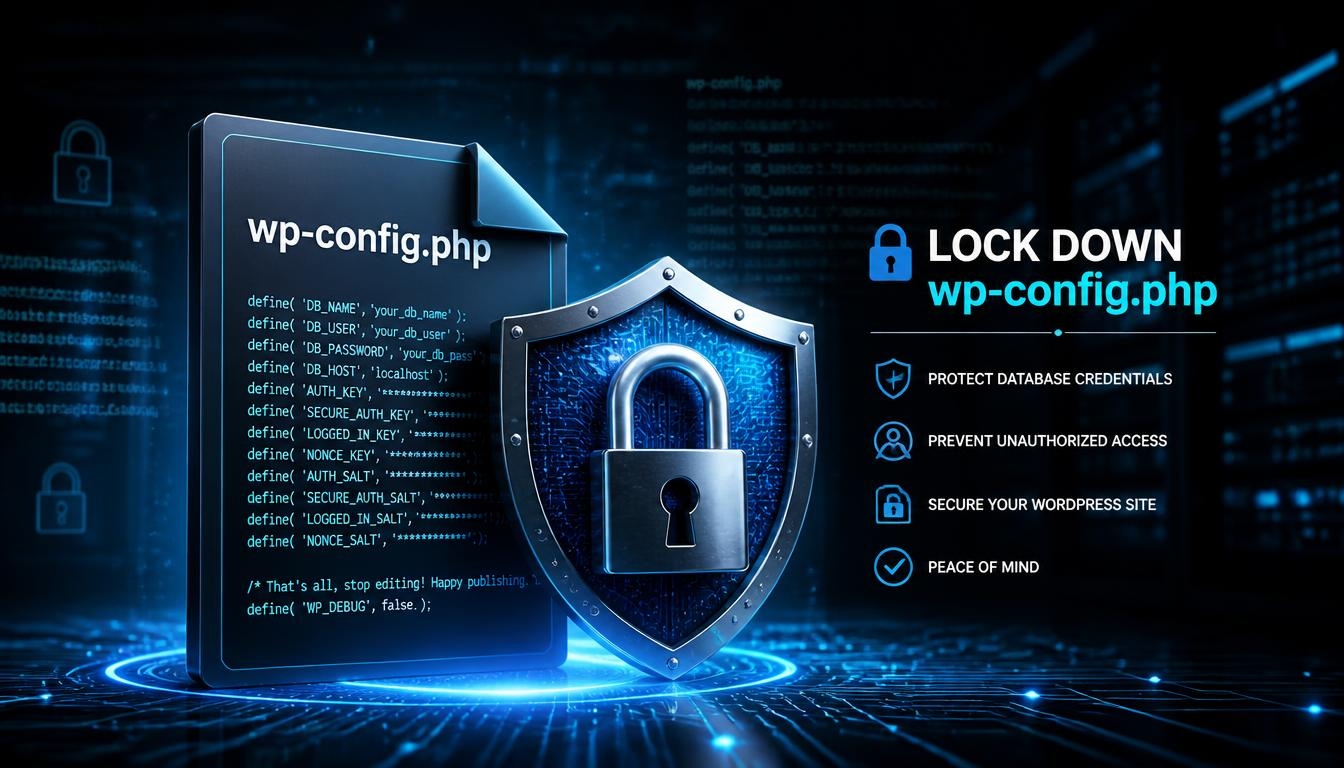
If there’s one file you really can’t afford to lose control of, it’s wp-config.php. Whoever can read it has the keys to your database. Whoever can edit it can point your whole site anywhere they like. Tight permissions are a good start, and there are three more things you can do.
First, move it out of the public folder. WordPress will still find the file if you put it one level above your install, so /public_html/wp-config.php can go in the folder right above public_html and nothing breaks. Once it’s outside the web root, there’s no URL that can reach it.
Second, swap out your secret keys. Inside wp-config.php are eight long random phrases that WordPress uses to sign and encrypt your users’ login cookies. Get a new set from the official generator at api.wordpress.org/secret-key/1.1/salt/ and paste it over the old ones. If you think your site’s been breached, do this early, because it ends every active login session. Anyone holding a hijacked cookie gets kicked out, and so do you, so be ready to log back in. Plenty of site owners also refresh these keys once or twice a year, just as routine.
Third, block the file at the server level. The code for both Apache and Nginx is in the next section. While you’ve got wp-config.php open, you’ll also spot a line called $table_prefix, set to wp_ by default. Picking a different prefix when you first install WordPress makes life slightly harder for automated attacks, and that’s all it does. It won’t stop SQL injection, and changing it on a live site can break your database, so I’d leave it alone on an existing site.
Block Direct Access with Server Rules
Your web server decides which files a browser gets to see, so this is where learning how to protect WordPress files starts to feel hands-on. Before you copy anything, find out what your host runs. Apache reads .htaccess files. Nginx doesn’t read them at all, so Apache rules on an Nginx server do nothing. LiteSpeed, which a lot of hosts use, understands Apache-style rules just fine.
One important habit before you edit anything: take a fresh backup of your site and download a copy of your current .htaccess and wp-config.php files. A single typo in either file can take your site down with a 500 error, and having the original copy means you can put things right in seconds.
Apache (.htaccess) Rules
Many tutorials still show the old Apache 2.2 syntax (Order allow,deny and Deny from all). Most servers today run Apache 2.4, which uses Require all denied instead. Add these rules to the .htaccess file in your WordPress root, outside the # BEGIN WordPress and # END WordPress lines, so WordPress doesn’t overwrite them later:
apache
# Block access to wp-config.php
<Files wp-config.php>
Require all denied
</Files>
# Block access to .htaccess itself
<Files .htaccess>
Require all denied
</Files>
# Block direct access to core include files
<IfModule mod_rewrite.c>
RewriteEngine On
RewriteBase /
RewriteRule ^wp-admin/includes/ – [F,L]
RewriteRule !^wp-includes/ – [S=3]
RewriteRule ^wp-includes/[^/]+\.php$ – [F,L]
RewriteRule ^wp-includes/js/tinymce/langs/.+\.php – [F,L]
RewriteRule ^wp-includes/theme-compat/ – [F,L]
</IfModule>
# Add basic security headers
<IfModule mod_headers.c>
Header always set X-Frame-Options “SAMEORIGIN”
Header always set X-Content-Type-Options “nosniff”
</IfModule>
# Stop folders from listing their contents
Options -Indexes
That last line, Options -Indexes, matters more than it looks. Without it, a folder with no index file can show visitors a list of everything inside, which basically hands an intruder a map of your site. The X-Frame-Options header stops other sites from loading your pages inside a hidden frame. To go a step further, a Content Security Policy (CSP) controls which scripts a browser can run on your pages, which cuts down on XSS. Start it in report-only mode and test carefully, because a strict policy can break plugins that pull in outside scripts.
Nginx Rules
On Nginx, these rules go in your site’s server block, and they do the same jobs as the Apache ones:
nginx
# Block wp-config.php
location = /wp-config.php { deny all; }
# Block PHP inside uploads
location ~* /(?:uploads|files)/.*\.php$ { deny all; }
# Block hidden files like .htaccess and .git, but allow SSL checks
location ~ /\.(?!well-known) { deny all; }
# Stop folders from listing their contents
autoindex off;
Once you’ve saved the changes, run nginx -t to check for mistakes, then reload Nginx. On managed WordPress hosting, you often can’t edit the server config yourself, so send these rules to support. Most hosts are happy to add them.
Secure the Uploads Folder
WordPress has to be able to save new files to your uploads folder, or you couldn’t add images at all. The catch is that this is also the easiest place for someone to sneak in malicious code dressed up as a normal picture. So when it comes to how to protect WordPress files, this folder gets one simple rule: files can live there, but nothing in there should ever run as a program.
On Apache, create a new .htaccess file inside /wp-content/uploads/ and add the rule below. It blocks more than .php on purpose. Intruders know that a lot of rules only check for .php, so they rename their scripts to .phtml, .php5, or .phar. If you’re on Nginx, the uploads rule from the previous section already covers this.
apache
<FilesMatch “\.(php|phtml|php[0-9]|phar)$”>
Require all denied
</FilesMatch>
It also helps to limit what people can upload in the first place. Out of the box, WordPress only accepts a set list of file types, and SVG isn’t on it. There’s a good reason for that: an SVG file can contain JavaScript. If you really need SVGs, use a plugin that sanitizes each one, and only let administrators upload them.
One last small habit: don’t give private documents obvious names. A name like invoice.pdf or contract.pdf is easy to guess, while k7Qm2x-invoice.pdf isn’t. A random filename won’t stop someone who’s determined, but it does stop people from simply guessing URLs.
Protect Media and Downloadable Files from Direct Access

This one surprises almost everyone. When you password-protect a post in WordPress, only the text of the post is protected. Any PDF, video, or image attached to it can still be opened by anyone who has the direct link, because your web server hands out uploaded files on its own and never asks WordPress whether the visitor is logged in. Once you know that, the way you think about how to protect WordPress files you sell or share privately changes completely.
To really lock down private media and downloads, every request has to be checked before the file is sent. A file protection plugin adds that check, and most of them give you options like:
- Passwords: ask for a password before a file opens
- Roles: limit access to certain user roles, such as members or customers
- Memberships: connect access to plugins like Paid Memberships Pro, MemberPress, or LearnDash for course files
- Expiry: create download links that stop working after a set time or number of clicks
- Gating: collect a name and email address before the download starts
- Bundles: package several protected files into a single ZIP download
Some popular options are Prevent Direct Access Gold, WP File Download, and FileBird Document Library, and plenty of these work with WooCommerce downloadable products and multisite networks. If your business stores client contracts or customer records, this matters for privacy laws like GDPR as well, because a leaked file counts as a data breach however it got out. Under the hood, each plugin delivers files using one of a few methods, and the right one depends on your server:
| Delivery Method | How It Works | Best For | Trade-off |
| PHP proxy | PHP checks the visitor’s access, then streams the file | Shared hosting, any server | Large files put extra load on PHP |
| Apache rewrite rules | .htaccess sends requests for protected files to WordPress first | Most Apache and LiteSpeed hosts | Doesn’t work on Nginx |
| X-Sendfile | PHP approves the request, then Apache delivers the file through mod_xsendfile | Busy Apache sites, VPS | Needs a server module installed |
| X-Accel-Redirect | PHP approves, then Nginx delivers the file from an internal location | Nginx servers | Needs access to the Nginx config |
| Private storage | Files move outside the web root, so their old URL returns a 404 | Financial, legal, or highly sensitive documents | Backups and migrations must include the private folder |
Two quick things to watch for. Images that appear on public pages have to stay public, or your visitors will just see broken images. And if you use a CDN, exclude your protected folders from its cache. Otherwise it might serve a saved copy to someone who shouldn’t have it.
Public images need a different kind of protection, because they’re meant to be seen. A watermark is the most practical fix there, since a logo or a bit of text stays on the picture wherever it ends up, and a plugin like Easy Watermark can add one automatically on upload. Disabling right-click only slows down casual visitors, so don’t rely on it. If someone has already copied your files, send a DMCA takedown request to the copying site’s host, or use Google’s copyright removal tool to get the copy pulled from search.
Stop Hotlinking and Keep Private Files Out of Search Results
Hotlinking is when another site shows your images or files by loading them straight from your server. They get the content, and you pay for the bandwidth. On Apache, this rule blocks image requests coming from other sites (just replace example.com with your own domain):
apache
RewriteEngine On
RewriteCond %{HTTP_REFERER} !^$
RewriteCond %{HTTP_REFERER} !^https?://(www\.)?example\.com [NC]
RewriteRule \.(jpe?g|png|gif|webp)$ – [F,NC]
If you use Cloudflare, there’s a hotlink protection setting you can simply switch on, with no server editing needed.
Search engines are a different kind of leak. Google can index any PDF or document it finds a link to, even if that link is on someone else’s site. To keep those files out of the results, send a noindex header with them:
apache
<FilesMatch “\.(pdf|docx?|xlsx?)$”>
Header set X-Robots-Tag “noindex, nofollow”
</FilesMatch>
Don’t use robots.txt for this. If you block a file there, Google can’t crawl it, which means it never sees your noindex instruction, so the URL can still show up in search. Also worth knowing: since version 6.4, WordPress turns off attachment pages by default on new installs. If your site is older than that, check that those thin pages aren’t putting your files in front of search engines.
Use HTTPS to Protect Files in Transit
Locking files down on the server only covers half of it. The data moving between your site and your visitors needs protecting too. Without SSL, everything travels as readable text, so someone on the same coffee-shop Wi-Fi could grab an admin login or a private file as it downloads. If you’re serious about how to protect WordPress files, encrypting that connection isn’t optional.
Switching to HTTPS takes three steps. Install an SSL certificate through your host, change both site addresses in your WordPress settings to the secure version, and set up a sitewide 301 redirect so old unencrypted links go to the secure ones. Then make sure your dashboard always loads securely by adding this line to wp-config.php:
php
define( ‘FORCE_SSL_ADMIN’, true );
After the switch, click through a few pages and test a download to make sure nothing still loads over old unencrypted links. That problem is called mixed content, and browsers will warn visitors about it. Browsers also mark unencrypted pages as “Not secure,” and Google uses HTTPS as a ranking signal, so this protects your traffic as well as your files.
Choose Hosting That Protects Your Files
Your host controls everything underneath WordPress: the server software, the protection in front of it, and how well your account is kept apart from everyone else’s. You can get every WordPress setting right and still be let down by a careless host, which is why hosting is a bigger part of how to protect WordPress files than most people realize.
When you compare hosts, look for a server-level WAF, automatic malware checks, DDoS protection, and off-site backups. Good hosts also offer free Let’s Encrypt certificates you can turn on from cPanel or Plesk, and they let you pick a current PHP version, since old ones like PHP 5.6 no longer get security fixes. If your site takes payments or serves large private downloads, a VPS or managed WordPress hosting plan gives you your own space instead of a crowded shared server.
Don’t forget the hosting account itself. Give it a long, unique password and turn on two-step login (a hardware key like YubiKey is even better). If your host allows it, limit file access to your own IP address.
Turn Off the Features Attackers Abuse
Some WordPress features are genuinely useful, but in the wrong hands they become a problem. Turning off the ones you don’t need closes whole doors at once.
Start with the built-in code editor in your dashboard. It lets any administrator edit theme and plugin code right in the browser, so if someone takes over an admin account, they can plant code in seconds. Turn it off by adding this line to wp-config.php, above the comment that says “That’s all, stop editing!”:
php
define( ‘DISALLOW_FILE_EDIT’, true );
If you want to go further, define( ‘DISALLOW_FILE_MODS’, true ); also stops anyone from installing or updating plugins and themes from the dashboard. Only do this if you handle updates some other way, like through your host or WP-CLI.
XML-RPC is an older remote publishing feature, and bots love it for brute-force attacks because it lets them test lots of passwords in a single request. If you don’t use the WordPress phone app, Jetpack, or any remote posting tools, block it:
apache
<Files xmlrpc.php>
Require all denied
</Files>
Your login page is another favorite target. By default, WordPress lets anyone try to log in at /wp-login.php as many times as they like, so bots just keep guessing. A login security plugin can lock out an IP address after 3–5 failures for 15–60 minutes. reCAPTCHA v3 can filter out bots in the background, and WPS Hide Login can move your login page to a custom address. Moving it won’t stop someone who’s set on getting in, but it cuts out most of the automated noise.
Last, check your debug log. If WP_DEBUG_LOG is turned on, WordPress writes errors to /wp-content/debug.log. Anyone can open that file, and it can reveal your folder paths and plugin details. On a live site, set WP_DEBUG_DISPLAY to false and save the log to a folder outside the web root.
Use SFTP and Verify File Integrity
The way you connect to your server matters too. Plain FTP sends your username and password across the internet in plain text, so anyone watching the network can read them. Use SFTP or SSH instead, since both encrypt the whole session, and your host usually lists the details right next to your FTP settings. Honestly, this is one of the easiest wins in how to protect WordPress files.
Next, make sure nobody has quietly changed your core files. If you have WP-CLI, these two commands compare your files with the official copies from WordPress.org and flag anything that doesn’t match:
bash
wp core verify-checksums
wp plugin verify-checksums –all
The plugin check only works for plugins from WordPress.org. For everything else, use a scanner that alerts you when a file is added or changed. A new PHP file in your uploads folder that you didn’t put there is one of the clearest signs of an infection.
Pick the Right Security Plugin for File Protection
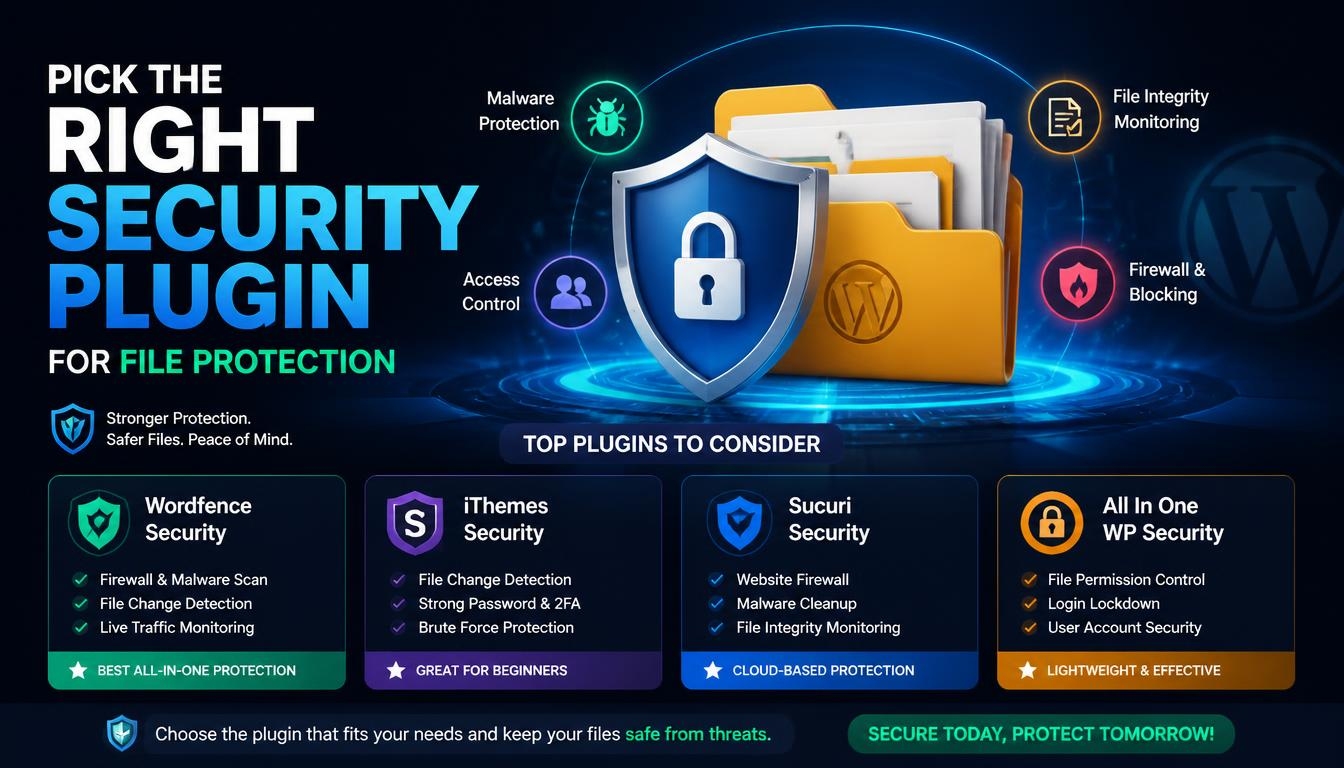
A good security plugin takes care of a lot of this guide for you and watches your site day and night, which makes it a handy shortcut for how to protect WordPress files on a busy site. Wordfence gives you a WAF that runs inside WordPress, scans your files against the official originals, and protects your login page. Sucuri puts a cloud WAF in front of your server to filter traffic before it arrives, and it also offers professional cleanup if you do get hacked. Kadence Security (previously called Solid Security, and iThemes Security before that) is strong on password rules, two-step login, and permission checks. MalCare runs its scans on its own servers, so your site barely slows down, and Jetpack includes uptime alerts and backups in its paid plans.
Whichever one you choose, stick to just one and set it up properly. Installing two all-in-one security plugins usually leads to conflicts and false positives that block real visitors, and it doesn’t make you any safer. Once it’s running, turn on email alerts for new admin accounts, plugin installs, and file changes.
Back Up Your Files and Protect the Backups
No setup is perfect, and when something does go wrong, a clean copy of your site is what gets you back on your feet fast. A simple way to think about it is the 3-2-1 rule: keep three copies of your data, on two different types of storage, with one stored somewhere else entirely. Tools like UpdraftPlus and BlogVault can send scheduled copies of your files and database to cloud storage like Google Drive, Dropbox, or Amazon S3.
Keep those copies off your live server. If someone gets into your hosting account, a backup on the same machine can be deleted or infected right along with your site. Never leave backup archives sitting in public_html either, where anyone who guesses the file name can download everything. Looking after the backups themselves is a part of how to protect WordPress files that a lot of guides skip.
Then test them. A few times a year, do a practice recovery on a staging site and make sure everything loads. That way you’ll know exactly how long recovery takes, long before you actually need it.
Control Who Can Reach Your Files
All the server rules in the world won’t help much if the people who have access aren’t protected, so this belongs in any plan for how to protect WordPress files. Stick to least privilege: give each person only the access they need to do their job. WordPress comes with five built-in roles, from full control down to people who can only read, and most sites need just one or two people with full control.
Protect every login that can reach your files, not just WordPress. Your hosting account, your database, and your SFTP account can all get around WordPress security completely. Use long, unique passwords stored in a password manager, and turn on 2FA with an authenticator app, so a stolen password on its own isn’t enough to get in. It’s also worth adding an activity log plugin like WP Activity Log, which keeps a record of logins, uploads, and role changes. Check it now and then, and delete accounts for old contractors and anyone who’s left the team.
What to Do If Your WordPress Files Are Compromised
If you spot strange redirects, admin accounts you don’t recognize, or files you never created, don’t panic, but do act quickly. Work through these steps in order:
- Contain: put the site into maintenance mode and change every password, including WordPress, hosting, database, and SFTP.
- Scan: run a full malware scan and check your core and plugin checksums to find files that have been changed.
- Investigate: look for outdated plugins, users you don’t recognize, and new PHP files in your uploads folder.
- Clean: remove the infected files and any hidden access points, or bring back a backup from before the infection started.
- Harden: update everything, replace your secret keys, and work through the protections in this guide.
- Monitor: keep a close eye on file changes and logins for the next few weeks, and use an uptime monitor like UptimeRobot so you hear about it right away if the site goes down.
If the infection keeps coming back, it’s time to bring in a professional cleanup service. Hidden backdoors are often tucked away in database entries or theme files, and when an infection returns, it usually means one got missed.
WordPress File Protection Checklist
Run through this list today, and then again every few months:
- Folders at 755, files at 644, and wp-config.php at 440 or 400
- wp-config.php moved above the web root and blocked with a server rule
- Secret keys refreshed
- Scripts blocked from running in the uploads folder (including .phtml and .phar)
- Directory browsing turned off
- Dashboard code editor disabled
- XML-RPC blocked if you don’t use it
- Private media and downloads routed through access checks
- Hotlink protection and noindex headers on private documents
- HTTPS everywhere, with the dashboard forced to load securely
- PHP0 or newer, on a host with a WAF
- SFTP instead of plain FTP
- Off-site backups that you test a few times a year
- 2FA and login limits turned on, and unused accounts removed
- Security plugin installed, with file change alerts switched on
Frequently Asked Questions
What file permissions should WordPress files have?
Use 755 for folders and 644 for files. For wp-config.php, the official hardening guide recommends 440 or 400, though some hosts need 600 or 640 for the site to run. Whatever you do, don’t use 777 anywhere.
Does password-protecting a post protect its attached files?
No, and this catches a lot of people out. The built-in post password only hides the post’s text. Files attached to it can still be opened by anyone with the direct link. To protect them, you need a file protection plugin or a server rule that checks access before each file is sent.
How do I stop people from opening files in my uploads folder?
Block scripts from running in /wp-content/uploads/ with an .htaccess rule on Apache or a location rule on Nginx, and turn off directory browsing. For private PDFs, videos, or downloads, run each request through an access check with a protection plugin, or move the files outside the web root altogether.
Will file protection slow down my website?
For most sites, you won’t notice a difference. Methods like X-Sendfile and X-Accel-Redirect let the web server send the file directly once WordPress gives the go-ahead, so things stay fast. The only time it tends to feel slower is when very large files go through a PHP proxy on shared hosting.
Can I protect files that are already in my Media Library?
Yes. Most file protection plugins let you open an existing file and turn protection on. Keep in mind that if the file is embedded on a public page, that page might show a broken image once protection kicks in, so check it afterward.
Is WordPress itself secure?
The core software is well looked after and patched often. Security reports from 2024 found that plugins were behind 96% of all disclosed WordPress vulnerabilities. So how safe your site is really comes down to which plugins and themes you install, how your server is set up, and how quickly you keep up with updates.
Read More: https://linkneon.com/outsource-wordpress-development/
Final Thoughts
No single setting will make your site safe, and that’s okay. Learning how to protect WordPress files is really about adding a few simple layers, so that if one fails, another one is still there. If you’re not sure where to start, do the basics today: set the right permissions, lock down wp-config.php, stop scripts from running in your uploads folder, and turn on HTTPS across your whole site. After that, add access controls for private media, the server rules that match your setup, backups you’ve actually tested, and a security plugin that tells you when something changes. Your files hold everything your site is built on, so they deserve the same care you put into your content.