

WordPress security is the set of security measures, habits, and tools that keep bad actors away from your site’s login, files, database, and visitors. As the most widely used CMS and website-building platform, WordPress runs blogs, online stores, membership sites, mailing lists, and media galleries, and malicious bots scan all of them for outdated plugins, weak passwords, and compromised code.
Patchstack’s State of WordPress Security in 2026 report counted 11,334 new vulnerabilities in the WordPress ecosystem in 2025, a 42% jump from the year before. Following proven WordPress security tips is the most practical way to protect your website, strengthen data safety, and keep the customer trust you’ve built.
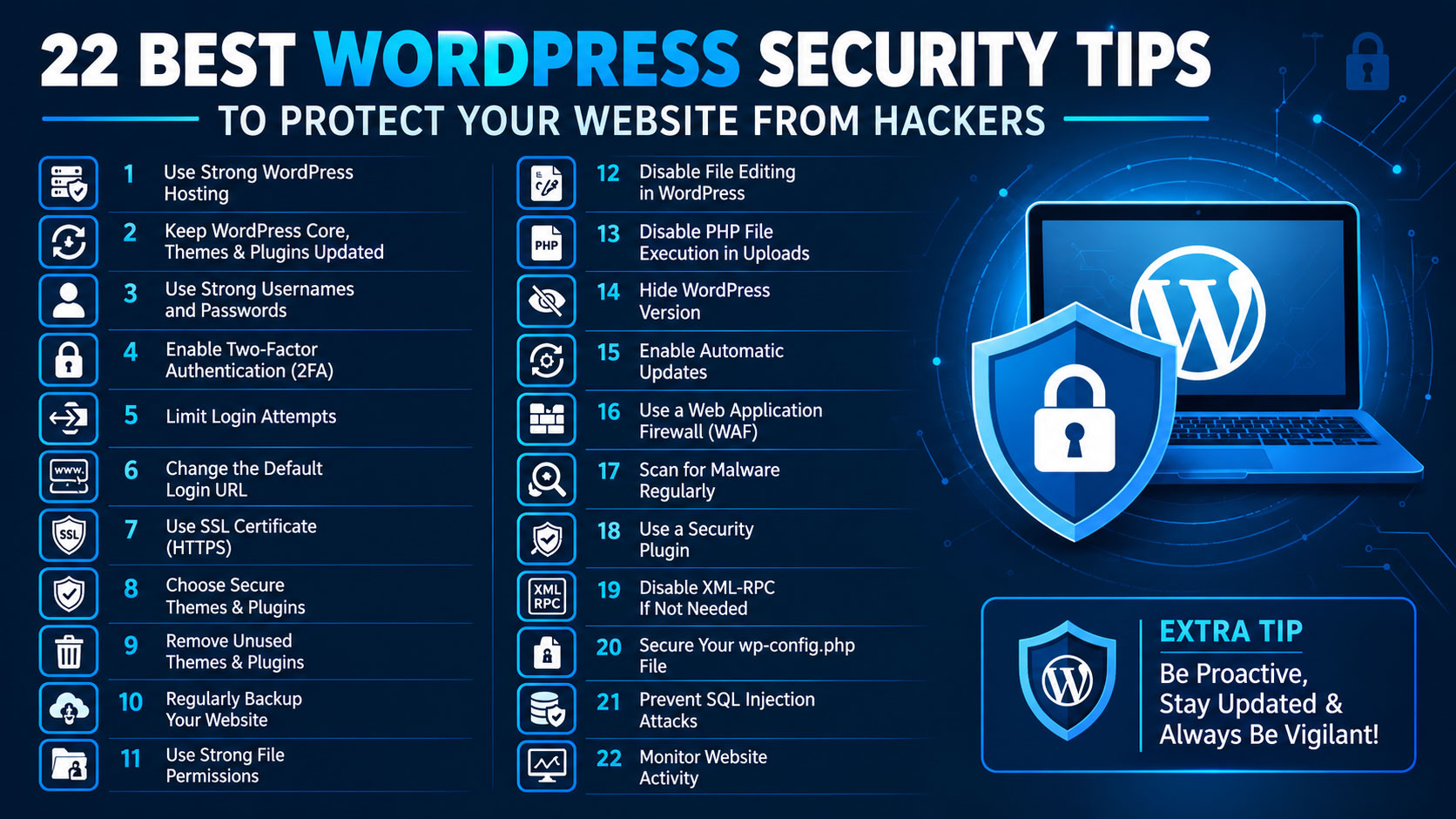
In this article, I’ll show you how to secure a WordPress site with 22 WordPress security tips, one step at a time. We’ll start with core security best practices such as updates, strong passwords, and backups, then move into WordPress hardening for file permissions, your database, and your firewall.
You’ll also learn why hackers and spammers target WordPress, which cyber threats matter most, what to do after security breaches, and how to track your progress with a simple checklist.
Why Do Hackers Target WordPress Websites?
Understanding the “why” makes every step that follows easier to prioritize. WordPress attracts attackers for a few clear reasons:
- Popularity: W3Techs reports that WordPress runs roughly 40% of all websites. Because it’s an open-source platform, one working exploit can reach millions of sites, including WooCommerce
- Valuable data: stores and membership sites hold payment details, billing information, customer data, and other sensitive information. Connected apps and headless WordPress setups add even more entry points.
- Third-party code: the official directory alone lists more than 60,000 free plugins, and known flaws are tracked publicly in sources like the WPScan Vulnerability Database. Every plugin adds to your attack surface, the total set of places where someone could break in.
- Poor security practices: many owners treat their site as set it and forget it, while Patchstack found that about 46% of reported WordPress vulnerabilities had no developer fix available when they were made public.
The wider cybercrime picture is large too: Cybersecurity Ventures projected that global cybercrime costs would reach $10.5 trillion annually by 2025. For a site owner, an attack means stolen data, spam emails sent from your server, costly damage control, and lasting harm to your brand reputation and digital reputation. Proactive security measures cost far less than recovery. Running a secure WordPress website matters as much for a small blog as for a busy store, which is why these WordPress security tips apply to everyone.
Most Common Types of WordPress Attacks
Before you start fixing things, it helps to know which security threats you’re defending against:
- Brute force login attempts: bots guess thousands of username and password combinations.
- Credential stuffing: attackers try passwords leaked from other websites.
- SQL injection (SQLi): malicious database commands slipped in through forms or URLs.
- Cross-site scripting (XSS): harmful scripts injected into pages that run in visitors’ browsers.
- Cross-site request forgery (CSRF): a logged-in admin is tricked into performing an unwanted action.
- Local file inclusion (LFI): a flaw that lets attackers load private files from your server.
- Authentication bypass: buggy code that lets someone in without valid login details.
- Malware infections: hidden backdoors that let attackers return even after a cleanup.
- DDoS attacks: floods of traffic that knock your site offline.
- Phishing scams: fake emails that trick admins into handing over their credentials.
- SEO spam: hidden links and pages that hijack your search rankings.
These attacks often work together. A bot might break into a weak login, plant malware, and then use your site to send spam. No single fix is enough, so you need a layered security approach, which is how the WordPress security tips below are built.
Tips to Protect Your Website from Hackers
If you want the short answer to how to secure a WordPress site, the most important WordPress security tips are these: keep everything updated, use strong passwords with two-factor authentication, install only trusted plugins, add one reputable security plugin, and keep tested offsite backups. Every other step adds an extra layer on top.
You don’t need to finish all 22 today. Work through Tips 1–7 first, because they give you the most protection for the least effort. Before changing any files later on, take a full backup so you can undo a mistake in minutes.
1. Keep WordPress Core, Plugins and Themes Updated
If you build only one habit, make it this one. The simplest way to secure WordPress is to keep it current, because each security patch fixes known flaws, and updates also bring bug fixes and security improvements for critical security issues. Attackers move fast once a known exploit goes public. In July 2026, WordPress released emergency fixes for a critical WordPress core flaw called wp2shell and pushed forced automatic updates, and bots began probing unpatched sites within hours.
- WordPress installs minor core versions automatically by default. Review major updates first for compatibility with any custom code.
- Turn on automatic updates (auto-update) for trusted plugins and lower-risk plugins from the dashboard.
- Back up first, and test big changes in a staging environment to protect site performance and plugin compatibility.
- Check for updates weekly and set monthly reminders for a deeper review, or use a maintenance tool like WP Umbrella if you manage several sites.
- Follow weekly vulnerability reports from SolidWP so new problems don’t surprise you.
Outdated themes and unpatched WordPress files invite malware, and a hacked site can drag down your SEO for months. If you follow only one of these WordPress security tips, make it this one.
Keep in mind that auto-updates occasionally break a site, especially when a plugin and theme don’t play well together. That’s not a reason to switch them off; it’s a reason to keep backups ready and confirm your site still works after a major update. And don’t assume an update ran: after any big security release, open Dashboard → Updates and check your version.
2. Use Strong Usernames, Passwords and a Custom Login URL
Start with your username. Never keep the default admin username; pick unique usernames that don’t match your public display name. Then fix your passwords: no reused passwords, and no easy guesses like birthdates or “password123.”
You may have learned to build a complex password by mixing uppercase letters, lowercase letters, numbers, special characters, and symbols. NIST’s current guidance focuses on length instead: at least 15 characters for a password used on its own, or at least 8 when it’s paired with multi-factor authentication, with no forced complexity rules.
The easiest way to follow this is a password manager like Dashlane or Bitwarden, which creates a long unique password for every account and keeps your login credentials safe.
You can also move your login page away from /wp-admin to a custom login URL. This cuts noise from bots, attack scripts, and other automated attacks hitting your WordPress dashboard. Treat it as a bonus layer against brute force attempts, not as real protection on its own.
Apply the same rules to everyone with an account. Your site is only as strong as its weakest login, and if one editor reuses a password that later leaks, an attacker can walk straight in.
3. Enable Two-Factor Authentication and Limit Login Attempts
Now add a second lock. Two-factor authentication (2FA) adds a second verification step after your username and password: a verification code from an app on your phone or sent by email. Even if a password leaks, 2FA blocks unauthorized access. Plugins like WP 2FA, or most security plugins, can enforce it for all your team members.
Then limit login attempts. A plugin like Limit Login Attempts Reloaded locks out an IP address after a few failed tries, so bots can’t cycle through endless password combinations. Together, these two changes stop most brute-force attacks and barely change your login process.
When you set up 2FA, choose an authenticator app over email codes whenever possible, since email accounts can be hacked too. Save the backup codes the plugin gives you somewhere safe, so you don’t lock yourself out if you lose your phone.
4. Install Only Trusted Plugins and Themes
This is where most of the risk lives. Patchstack’s 2026 report found that 91% of new WordPress vulnerabilities were in plugins and 9% in themes, so you can’t secure WordPress without being picky about what you install. Stick to official sources like the WordPress Plugin Directory or the developer website of reputable developers, and check these before clicking Install:
- Active installs and recent reviews
- Whether it’s regularly updated and ships security updates
- Whether it has active support and the support forums get answers
Never install nulled plugins or anything with a cracked license from unverified sources, because they often hide malicious code. Buy a valid license from a trustworthy source instead, which also gives you the API key that delivers updates. Even free plugins from honest developers can be poorly coded, leaving security holes, compatibility issues, and slower performance.
Keep a lean plugin list, because less code means a smaller attack surface. Once a quarter, delete unused plugins and unused themes, including that festive snow effect plugin you installed once for the holidays. Even deactivated plugins leave their files on your server.
5. Install a Reliable WordPress Security Plugin
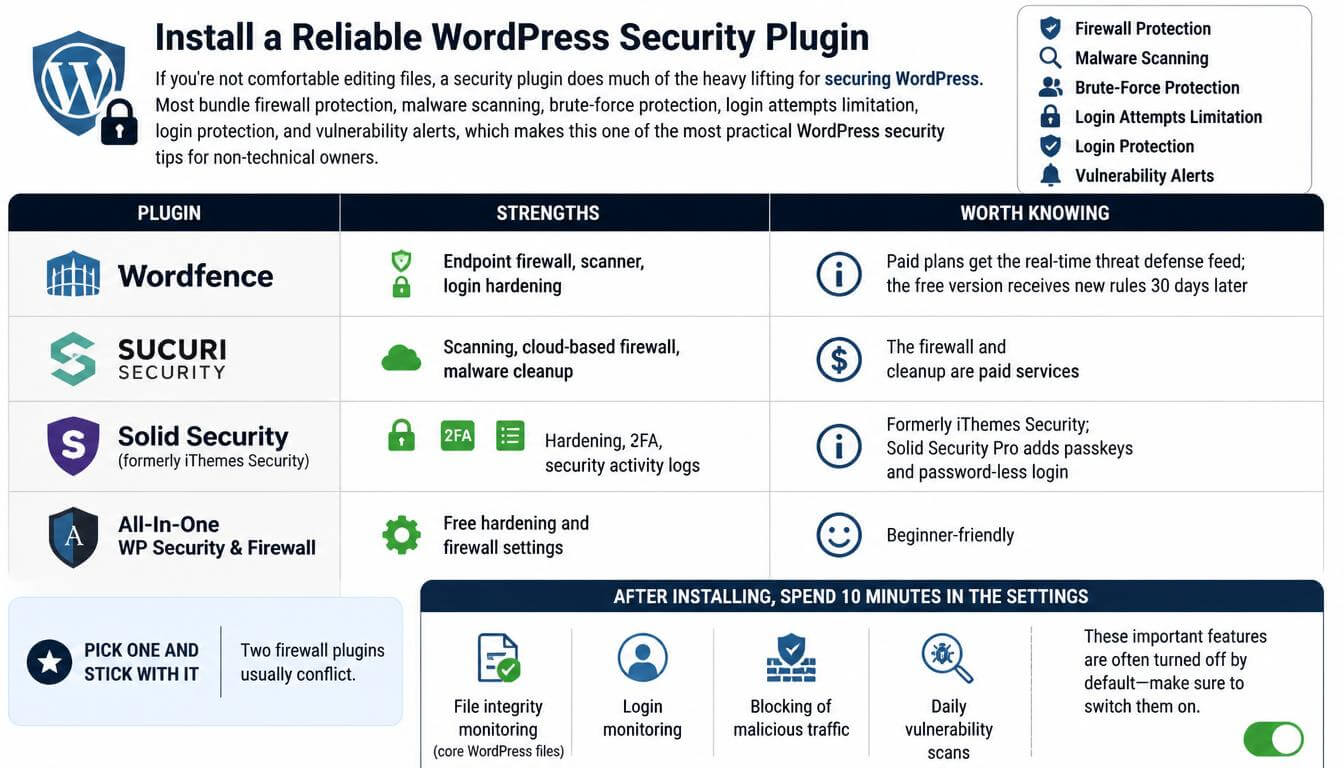
If you’re not comfortable editing files, a security plugin does much of the heavy lifting for securing WordPress. Most bundle firewall protection, malware scanning, brute-force protection, login attempts limitation, login protection, and vulnerability alerts, which makes this one of the most practical WordPress security tips for non-technical owners.
| Plugin | Strengths | Worth knowing |
| Wordfence | Endpoint firewall, scanner, login hardening | Paid plans get the real-time threat defense feed; the free version receives new rules 30 days later |
| Sucuri Security | Scanning, cloud-based firewall, malware cleanup | The firewall and cleanup are paid services |
| Solid Security | Hardening, 2FA, security activity logs | Formerly iThemes Security; Solid Security Pro adds passkeys and password-less login |
| All-In-One WP Security & Firewall | Free hardening and firewall settings | Beginner-friendly |
Pick one and stick with it, because two firewall plugins usually conflict. After installing, spend ten minutes in the settings. Features like file integrity monitoring of core WordPress files, login monitoring, blocking of malicious traffic, and daily vulnerability scans often need to be switched on manually.
6. Manage User Roles and Permissions Carefully
Think of user roles like keys to a building: not everyone needs a master key. WordPress offers Administrator, Editor, Author, and Contributor roles. Give each staff member the lowest access level they need.
Guest authors and interns rarely need more than Contributor, and admin access should stay with a small, trusted group. Review user accounts under Users → All Users and change roles from the Role dropdown.
For larger teams or a membership site, the User Role Editor plugin lets you create custom roles and fine-tune capabilities and permissions. Tight roles reduce internal security risks, limit accidental damage, block malicious changes, and protect sensitive data.
Make this part of your routine, because limiting access is one of the quietest ways to keep WordPress secure. Remove inactive users the same day a freelancer or employee leaves. If you find an administrator account you don’t recognize, treat it as a warning sign and run a malware scan right away.
7. Back Up Your WordPress Site Regularly
Backups won’t stop an attack, but they’re your safety net after a hacked site, a failed update, a broken plugin, or a server crash. Regular backups turn a disaster into a short inconvenience.
- Use a backup plugin like UpdraftPlus or BackWPup to run automated backups on a schedule.
- Choose off-site storage: cloud storage such as Google Drive, Dropbox, or Scaleway.
- Keep at least two backup locations. A copy on your hosting provider server won’t help if that’s the compromised server.
- Test a restore a few times a year. Many hosts also offer a one-click restore.
Pair your backups with activity logging through WP Activity Log, so you can spot suspicious behavior and pick a clean restore point. Most WordPress security tips reduce your risk, but backups are what let you recover when something still gets through.
Match the backup schedule to how often your site changes: daily for stores and busy blogs, weekly for simpler sites. Keep several older copies too, because malware sometimes sits unnoticed for weeks, and your most recent backup may already be infected.
8. Secure Your Website With HTTPS and an SSL Certificate
This step is quick and usually free. An SSL certificate switches your site from http:// to https://, adding encryption that protects login credentials, payment details, and contact forms from man-in-the-middle attacks.
Let’s Encrypt offers free SSL certificates that currently last 90 days, so turn on auto-renew and keep an eye on the expiry date. Hosting providers like Bluehost and SiteGround include free certificates, often through an SSL setup utility in your dashboard.
After switching, force HTTPS sitewide and fix insecure content, such as media still loading over HTTP, to avoid an insecure warning. Visitors look for the padlock icon in the browser bar, and Google has used HTTPS as a lightweight ranking factor for years, so this step helps your SEO as well as your website security. Finally, update your site address in Settings → General and in Google Search Console.
9. Choose a Secure WordPress Hosting Provider
Your hosting environment is the foundational security layer of a secure WordPress website. A secure hosting provider should offer:
- The latest PHP version and regular server updates
- Careful server configuration with secure file permissions
- A Web Application Firewall (WAF) and DDoS protection
- Malware prevention tools and network monitoring that flags unusual activity
- Server security audits, automated backups, and 24/7 customer support
Shared hosting is the cheapest option, but it puts you on a server with many other sites. VPS hosting and dedicated hosting isolate you better, and managed WordPress hosting handles more security for you.
If your current host falls short, it’s worth the effort to migrate. Even good hosts don’t stop every cyberattack, though: Patchstack’s own research claims hosts blocked only 26% of vulnerability attacks. That’s a vendor’s study, but the lesson stands: combine your hosting with third-party tools and the other WordPress security tips here.
Before signing up, ask the support team a few direct questions. Which PHP versions do you support? Where are backups stored? What happens if my site gets hacked? Clear, fast answers tell you a lot about the help you’ll get on a bad day.
10. Add a Web Application Firewall and Network Security
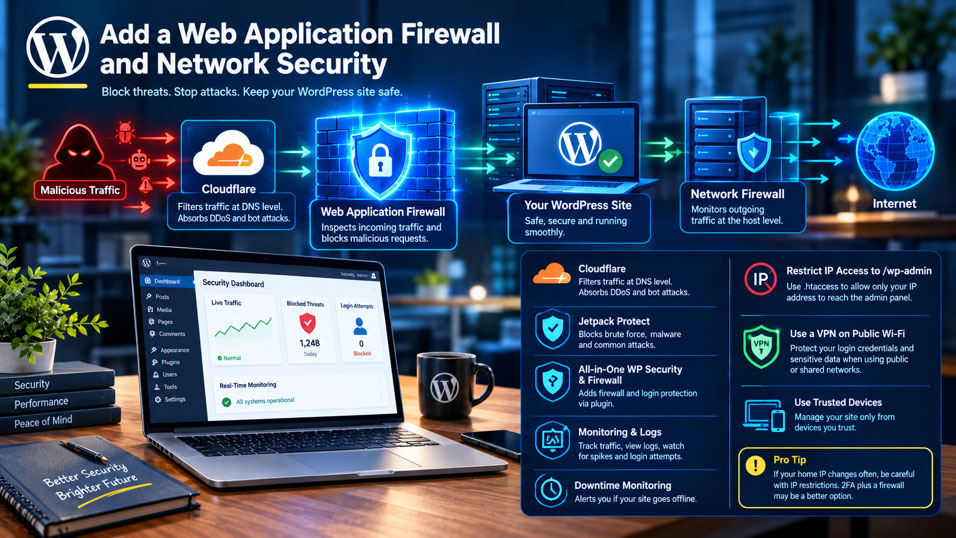
A WAF works like a security guard at your front door: it inspects incoming traffic and turns away malicious requests before they reach WordPress. Network firewalls at the host level also watch outgoing traffic.
- Cloudflare filters traffic at the DNS level and can absorb a DDoS attempt or bot attack.
- Plugin options include Jetpack Protect and All-in-One WP Security & Firewall.
- Network traffic monitoring, traffic logs, live monitoring dashboards, and downtime monitoring, which many managed hosts include, help you catch traffic spikes or a brute-force login attempt.
- You can restrict IP access to the admin panel at /wp-admin through .htaccess, so only your IP address can reach it.
Protect your own connection too. When you log in from public Wi-Fi or shared Wi-Fi, use a VPN (virtual private network), and manage your site only from trusted devices.
This keeps your login credentials and other sensitive data private. Be careful with IP restrictions, though: if your home IP changes often, you can lock yourself out, and 2FA plus a firewall may suit you better.
11. Set Correct WordPress File Permissions
This step gets a little technical, so take it slowly. File permissions decide who can read, write, or execute your files and folders, starting with the Owner. Most WordPress sites use these values:
| Item | Permission |
| Directories, including the wp-admin folder | 755 |
| Files, including core WordPress files | 644 |
| wp-config file (wp-config.php) | 400 or 440 |
You can change these with an FTP client like FileZilla, your hosting File Manager, or the command line. Correct permissions block unauthorized access and stop malicious code from overwriting your files.
If something breaks after you tighten permissions, never “fix” it by setting files to 777, because that opens them to anyone on the server. Ask your host what their setup expects instead. Server configurations differ, and support can usually give you the right values in minutes.
12. Harden the wp-config.php and .htaccess Files
wp-config.php stores your database credentials for the MySQL database, and some setups let you move it one level above the root directory for extra protection. Then use .htaccess to:
- Block direct access to wp-config.php with a deny from all rule
- Add directory browsing protection, so nobody can list what’s inside /wp-content/
- Stop PHP execution in the uploads folder (/wp-content/uploads/), which should only hold media files, not harmful scripts
- Allow sensitive areas only from specific IP addresses
If editing code makes you nervous, most security plugins offer each rule as a plugin toggle in their WordPress settings. With browsing blocked, visitors get 404 Not Found errors instead of a list of outdated files, plugins, and themes with known vulnerabilities.
Either way, download a copy of both files before you change anything. One typo in .htaccess can take your site offline, but with the original saved you can restore it in seconds.
13. Disable the Built-In File Editor
Here’s a quick win. The built-in file editor lets admins edit PHP files from the dashboard, and that’s just as convenient for hackers who steal an admin login. To disable file editing, open wp-config.php with an FTP client or File Manager and add:
define( ‘DISALLOW_FILE_EDIT’, true );
You won’t lose anything important. If you or your developer need to change theme code later, use FTP or your File Manager, ideally on a staging copy first. That’s a safer workflow anyway, because one mistake in the dashboard editor can crash a live site instantly.
14. Turn Off PHP Error Reporting
PHP error reporting helps developers, but on a live site every error message can reveal website paths, your file structure, and plugin weaknesses in your PHP scripts. Turn off on-screen errors by adding these lines to wp-config.php, using an FTP client like FileZilla or your File Manager:
define( ‘WP_DEBUG’, false );
define( ‘WP_DEBUG_DISPLAY’, false );
@ini_set( ‘display_errors’, 0 );
You can also turn off display_errors in your hosting panel or control panel. In panels like Hostinger’s hPanel, this setting usually sits on a PHP Configuration or PHP Options page, often inside the Advanced section.
Hiding errors from visitors doesn’t mean ignoring them. If you need to troubleshoot, enable WP_DEBUG_LOG so errors are saved to a private file instead of shown on the page, and keep full error display only on your staging site.
15. Change the Default WordPress Database Prefix
WordPress names its database tables with the wp_ database prefix by default. A unique prefix that mixes letters and numbers makes some automated SQL injection scripts, which send SQL queries carrying harmful code to steal sensitive data, slightly less effective.
Not every one of these WordPress security tips carries equal weight, though, and this one is low priority. It’s easiest to set during installation.
On a live site, take a full backup first, then:
- Change $table_prefix in wp-config.php. It sits just below DB_NAME and the other MySQL settings.
- Open phpMyAdmin from your host’s Databases section, click Check all, and use Replace table prefix.
- In the SQL tab, update the matching prefixed entries in the options table and usermeta table.
If you’re not comfortable in phpMyAdmin, skip this step. One missed entry can lock every user out of the dashboard, and updates, 2FA, and backups protect you far more.
16. Disable XML-RPC
XML-RPC (the xmlrpc.php file) lets mobile devices and outside apps publish content, and it handles pingbacks and trackbacks. Attackers abuse it to send multiple login attempts in a single request, fueling brute force attacks and DDoS attacks.
If you don’t need it, disable it with your security tools, or add this rule to the .htaccess file in your root directory:
<Files xmlrpc.php>
order deny,allow
deny from all
</Files>
The order deny allow syntax is for older Apache versions; Apache 2.4 uses Require all denied. You can also allow one specific IP. Before switching it off, check what you rely on: some features of the Jetpack plugin and some older apps may still use XML-RPC. Afterward, confirm it’s blocked with an XML-RPC validation service.
17. Hide Your WordPress Version Number
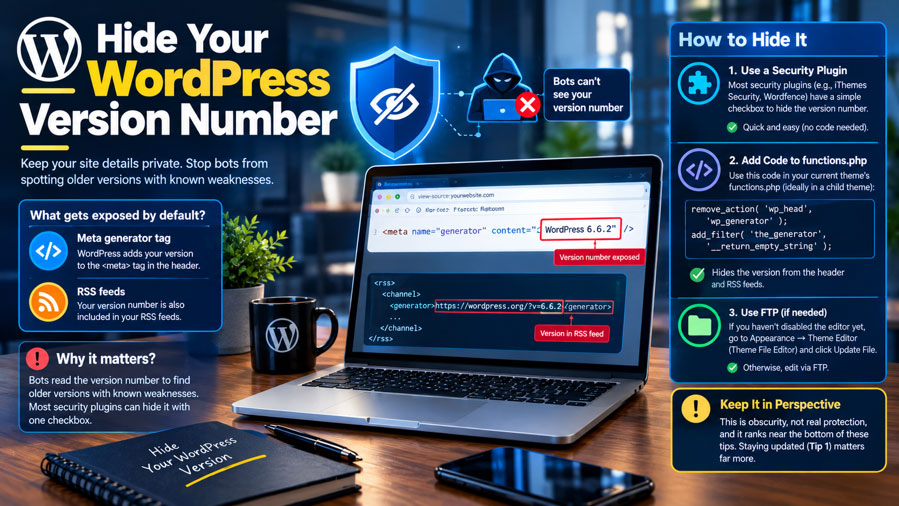
By default, WordPress adds your WordPress version to a meta generator tag in the header and to your RSS feeds. Bots read that version number to find older versions with known weaknesses. Most security plugins can hide it with one checkbox. Or add this to your current theme’s functions.php, ideally in a child theme:
remove_action( ‘wp_head’, ‘wp_generator’ );
add_filter( ‘the_generator’, ‘__return_empty_string’ );
If you haven’t disabled the editor yet, you could do this under Appearance → Theme Editor (now called Theme File Editor) and click Update File. Since Tip 13 turns that editor off, use FTP instead.
Be realistic about what this achieves, though: it’s obscurity, not protection, and it ranks near the bottom of these WordPress security tips. Staying updated (Tip 1) matters far more.
18. Block Form and Comment Spam
Spam bots and opportunistic bad actors flood contact forms, comment sections, and login fields with spam messages, shady links, and sometimes malicious scripts. To stop form spam and comment spam:
- Add Google reCAPTCHA, hCaptcha, or Cloudflare Turnstile, which is designed with privacy in mind.
- Use Akismet’s smart filtering for an automatic spam check.
- Keep manual moderation for first-time commenters.
This keeps malicious content off your pages and junk out of your inbox, and it protects the quality of your organic traffic.
If you don’t actually use comments, switch them off under Settings → Discussion, or close them on older posts, which spammers love to target. For contact forms, a hidden “honeypot” field catches many bots without bothering real visitors.
19. Run Regular Malware Scans and Security Audits
Think of this as your site’s regular health checkup. Run a malware scanner weekly to find viruses, malicious code, and changed core files. Free tools like Sucuri SiteCheck give you a quick outside malware check, a vulnerability scanner like WPScan flags out-of-date software with known vulnerabilities, and Solid Security adds ongoing vulnerability monitoring.
A full security audit combines automated checks with manual checks of user roles and file permissions. On bigger sites, add penetration testing (pen testing) with tools like Pentest-Tools to simulate real attacks, and set up uptime monitoring with OhDear.app to catch website errors.
Manage it all from a centralised dashboard if you can. Regular checks are how you confirm the other WordPress security tips in this guide are still doing their job.
Add Google Search Console to the routine. Its Security Issues report alerts you if Google finds hacked content on your site, often before you’re blacklisted or your visitors notice. Securing WordPress is an ongoing process, not a one-time setup.
20. Use Single Sign-On (SSO) for Larger Teams
Single Sign-On (SSO) gives bigger teams and enterprise environments centralized authentication across multiple sites. Your staff log in through a trusted identity provider such as Okta or Google Workspace, which means fewer passwords and tighter access control. When someone leaves, removing their account with the identity provider removes their WordPress access too.
For a solo blogger or a small team, this is usually overkill; strong passwords and 2FA are enough. SSO starts to pay off when you manage many people across several sites, because one central login is much easier to secure than dozens of separate accounts.
21. Verify Third-Party Services and Embeds
Third-party services such as chat widgets, analytics, and social media embeds run someone else’s code on your pages. If a provider is compromised, that embedded content can push malicious content onto your site, including rogue gambling adverts or links to illicit media.
That can hurt your search engine results and even get your paid ads rejected by Google Ads. Only embed from a trusted source.
Keep a simple list of every outside service your site loads, and review it twice a year. When you stop using a tool, remove its code completely instead of just canceling the account, because forgotten scripts are an easy target.
22. Block Hotlinking
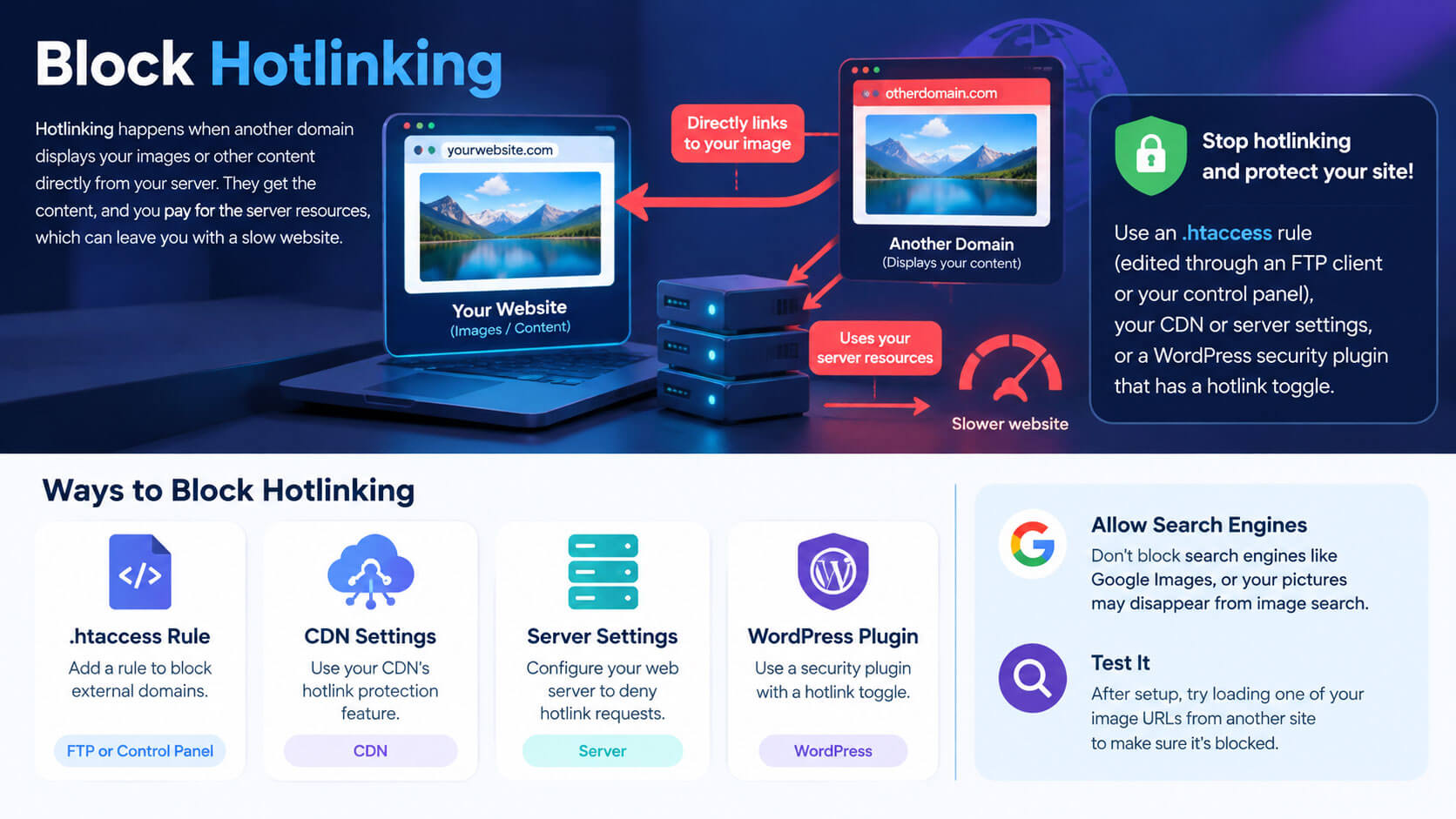
Hotlinking happens when another domain displays your images or other content directly from your server. They get the content, and you pay for the server resources, which can leave you with a slow website.
Block it with an .htaccess rule (edited through an FTP client or your control panel), in your CDN or server settings, or with a WordPress security plugin that has a hotlink toggle.
When you set it up, allow search engines like Google Images, or your pictures may disappear from image search. Then test it by loading one of your image URLs from another site.
What to Do If Your WordPress Site Gets Hacked
Even well-protected sites can be hit. If you see strange redirects, unknown admin accounts, spam pages, or a Google warning, act quickly:
- Contain it: put the site in maintenance mode and tell your host. Many hosts help with cleanup.
- Change every password: WordPress admins, hosting, FTP, and database. Then refresh the security keys in wp-config.php to log out every session.
- Scan and clean: use your security plugin or a professional cleanup service to remove malicious files and accounts.
- Restore if needed: if cleanup is messy, restore a backup from before the infection, then update everything immediately.
- Request a review: once the site is clean, use the Security Issues report in Google Search Console to ask Google to remove any warning.
Afterward, find out how the attacker got in, whether through an outdated plugin, a weak password, or something else, and fix that weakness so it doesn’t happen again.
WordPress Security Checklist at a Glance
Use this security checklist to track which WordPress security tips you’ve finished and how to apply each one.
| Tip | Risk Prevented | Plugin or Manual Method |
| 1. Updates | Known vulnerabilities | Dashboard / auto-updates |
| 2. Strong logins | Brute force, credential stuffing | Password manager |
| 3. 2FA + login limits | Stolen passwords | WP 2FA, Limit Login Attempts Reloaded |
| 4. Trusted plugins | Vulnerable or malicious code | Manual review |
| 5. Security plugin | Multiple attack types | Wordfence, Sucuri, Solid Security, AIOS |
| 6. User roles | Insider misuse | Users → All Users / User Role Editor |
| 7. Backups | Data loss | UpdraftPlus, BackWPup |
| 8. SSL/HTTPS | Data interception | Host / Let’s Encrypt |
| 9. Secure hosting | Server-level attacks | Host choice |
| 10. Firewall | Exploits, DDoS | Cloudflare, Jetpack Protect |
| 11. File permissions | Unauthorized file changes | FTP / File Manager |
| 12. wp-config & .htaccess | Config exposure | Manual / plugin toggle |
| 13. File editor off | Code injection | wp-config.php |
| 14. Error reporting off | Information leaks | wp-config.php / hosting panel |
| 15. DB prefix | Automated SQL injection | phpMyAdmin / plugin |
| 16. XML-RPC off | Amplified brute force | Plugin / .htaccess |
| 17. Hide version | Targeted scanning | Plugin / child theme |
| 18. Spam blocking | Spam, malicious links | Turnstile, reCAPTCHA, Akismet |
| 19. Scans & audits | Undetected malware | Sucuri SiteCheck, WPScan |
| 20. SSO | Orphaned accounts | Okta / Google Workspace |
| 21. Third-party checks | Malicious embeds | Manual review |
| 22. Hotlink blocking | Bandwidth theft | .htaccess / CDN |
Save or print this table and tick off each row as you go. Come back to it every few months, because plugins change, people join and leave your team, and settings drift over time.
Frequently Asked Questions
How Do I Keep My WordPress Site Secure?
To keep WordPress secure, update regularly, use strong passwords with 2FA, run one security plugin with a firewall, take regular backups, and choose a secure hosting provider. Remove outdated software and check core files with a malware scan every week.
What Is the Easiest Way to Improve WordPress Security?
The easiest way to improve WordPress security is to keep everything updated and turn on 2FA. After that, install a well-rated security plugin, limit user access, and schedule regular backups. Of all WordPress security tips, these take the least effort for the biggest gain.
Which Is the Best Security Plugin for WordPress?
There’s no single best security plugin for all WordPress sites. Sucuri, Solid Security, All-In-One WP Security, and Wordfence are all widely used. If you want an all-in-one security solution with 2FA, compare their free features with your budget, and add SSO if you manage a large team.
How Often Should I Update My WordPress Site?
Install security fixes right away, because they patch vulnerabilities before a known exploit spreads. Check core updates, plugin updates, and theme updates weekly using dashboard reminders or email alerts, and set monthly reminders for any manual updates.
Can You Secure WordPress Without a Plugin?
Partly. Many WordPress security tips work without a plugin: choose a secure host, use strong passwords, set file permissions, edit .htaccess, turn off the file editor, XML-RPC, and PHP error display, hide your WordPress version, change the database prefix, use a custom login URL instead of /wp-admin, and handle user role management. It’s more complex, though, and plugins make firewalls and scanning much easier.
How Do I Prevent My WordPress Site From Being Hacked?
You can’t guarantee it, but you can prevent hacking in most cases. Combine updates, strong login credentials, two-factor authentication, limit login attempts, and a changed default login URL. Add a firewall with DDoS protection from your host, and run malware scans to stop unauthorized access early.
What Are the Most Common WordPress Security Risks?
The biggest security risks are outdated plugins and outdated themes, weak login credentials, nulled plugins and unofficial plugins that carry malware (stick to official plugins), poor user role management, and insecure hosting environments.
Does WordPress Have Built-In Security?
Yes. WordPress has built-in security and basic security features, and its security team can push urgent fixes automatically, as it did during wp2shell in July 2026. It doesn’t include firewalls, malware scans, or login hardening by default, though, so you still need trusted plugins, secure hosting, and these WordPress security tips to handle modern threats.
Final Thoughts on WordPress Security
No single tool keeps WordPress safe; layered security does. The first seven WordPress security tips (updates, strong passwords, 2FA, trusted plugins, one security plugin, sensible user roles, and tested backups) stop most real-world attacks. Steps like hiding your version number add only small gains on top.
If you’re still unsure how to secure a WordPress site and where to begin, try this plan:
- Day 1: update everything and delete unused plugins and themes.
- Day 2: turn on 2FA for every admin account.
- Day 3: set up offsite backups and test one restore.
- Days 4–7: add a firewall, disable the file editor, and run a full scan.
After that, set aside about 15 minutes a week for updates and scans, and revisit these WordPress security tips once a month. Steady habits matter more than technical skill.