

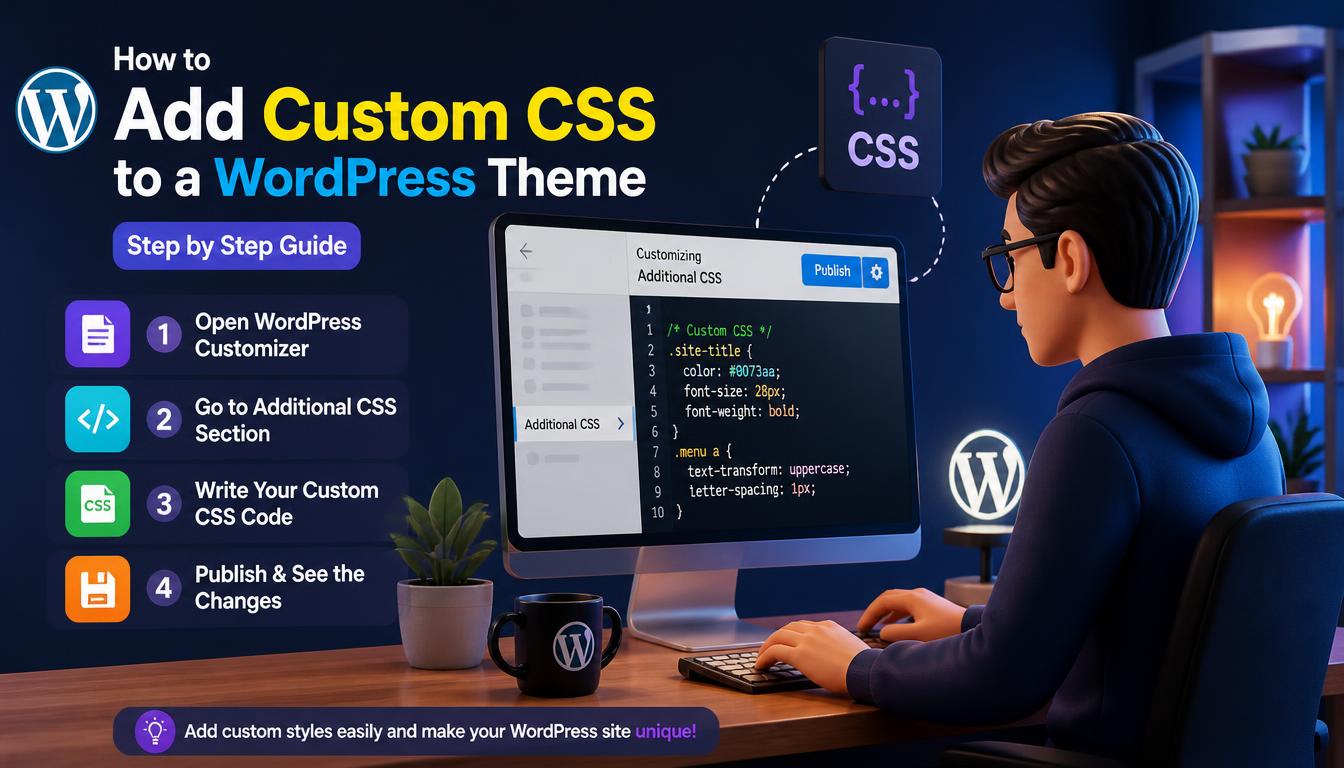
When you add custom CSS to a WordPress theme, you write your own style rules that override the theme’s default design. CSS (Cascading Style Sheets) controls colors, fonts, spacing, borders and layout, so a few lines of code can fix details that the theme settings do not cover.
This step-by-step guide shows four safe places to add custom CSS to a WordPress theme: the Site Editor, the Customizer, a child theme and a code snippets plugin. You will also learn how to find the right CSS selector, write mobile-only rules and fix CSS that does not apply.
Why Add Custom CSS to a WordPress Theme?
Theme options cover the common settings, but every site has small details they miss. You add custom CSS to a WordPress theme when you need to:
- Change the color of one button or link
- Hide the page title on a specific page
- Adjust padding and margins around a section
- Change the font size on mobile only
- Style a contact form or a WooCommerce element
Custom CSS is also lighter than most alternatives. Instead of installing a plugin for one visual tweak, a few lines of code do the same job with no extra scripts or plugin updates to maintain.
Small brand details are another good reason to write your own rules. Themes rarely offer settings for a custom text highlight color, rounded image corners or a softer link hover effect, yet together these details make a standard theme feel designed specifically for your brand.
4 Places to Add Custom CSS to a WordPress Theme
| Location | Theme type | Survives theme update | Best for |
| Site Editor > Styles > Additional CSS | Block themes | Yes | Site-wide fixes |
| Customizer > Additional CSS | Classic themes | Yes | Site-wide fixes with live preview |
| Child theme style.css | Both | Yes | Large stylesheets kept in files |
| Code snippets plugin | Both | Yes | Managing many snippets |
Additional CSS is saved per theme in the database, so it stays after updates but does not move to a new theme automatically. Choose one main location and stick to it, because rules spread across several places are hard to debug.
Each location also has a different backup story. Additional CSS is included in a database backup, while child theme files are included in a file backup, so make sure your backup plugin saves both the database and the theme folder.
Method 1: Site Editor (Block Themes)
- Go to Appearance > Editor.
- Click Styles.
- Open the three-dot menu and choose Additional CSS.
- Paste your CSS and click Save.
This is the fastest way to add custom CSS to a WordPress theme that uses blocks. You can also add CSS to one block type only: go to Styles > Blocks, choose a block such as Button, and open its Additional CSS panel. WordPress scopes these rules to that block, so they are less likely to affect other elements.
To style one single block instead of every block of that type, select it in the editor, open Advanced in the block settings and add a class name in the Additional CSS class(es) field. Then target that class in your CSS.
Method 2: Customizer (Classic Themes)
- Go to Appearance > Customize.
- Click Additional CSS.
- Type your CSS and watch the live preview update.
- Click Publish.
The live preview is the main advantage here. You see each rule apply as you type, and if something breaks, you delete the last rule before anything is published.
The Customizer’s CSS box also marks lines that contain invalid code, which helps you spot a missing bracket or semicolon before you publish. Fix every marked line, because one broken rule can stop the rules after it from working and make the problem look much bigger than it is.
Method 3: Child Theme Stylesheet
If you already use a child theme, add your rules to its style.css file. This is the cleanest way to add custom CSS to a WordPress theme when you have hundreds of lines, because the code lives in a file you can keep under version control.
/*
Theme Name: Twenty Twenty-Five Child
Template: twentytwentyfive
*/
.wp-block-site-title a {
color: #1d6b8c;
}
Browsers may keep an old copy of the file for a while. Adding a version number when you load the stylesheet makes browsers download the latest copy after each change.
A child theme stylesheet is also the right place for long rule sets, such as complete styles for a custom landing page. Keeping large blocks of CSS in a file instead of the dashboard makes them easier to back up, compare in version control and move to another site.
Method 4: Code Snippets Plugin
Plugins such as WPCode and Simple Custom CSS and JS store snippets separately from the theme. They let you switch a snippet on or off and load it only on certain pages. Each snippet can also have a title and a description, which helps teams keep a clear record of what every piece of code does.
Plugins are also helpful for styling forms. Popular form plugins add their own wrapper classes, such as .wpcf7 for Contact Form 7 and .wpforms-form for WPForms, so you can target only one plugin’s input fields and buttons without changing other forms on the site.
How to Find the Right CSS Selector
Before you add custom CSS to a WordPress theme, find the exact element you want to style. A rule works only when it targets the right element. Use your browser’s Developer Tools to find it:
- Right-click the element on your page and choose Inspect.
- Read the class or ID in the highlighted HTML, for example wp-block-button__link.
- Test a new value in the Styles panel of the developer tools.
- Copy the working rule into Additional CSS.
Prefer class selectors over long element chains or IDs. Avoid selectors that depend on auto-generated numbers, because they can change when you edit the page and quietly break your styles.
To find a selector for a hover or focus style, use the developer tools option that forces an element state, often labeled :hov. It keeps the element in its hover or focus state, so you can inspect and test styles that only appear on interaction.
Custom CSS Examples You Can Copy
| Goal | CSS code |
| Change button color | .wp-block-button__link { background: #1d6b8c; } |
| Hide page title on page ID 42 | .page-id-42 .wp-block-post-title { display: none; } |
| Change link color | a { color: #1d6b8c; } |
| Add space above footer | footer { margin-top: 60px; } |
| Round image corners | .wp-block-image img { border-radius: 8px; } |
Class names differ between themes, so always confirm the selector with Inspect before you add custom CSS to a WordPress theme. Test each snippet on its own before adding the next one, so you know which rule caused any problem.
The HEX colors in these examples are placeholders. Replace them with values from your own brand palette, and keep a short list of the colors you use, so every custom rule matches the rest of the design.
How to Write Mobile-Only and Desktop-Only CSS
Media queries apply rules at certain screen widths. This is how you add custom CSS to a WordPress theme for responsive design:
/* Phones */
@media (max-width: 600px) {
h1 { font-size: 28px; }
}
/* Desktops */
@media (min-width: 1024px) {
.entry-content p { font-size: 18px; }
}
Your theme may use its own breakpoints. Inspect the theme’s stylesheet to find them, and match your media queries to those widths so your rules switch at the same points as the theme’s layout.
Media queries also work for printing. A print media query can hide the header, footer and buttons when someone prints a recipe or guide, and you can check the result in your browser’s print preview before you publish the change.
Why Your Custom CSS Is Not Working
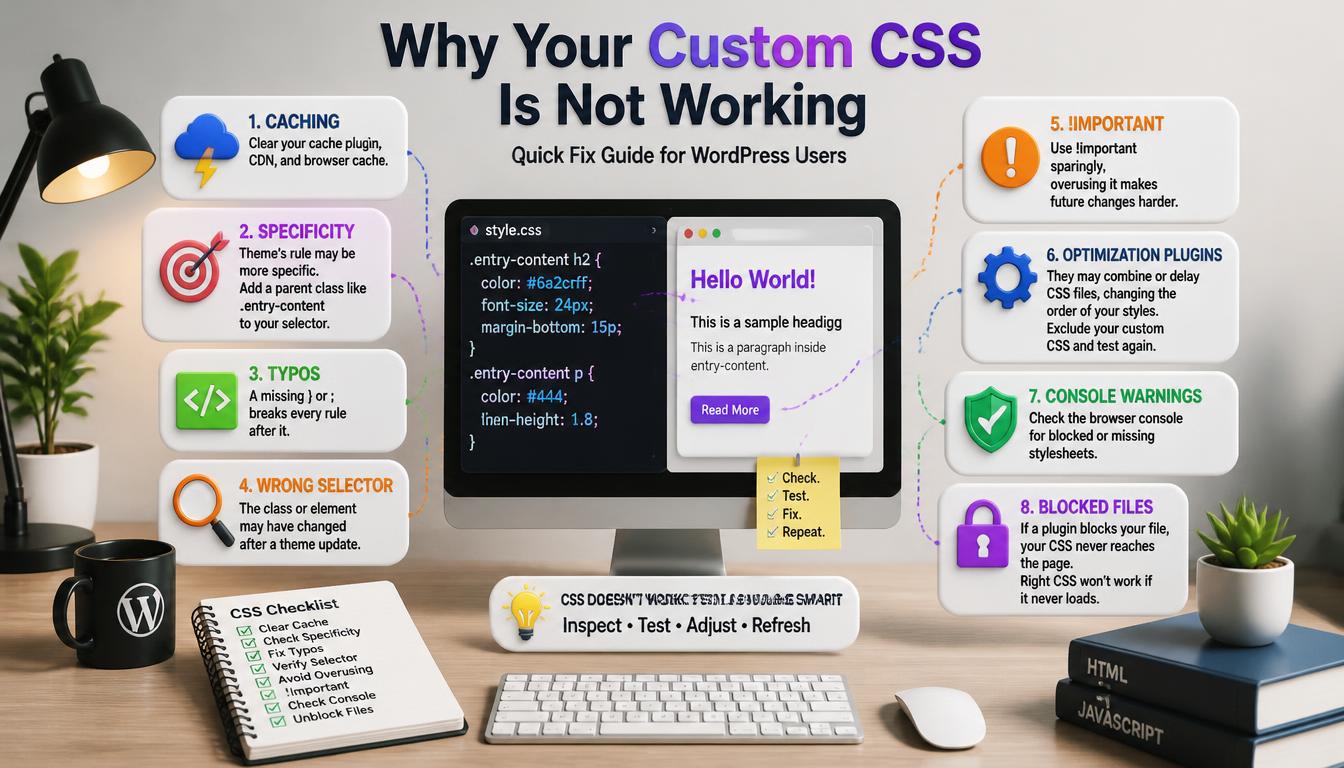
If your changes do not appear after you add custom CSS to a WordPress theme, check these common causes:
- Caching: clear your cache plugin, CDN and browser cache.
- Specificity: the theme’s rule is more specific than yours. Add a parent class such as .entry-content to your selector.
- Typos: a missing } or ; breaks every rule after it.
- Wrong selector: the class changed after a theme update.
- Last resort: use !important sparingly, because overusing it makes future changes harder.
Some optimization plugins combine or delay CSS files, which can change the order in which rules load. If nothing else works, exclude your custom stylesheet from these features and test again.
Also check the browser’s developer console for warnings about blocked or missing stylesheets. If a security or optimization plugin blocks a file, your rules never reach the page, no matter how correct the CSS is.
Best Practices
Follow these habits every time you add custom CSS to a WordPress theme:
- Add a comment above each rule so you remember why it exists.
- Group rules by area: header, content, footer.
- Keep Additional CSS short; move large stylesheets to a child theme.
- Test on mobile, tablet and desktop after every change.
Review your custom CSS after each major theme update. Theme developers sometimes rename classes or change layouts, so old rules may stop working or cause side effects. A quick review keeps your design consistent.
Add motion carefully. A short transition on buttons and links feels polished, but long animations distract readers. Wrap animations in a prefers-reduced-motion media query, so visitors who turn on reduced motion in their system settings see a calmer version of your site.
More CSS Snippets for Common Details
These snippets cover common requests. Paste them into Additional CSS, then change the colors and values to match your design.
Change the link hover color:
a:hover,
a:focus {
color: #c2410c;
}
Limit the width of long text (in block themes, the content area usually uses .wp-block-post-content instead of .entry-content):
.entry-content p {
max-width: 70ch;
}
Change the text highlight color:
::selection {
background: #fde68a;
color: #111827;
}
Each example targets a broad selector, so test it on several page types before you publish. If a rule affects more elements than you expected, add a more specific parent class, such as a class from your theme’s content area, to narrow it down.
Style Keyboard Focus for Accessibility
Many visitors move through a site with the Tab key instead of a mouse. Browsers show a focus outline around the active link or button, and removing that outline makes the site hard to use.
a:focus-visible,
button:focus-visible {
outline: 3px solid #1d4ed8;
outline-offset: 2px;
}
The :focus-visible selector shows the outline for keyboard users while hiding it for most mouse clicks. When you add custom CSS to a WordPress theme, never use outline: none without a clear replacement, because a visible focus indicator is a basic accessibility requirement.
Test Your CSS in Different Browsers
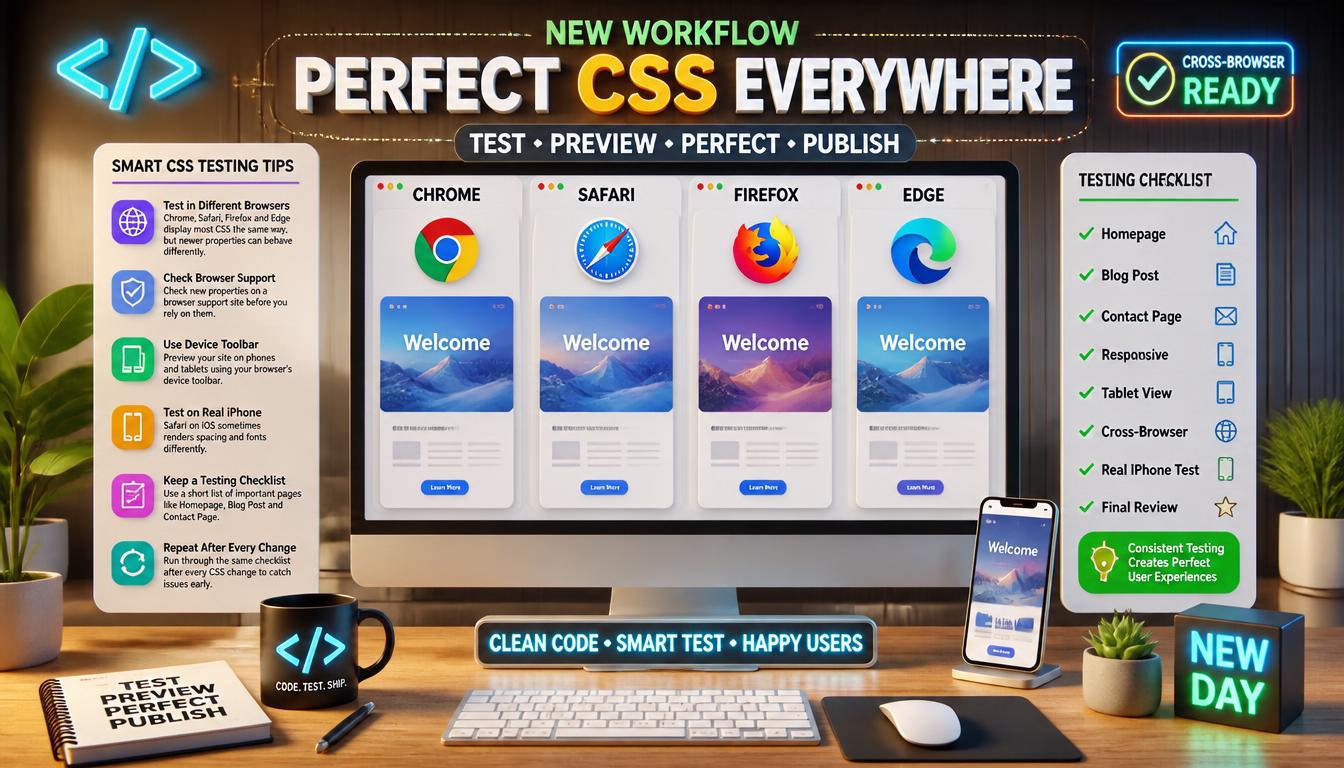
Chrome, Safari, Firefox and Edge display most CSS the same way, but newer properties can behave differently.
- Check new properties on a browser support site before you rely on them.
- Use your browser’s device toolbar to preview phones and tablets.
- Test on a real iPhone, because Safari on iOS sometimes renders spacing and fonts differently.
Keep a short testing checklist with the pages that matter most, such as the homepage, a blog post and the contact page. Running through the same list after every CSS change catches problems before visitors notice them and keeps your design reliable on every device.
When CSS Is Not the Right Tool
CSS changes how content looks, not what content exists. Hiding an element with display: none removes it from view, but the browser still loads it, and search engines may still read it.
- To remove a section completely, edit the template or delete the block.
- To change text, edit the content or the template part instead of covering it with CSS.
- To add new features, use a plugin or a child theme function.
Choosing the right method keeps your stylesheet focused on design. Before you add custom CSS to a WordPress theme, ask whether a block setting or a template edit would solve the problem more cleanly and with less code to maintain.
CSS Units Explained
Choosing the right unit makes your styles more flexible on different screens.
| Unit | What it means | Good for |
| px | A fixed pixel size | Borders and small details |
| rem | Relative to the root font size of the page | Font sizes and spacing |
| em | Relative to the font size of the current element | Padding inside buttons |
| % | A percentage of the parent element | Widths inside containers |
| vw / vh | A percentage of the browser window width or height | Full-screen sections |
| ch | The width of the “0” character in the current font | Comfortable line lengths |
Using rem for font sizes respects visitors who increase the default text size in their browser settings. Pixels still work well for thin borders, but relative CSS units make most layouts adapt more gracefully to phones, tablets and large monitors.
Custom CSS for WooCommerce Pages
Stores often need small visual changes that WooCommerce settings do not offer. These selectors target common store elements.
/* Larger, bolder product prices */
.woocommerce-Price-amount {
font-weight: 700;
}
/* Brand color for the Add to Cart button */
.single_add_to_cart_button {
background-color: #15803d;
}
Block-based store templates use different class names from classic WooCommerce pages, so always confirm selectors with Inspect first. When you add custom CSS to a WordPress theme for a store, test product, cart and checkout pages, because a rule meant for one WooCommerce page can easily affect the others.
Read More: https://linkneon.com/how-to-customize-a-wordpress-theme/
Frequently Asked Questions
Do I need a child theme to add custom CSS to a WordPress theme?
No. Additional CSS in the Site Editor or Customizer is enough for most changes, and it survives theme updates.
Where is Additional CSS in a block theme?
Go to Appearance > Editor > Styles, open the three-dot menu, and choose Additional CSS.
Will my CSS stay if I switch themes?
No. Additional CSS is stored per theme. Copy it before you switch, then review it, because the new theme uses different class names.
Does custom CSS slow down my site?
A small amount of CSS has very little effect on page speed. Very large stylesheets are better kept in a child theme file, which browsers can cache.
Can I add custom CSS to only one page?
Yes. WordPress adds a page-specific class to the body tag, such as page-id-42. Start your selector with that class, and the rule applies to that page only.
Final Thoughts
You can add custom CSS to a WordPress theme in minutes with the Site Editor or Customizer. Use Inspect to find the selector, test on all screen sizes, keep your rules organized with comments, and move large stylesheets to a child theme.
As your stylesheet grows, review it every few months and delete rules for elements that no longer exist. Removing unused CSS keeps files small, reduces specificity battles with future theme updates and makes it much easier for another developer to understand and safely extend your changes.