

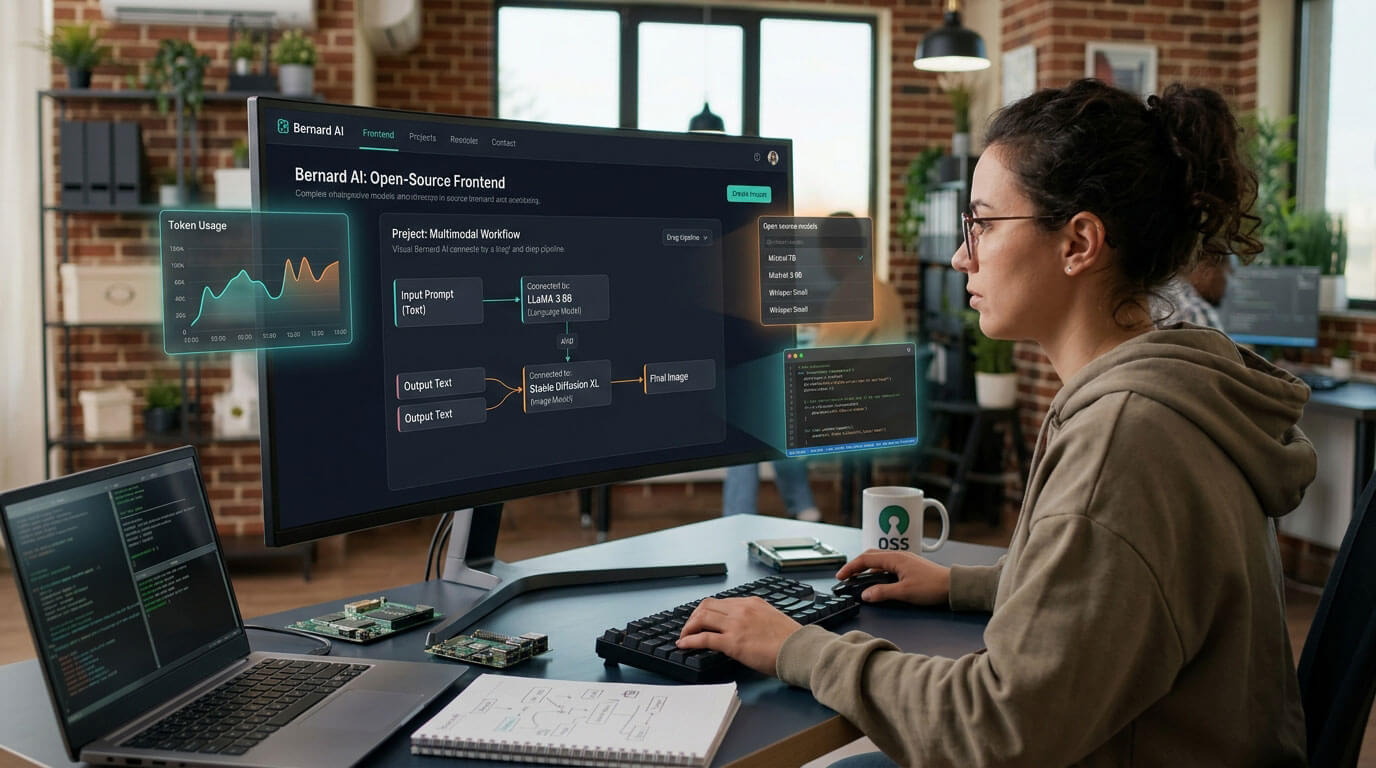
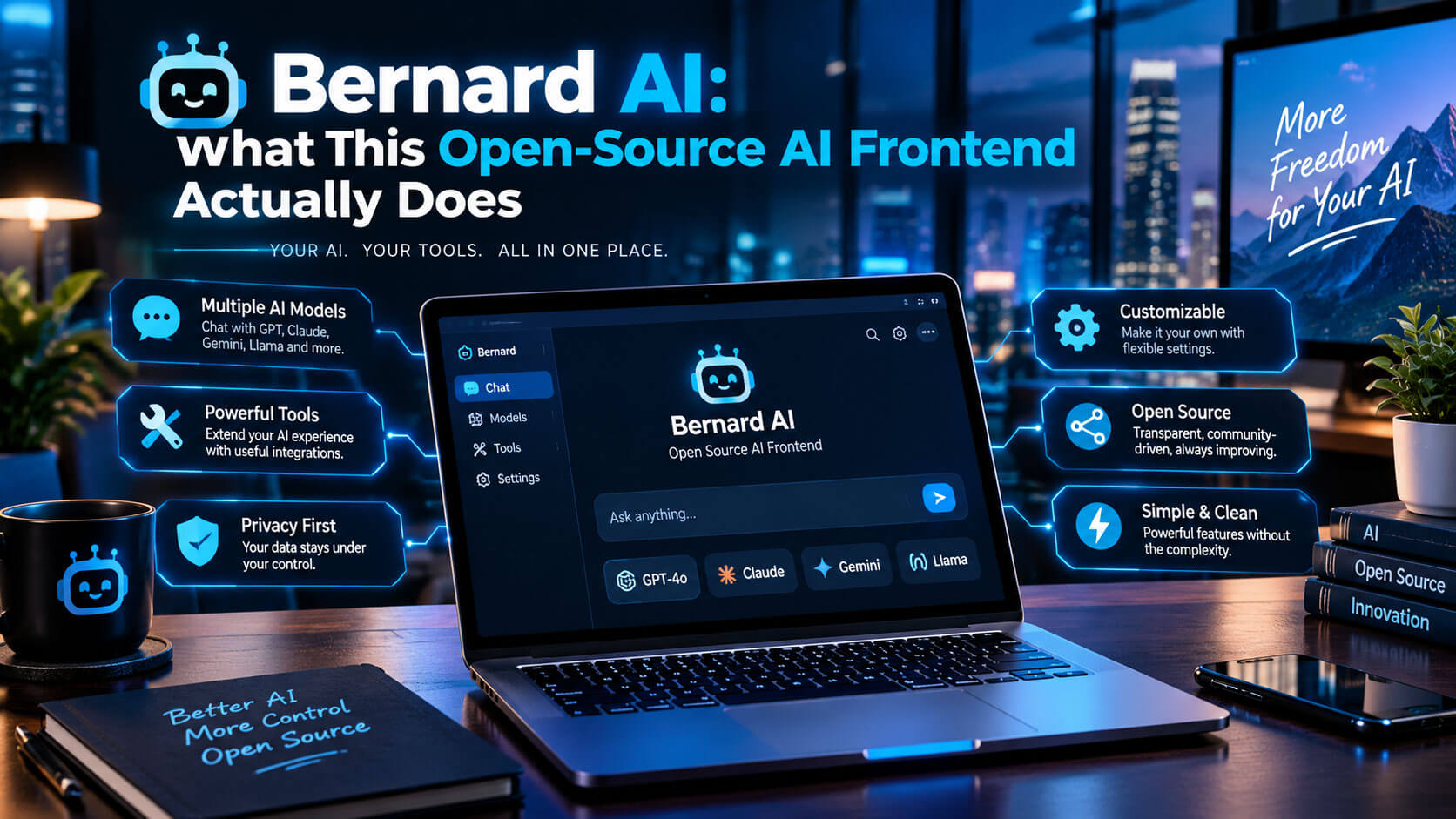
Most people using AI chatbots are stuck picking one provider and living inside its app: ChatGPT for OpenAI’s models, Claude.ai for Anthropic’s, a separate tab for Gemini. Bernard AI takes a different approach. It’s a personal AI frontend, an interface you install once that connects to whichever AI providers and models you want, rather than an AI model in its own right.
This guide explains what Bernard AI actually is, how it differs from just using a provider’s app directly, the technical features that make it work (retrieval-augmented generation, the Model Context Protocol, local vector storage), and who realistically benefits from using it given its current platform limitations.
What Bernard AI Actually Is
Bernard is an open-source, free AI frontend, meaning it’s not itself an AI model. It’s the interface layer that sits between you and whichever AI models you choose to connect: Anthropic Claude, Google Gemini, OpenAI-compatible endpoints, or models you run locally on your own machine through tools like Ollama or LM Studio.
This distinction matters because it changes what you’re actually choosing. Picking Bernard isn’t picking an AI to talk to instead of Claude or ChatGPT; it’s picking a different way to talk to Claude, ChatGPT-compatible models, or several of them, from one place. The software itself is released under the Apache 2.0 license and is free to use, with the developer noting on the project’s site that a donation to charity is welcome but not required.
Because Bernard is open-source, anyone can inspect its code rather than trusting a company’s word for how it handles data, which is part of the appeal for privacy-conscious users. It also means updates and new features depend on community and maintainer activity rather than a company’s product roadmap, a tradeoff worth knowing going in.
This “frontend” model isn’t unique to Bernard; it’s a category that’s grown alongside AI providers exposing programmatic access to their models. What varies between frontends is how much they add on top of basic chat: some are little more than a chat window pointed at an API, while others, Bernard among them, build out document retrieval, tool integrations, and persistent agent configurations. Understanding which category a given frontend falls into matters more than the general concept, since “AI frontend” alone doesn’t tell you much about what a specific one can actually do.
How Bernard Differs From Using ChatGPT or Claude Directly
A single-provider app like ChatGPT or Claude.ai gives you one company’s model, one interface, and that company’s data handling by default. Bernard changes several of those variables at once.
| Single-provider app (ChatGPT, Claude.ai) | Bernard AI | |
| AI models available | One provider’s models only | Multiple providers and local models in one interface |
| Data storage | Provider’s servers by default | Local, on your own machine |
| Setup required | None; sign up and use | Installation and provider configuration |
| Cost | Free tier plus paid subscriptions | Free, open-source |
| Customization | Limited to what the provider offers | Configurable agents, skills, and commands |
The tradeoff is straightforward: a single-provider app requires zero setup and works instantly, while Bernard requires installing software and configuring at least one AI provider before it’s useful, in exchange for more control over which models you use and where your data lives. For someone who’s happy with one provider and doesn’t mind that provider seeing their conversations, a frontend like Bernard solves a problem they may not have.
Where this distinction becomes practical is switching costs. Someone using ChatGPT directly who wants to try Claude for a specific task has to open a second app, log in separately, and manage two histories in two places. Someone using Bernard with both providers configured switches between them inside the same interface, with the same document library and configured agents available regardless of which model is answering. That convenience only shows up after the initial setup is done, which is the real cost being traded here, not an ongoing one.
Core Features: RAG, MCP, and Local Vector Storage
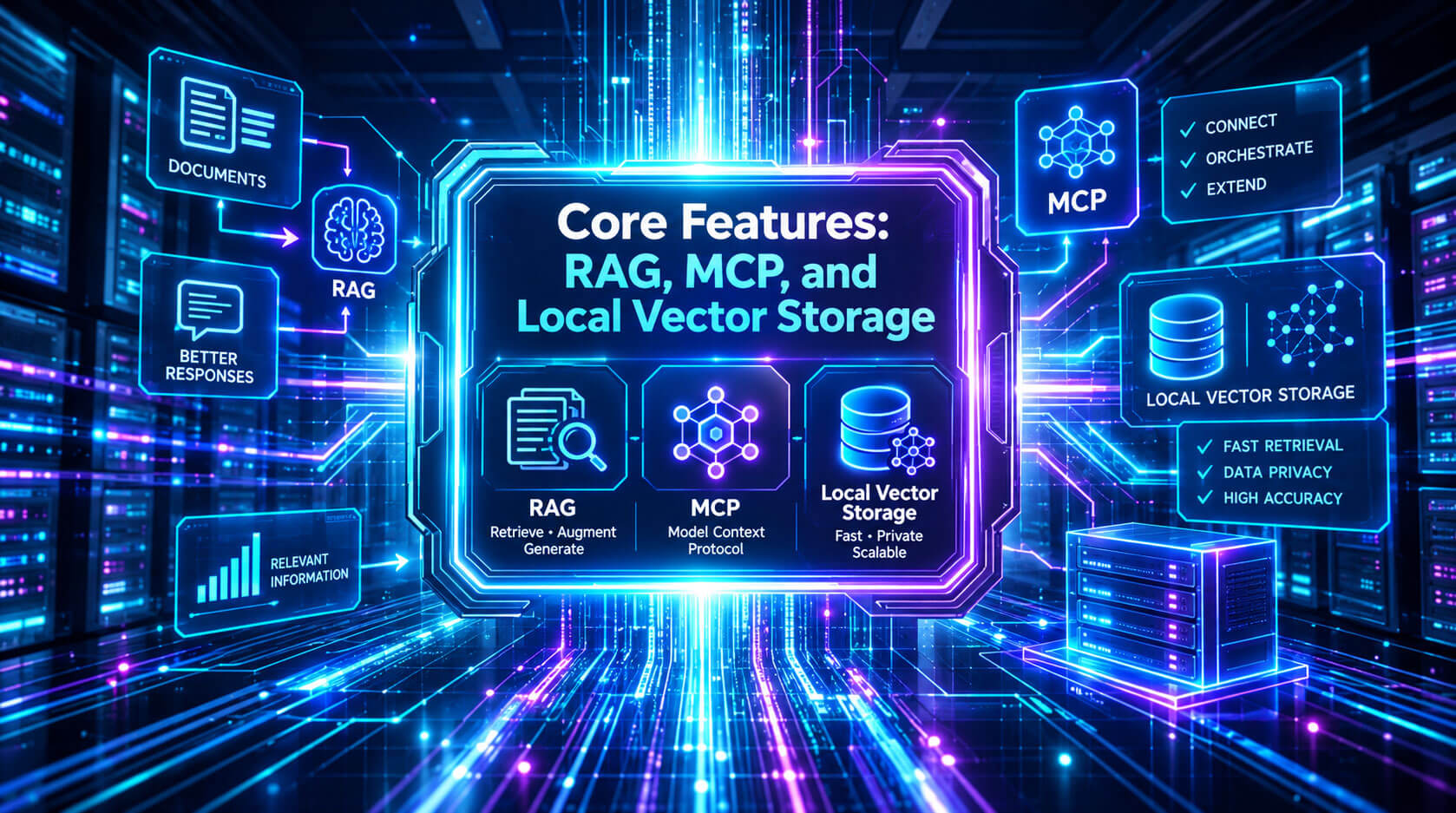
Retrieval-Augmented Generation (RAG) explained simply
RAG is a technique that lets an AI model pull in information from your own documents before answering, rather than relying only on what it learned during training. Bernard implements this through a local vector store: your files get converted into a searchable format on your own machine, and relevant pieces get fed to the AI model when you ask a question that touches on them. Practically, this means you can point Bernard at your own notes, PDFs, or documents and get answers grounded in that content instead of the model’s general knowledge alone.
Model Context Protocol (MCP) explained simply
MCP is an open standard for connecting AI models to external tools and data sources in a consistent way, rather than every application building its own custom integration for every tool. Bernard supports configuring MCP servers, which means it can potentially connect to any tool or service that also supports MCP, without Bernard’s developers needing to build a dedicated integration for each one.
For a non-technical reader, the practical takeaway is that MCP support gives Bernard room to grow its capabilities over time through a shared standard rather than being limited to whatever its own team builds directly.
Bernard also supports tool use (letting the connected AI model call external tools mid-conversation) and multiple file formats for document handling, including Markdown, PDF, DOCX, and email formats, with OCR available for scanned PDFs.
Agents, Skills, and Commands

Bernard organizes its more advanced functionality into three concepts. Agents carry a defined personality and stay active in the background, available whenever you need them rather than requiring a fresh setup each session. Skills are automatic document or knowledge retrieval that triggers when relevant to what you’re asking, without you needing to manually search for the right file first. Commands are user-triggered prompts you invoke directly when you want a specific, repeatable action rather than typing the same request from scratch each time.
Together, these features are aimed at someone who wants a persistent, customized AI setup rather than a blank chat window they reconfigure every time, closer to building a personal toolkit than sending one-off messages. A researcher might configure an agent with a specific personality for literature review, a skill that automatically pulls from a folder of reference papers, and a command that formats citations a particular way, then reuse all three across sessions instead of re-explaining the setup each time.
Privacy and Local-First Data Handling
Bernard’s core privacy claim is that your data stays on your own machine rather than being processed and stored on a third party’s servers by default. This applies to the local vector store used for RAG and to configuration and interaction data generally, since Bernard runs as a local desktop application rather than a web service.
It’s worth being precise about what “local-first” does and doesn’t mean here. Your documents and Bernard’s own data stay local, but the actual AI responses still typically come from whichever provider’s model you’ve connected, meaning your conversation content is still sent to that provider (Anthropic, Google, OpenAI, and so on) unless you’re specifically running a fully local model through Ollama or a similar tool. Bernard controls where your files and configuration live; it doesn’t change a cloud AI provider’s own data policy for the messages you send them.
The one setup that gets closer to fully private is running a local model through Ollama, LM Studio, or llama.cpp alongside Bernard’s local vector store. In that configuration, both your documents and the model generating responses stay on your own hardware, with nothing sent to an outside provider. The practical cost is that locally run models, especially on consumer hardware, are generally less capable than the largest cloud-hosted models from major providers, so this setup trades some response quality for full data locality.
Which tradeoff makes sense depends on what you’re using Bernard for: drafting and general questions tolerate a smaller local model reasonably well, while more demanding tasks tend to benefit from a larger cloud model even if that means sending conversation content to that provider.
Platform Availability and Current Limitations
Before going further, it’s worth knowing what Bernard actually supports right now, since this rules it out for some readers immediately:
- macOS (Apple Silicon): currently supported.
- Windows: not yet available; the project states a Windows version is coming but wasn’t available at the time of writing.
- Linux: not mentioned as supported on the project’s own site.
- Setup requirement: installing the application and configuring at least one AI provider’s API access before it’s usable.
Anyone on Windows or Linux today can’t use Bernard yet regardless of how well it fits their needs otherwise, which is worth confirming directly on the project’s site before investing time reading further into whether it’s the right fit. Open-source projects with a small maintainer base often prioritize one platform first and expand later as demand and contributor time allow, and Bernard’s current macOS-first approach fits that common pattern rather than signaling anything unusual about the project’s direction.
Who Bernard AI Is Actually For
- A good fit for: Mac users comfortable installing and configuring software, people who already use multiple AI providers and want one interface instead of several, anyone prioritizing local data storage and open-source transparency over convenience, and users who want to build reusable agents and commands around their own documents rather than starting fresh each session.
- A weaker fit for: Windows or Linux users right now, given no current support. Non-technical users who want to open an app and start typing with zero configuration, since Bernard requires setting up provider access first. Anyone who wants one AI company’s fully integrated ecosystem (memory across devices, mobile apps, browser extensions) rather than a self-managed, local setup. Casual users who ask a handful of questions a week are unlikely to get enough value from the setup effort to justify it over a free web chatbot.
Getting Started
Setting up Bernard generally follows this order:
- Download and install the application for macOS on Apple Silicon.
- Connect at least one AI provider by entering that provider’s own API credentials, since Bernard itself doesn’t include a built-in model; this typically means signing up for API access with Anthropic, Google, OpenAI, or a similar provider separately, which may carry its own usage costs even though Bernard is free.
- Point Bernard at your documents, if you plan to use RAG, so it can build a local vector store from files you want it to reference.
- Configure MCP servers, if you want to connect external tools, and set up agents or commands for repeatable workflows.
The first two steps are required before Bernard is usable at all; the rest are optional depth you can add once the basic chat connection is working. Since Bernard is open-source, its own documentation and repository are the most reliable source for exact setup steps, as these details are the kind that change between versions and shouldn’t be treated as fixed.
Frequently Asked Questions
Is Bernard AI its own AI model, or does it need another AI service to work?
It needs another AI service. Bernard is a frontend, an interface, not an AI model itself, so it requires connecting to at least one provider like Anthropic Claude, Google Gemini, or a locally run model to actually generate responses.
Is Bernard AI free to use?
Yes. According to the project’s own site, Bernard is free, released under the Apache 2.0 open-source license, with an optional suggestion to donate to a charity of your choice if you find it useful.
Does Bernard AI work on Windows?
Not yet. As of this writing, Bernard runs on macOS with Apple Silicon; the project states a Windows version is planned but wasn’t available at the time of writing. Check the project’s site directly for the current status before assuming it’s ready.
Is my data actually private with Bernard AI?
Your files and Bernard’s own local data (like the vector store) stay on your machine. However, the actual conversation content you send still goes to whichever AI provider’s model you’ve connected to, unless you’re running a fully local model, so it isn’t fully private from that provider by default.
What’s the difference between Bernard AI and tools like LibreChat or Open WebUI?
Bernard occupies the same general category, an open-source frontend for connecting to multiple AI providers, but a direct feature-by-feature comparison to specific named alternatives would need independent verification rather than assumption, since each project’s exact feature set changes over time.
Do I need to know how to code to set up Bernard AI?
Not necessarily, but you do need to comfortably install desktop software and configure API access for at least one AI provider, which is more setup than a typical web-based chatbot requires, even without writing any code yourself.
Read More: https://linkneon.com/custom-wordpress-development/
Conclusion
Bernard AI is a genuinely useful option for a specific kind of user: someone on a Mac who wants one interface for multiple AI providers, values keeping their documents and configuration local, and doesn’t mind spending a bit of setup time to get there. It isn’t a drop-in replacement for a single-provider app’s convenience, and its current Windows and Linux gap rules it out for a lot of potential users today regardless of how well the underlying idea fits their needs.
The practical next step: if you’re on a Mac and already use more than one AI provider, check Bernard’s own site for current setup instructions and try connecting one provider before deciding whether the local-first, multi-provider approach is worth the extra configuration over what you’re using now.