

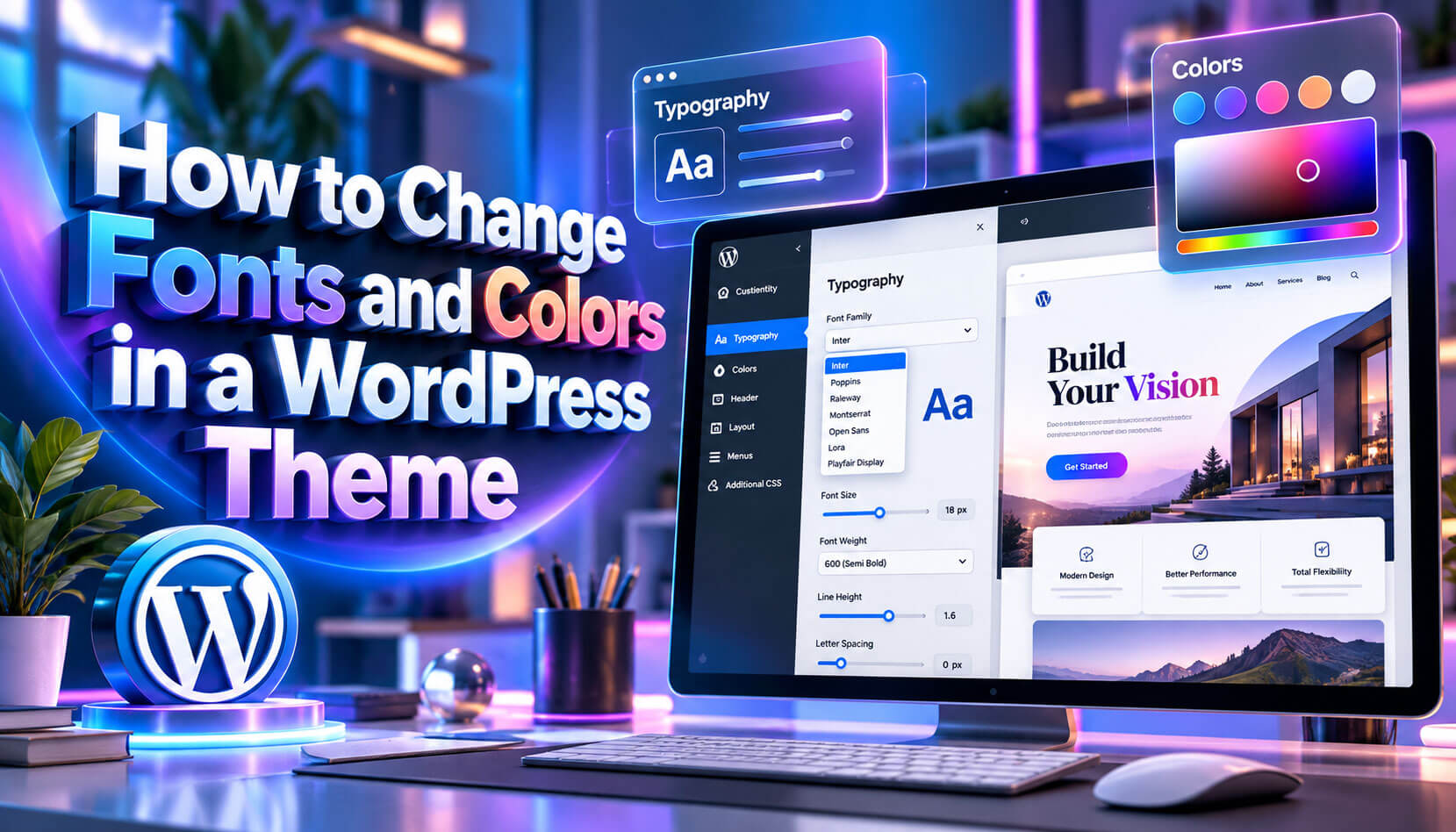
When you change fonts and colors in a WordPress theme, you change the two design choices that shape how every page feels. Typography sets the font family, font size, font weight and line height, while the color palette sets the background, text, link and button colors.
This guide shows how to change fonts and colors in a WordPress theme using Global Styles for block themes, the Customizer for classic themes, the Font Library and custom CSS. It also covers how to pick a brand palette, keep color contrast accessible, add a dark style and load fonts without hurting page speed.
Why Your Fonts and Colors Matter
Default theme styles look the same on many sites. When you change fonts and colors in a WordPress theme, you:
- Match your brand identity and logo
- Improve readability for long articles
- Guide attention to call-to-action buttons
- Build visual consistency across every page
A consistent visual identity also makes your content easier to recognize when people return to your site or share your pages.
Fonts and colors also set the mood of a site before visitors read a word. Blue is often linked with trust, green with nature and growth, and red or orange with urgency, although your audience and culture matter more than any general color associations.
How to Change Fonts and Colors in a WordPress Theme With Global Styles
Global Styles is the main place to change fonts and colors in a WordPress theme that uses blocks. It needs a block theme and WordPress 5.9 or higher.
Changes in Global Styles apply everywhere unless a block has its own setting. If a heading keeps an old color after you update the palette, select that block and reset its color, because block-level settings override the global defaults.
Global Styles also lets you style elements such as links and buttons, including their hover state, so interactive parts of the site change color consistently. Set these states once at the global level instead of adjusting each button block by hand.
Change the Color Palette
- Go to Appearance > Editor > Styles.
- Click Colors, then Palette.
- Edit the theme colors or add custom colors.
- Set colors for Background, Text, Links, Headings and Buttons under Elements.
- Click Save.
Give custom colors clear names, such as Primary, Accent and Muted Text. Blocks show these names in the color picker, so editors choose the right shade without memorizing HEX codes.
Test your palette for color blindness as well. Chrome’s developer tools can emulate common vision deficiencies from the Rendering panel, which shows whether two colors that look different to you might appear the same to some visitors.
Change the Fonts
- In Styles, click Typography.
- Choose an element: Text, Links, Headings, Captions or Buttons.
- Pick a font family, size, appearance (weight) and line height.
- Click Save.
Set heading styles once for all levels, then adjust individual levels such as H1, H2 and H3 if needed. A clear size difference between levels helps visitors scan long articles.
Add New Fonts With the Font Library
The Font Library, added in WordPress 6.5, lets you upload font files or install fonts from Google Fonts. Installed Google Fonts are downloaded to your site, so visitors’ browsers load them from your own server. Open it from Styles > Typography and select the option to manage fonts.
Before installing a new font, check which weights you really need. Each weight, such as regular, medium and bold, is a separate file, so installing only two or three weights keeps downloads small.
After installing fonts, remove any you no longer use from the Font Library. A short list makes it easier for editors to pick the approved brand fonts and prevents someone from styling a new page with an off-brand choice.
Use Style Variations
Many block themes ship color and typography variations. Since WordPress 6.6, you can apply a palette or a font pair on its own without changing the rest of the style. Because variations only change styles, your content, templates and menus stay exactly as they were while you experiment.
After applying a variation, review buttons, links and headings in the Style Book or on a few real pages. A variation that looks good in its preview may need small adjustments, such as a darker link color, to work well with your own content.
How to Change Fonts and Colors in a WordPress Theme With the Customizer
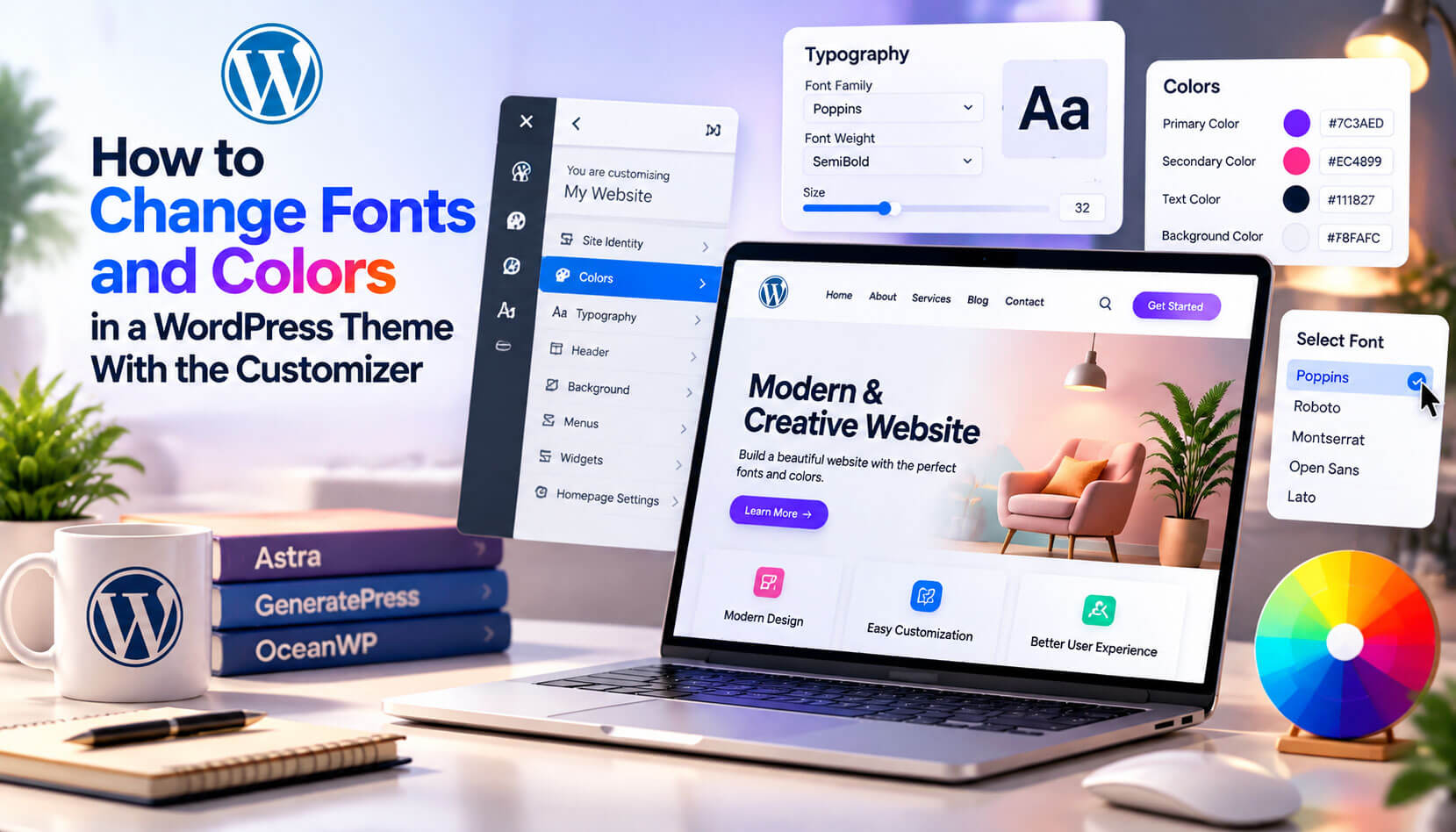
Classic themes use the Customizer, so this is how you change fonts and colors in a WordPress theme like Astra, GeneratePress or OceanWP.
- Go to Appearance > Customize.
- Open Colors or Global > Colors, depending on your theme.
- Open Typography or Global > Typography.
- Set body and heading fonts, sizes and weights.
- Click Publish.
The panel names vary by theme, and basic themes may offer only a few color settings. Many classic themes also offer font presets and an option to load Google Fonts locally instead of from Google’s servers.
If your classic theme offers only a few font choices, check whether it has a premium version or a companion plugin with more typography controls before adding a separate font plugin. Using the theme’s own controls keeps all settings in one place.
Use Custom CSS for Specific Elements
Custom CSS is useful when you need to change fonts and colors in a WordPress theme for one element only. In block themes, you can reuse the palette through CSS custom properties that WordPress generates from theme.json.
/* Uses the theme’s palette color with the slug “primary” */
.site-header {
background: var(–wp–preset–color–primary);
}
body {
font-family: Georgia, serif;
font-size: 18px;
line-height: 1.6;
}
Reference the theme’s presets wherever possible instead of hard-coding values. If you update the palette later in Global Styles, your custom rules then change automatically.
Use CSS for fonts and colors only when the visual tools cannot reach an element, such as a plugin’s widget or a third-party form. For everything else, global settings are easier to maintain and safer during theme updates.
Add a Dark Color Style
Many block themes include a dark style variation, which you can apply in Styles like any other variation. If you want to change fonts and colors in a WordPress theme for visitors who prefer dark mode, use a theme that supports it, a plugin, or a CSS rule such as this:
@media (prefers-color-scheme: dark) {
body { background: #111; color: #eee; }
}
Test dark styles carefully, because images, logos and buttons designed for light backgrounds may need their own adjustments.
Remember to check images and logos in dark mode too. A dark logo can disappear on a dark background, so prepare a light version of the logo or add a subtle background behind it before you turn the feature on.
How to Choose the Right Fonts and Colors
Before you change fonts and colors in a WordPress theme, plan a small, consistent system. These are common starting points, not strict rules:
| Choice | Common starting point |
| Font families | One for headings and one for body text |
| Body font size | Around 16 to 18 pixels |
| Line height | About 1.5 for body text |
| Palette size | One primary, one accent, plus neutral text and background colors |
| Button color | Your accent color, used consistently |
- Pair a serif heading font with a sans-serif body font, or use one versatile family.
- Use system fonts when speed matters most.
- Test your choices on real pages, such as a long article and a contact page, because sample text hides problems like weak link colors.
Think about where your fonts will appear outside the website too. If your brand uses the same fonts in documents, social graphics and email newsletters, visitors see one consistent identity, so choose families that are available for all of those uses.
Keep Colors Accessible
When you change fonts and colors in a WordPress theme, check contrast. WCAG asks for a contrast ratio of at least 4.5:1 for normal text and 3:1 for large text.
- Test color pairs with a contrast checker.
- Do not use color alone to show links; keep underlines or another cue.
- Avoid light gray text on white backgrounds.
High-contrast text is easier to read for everyone, including people on phones in bright sunlight and readers using older screens.
Contrast also applies to buttons and form borders, not only text. A light gray input border on a white background can be hard to see, so make sure interactive elements stand out clearly from the background around them.
Fonts and Page Speed
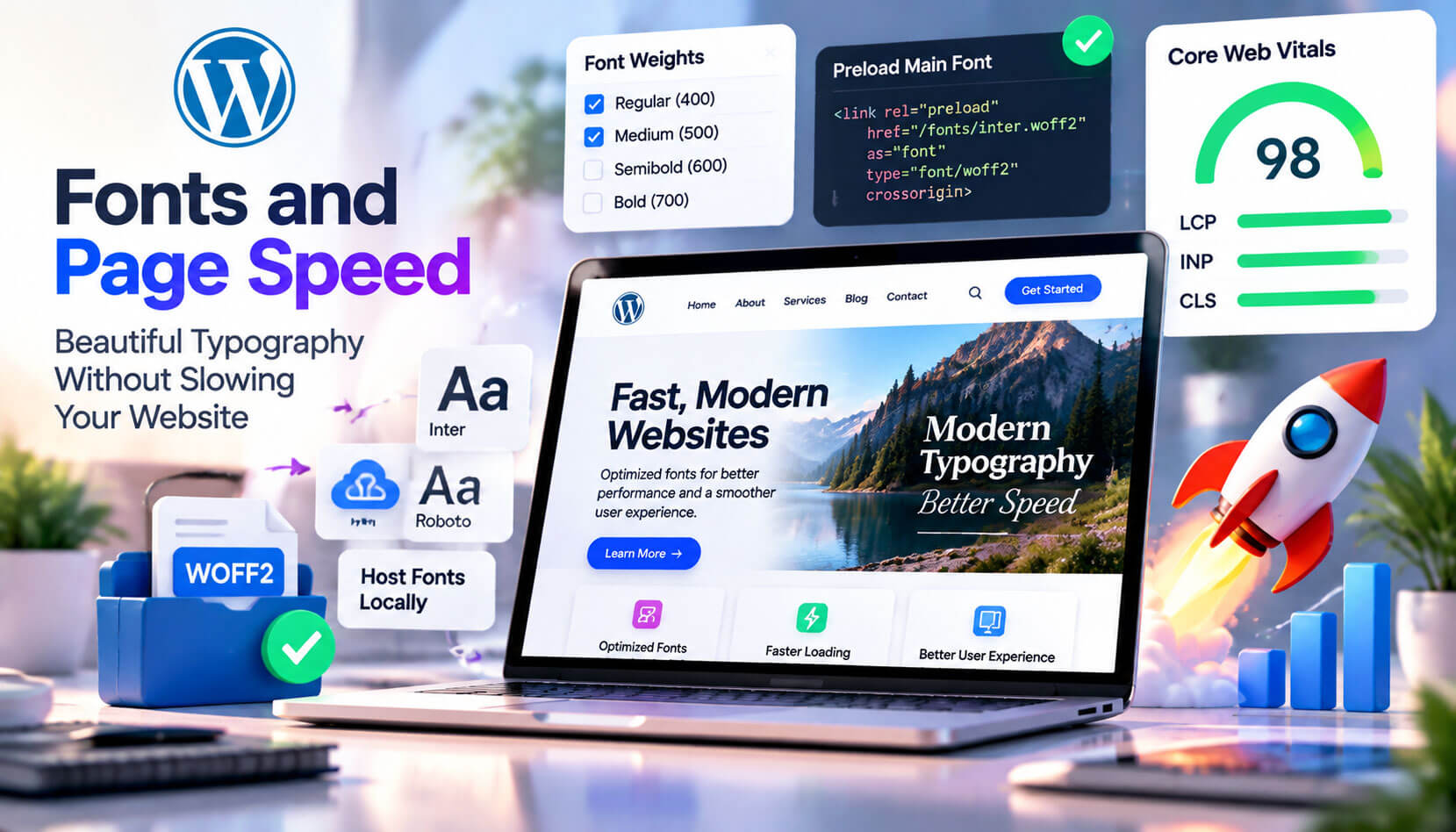
Every extra font file adds a download. To keep Core Web Vitals healthy:
- Limit yourself to a few font weights.
- Host fonts locally through the Font Library or your theme.
- Use WOFF2 font files.
- Avoid loading the same font from both the theme and a page builder.
When a web font loads late, text can jump as it swaps from the fallback font. Choosing a fallback font with a similar size limits this layout shift.
If your theme or a performance plugin offers it, preload only the main body font. Preloading tells the browser to fetch that file early, which helps text appear quickly without a visible switch from a fallback font.
Font Pairing Examples
These popular Google Fonts pairs work well on many websites. Each one combines a heading font with a body font that is easy to read.
| Heading font | Body font | Style |
| Playfair Display | Source Sans 3 | Elegant and editorial |
| Montserrat | Merriweather | Modern headings with classic reading text |
| Poppins | Inter | Clean and friendly |
| Lora | Open Sans | Warm and approachable |
| Oswald | Roboto | Bold and compact |
Try a pair on a test page before applying it site-wide. Look at long paragraphs, headings and buttons together, because a font that looks attractive in a large heading may feel tiring in a long body text block on a phone screen.
Build a Color Palette From Your Logo
Your logo is the best starting point for a website palette.
- Pick the main color from your logo with an eyedropper tool.
- Create lighter tints and darker shades of that color for backgrounds and hover states.
- Add one accent color for buttons and links.
- Choose a near-black for text and an off-white for backgrounds.
Free tools such as Adobe Color and Coolors help you generate matching colors. When you change fonts and colors in a WordPress theme, enter these values in the palette once, so every block uses the same tints and shades and no one has to guess a color later.
Use Variable Fonts for Flexibility
A variable font stores many weights, and sometimes widths, in a single file. Instead of loading separate files for regular, medium and bold, the browser loads one file and creates the weight you need.
- Fewer font files mean fewer requests.
- You can fine-tune weights, such as 450 or 650, between standard steps.
- Many Google Fonts, including Inter and Roboto Flex, offer variable versions.
Variable fonts work well in block themes, where you can set exact weights for headings and body text. Check the file size, though, because a variable font with many design axes can be larger than one or two static fonts that cover only the weights you use.
Understand Font Licensing
Every font comes with a license that controls how you can use it.
- Google Fonts: most use open licenses, such as the SIL Open Font License, which allow free web use.
- Commercial fonts: often require a separate web license, sometimes priced by monthly page views.
- Adobe Fonts: included with a Creative Cloud subscription and served through Adobe’s own service.
Read the license before uploading a font to the Font Library or a child theme. Using a desktop-only font on a website can break its license terms, even if the file uploads without errors, and the foundry can ask you to remove it.
Add Gradients and Duotone Effects
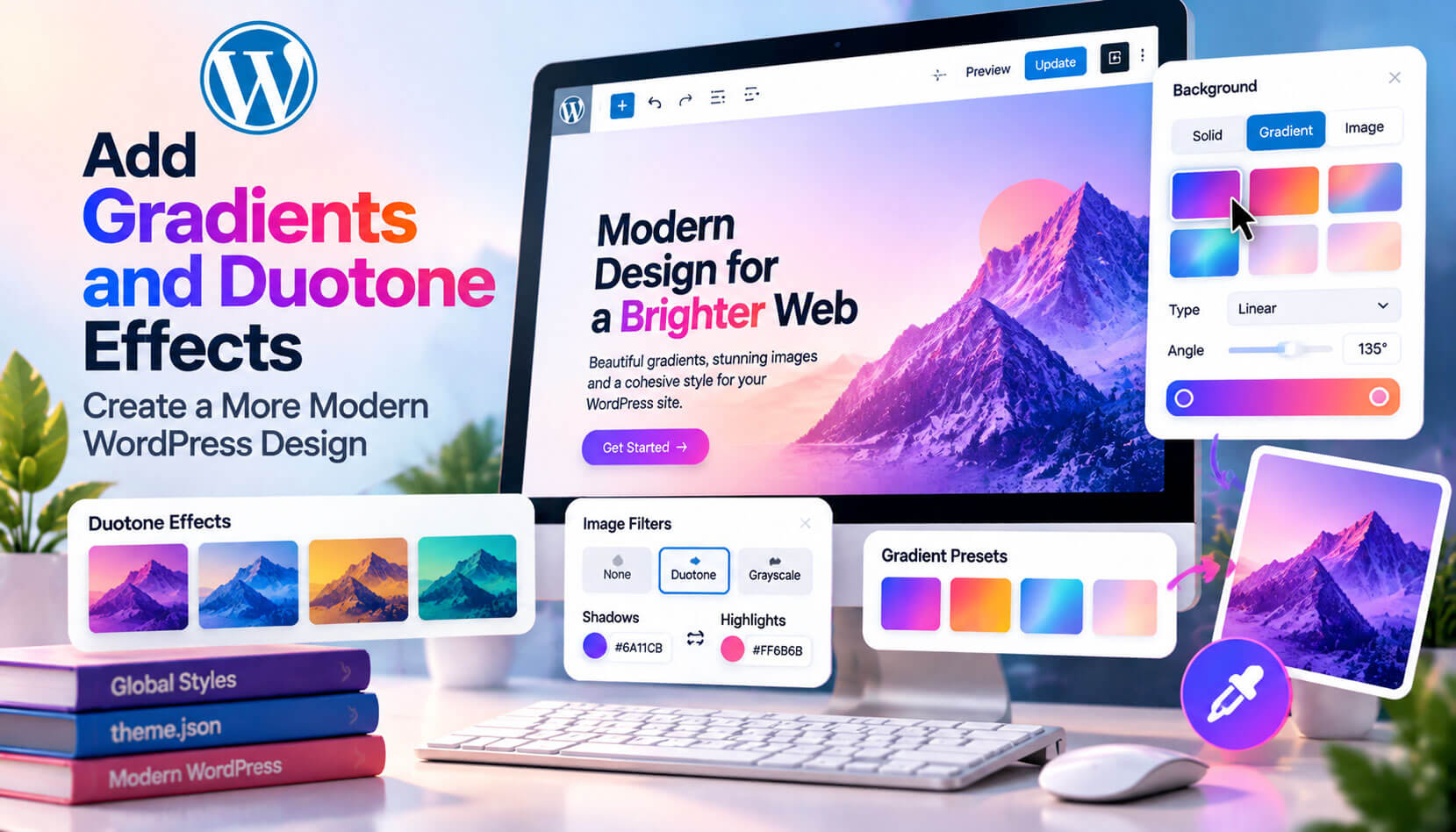
Block themes support gradient backgrounds and duotone filters on images, controlled from Global Styles or the block settings.
- Gradients add depth to hero sections, buttons and banners.
- Duotone recolors images with two colors, which makes different photos look like one set.
- Theme authors can define gradient and duotone presets in theme.json.
Use these effects sparingly. One gradient style and one duotone preset that match your palette create a cohesive design, while many different effects make the site feel busy and pull attention away from your content.
Common Font and Color Mistakes
- Using pure black text on a pure white background, which can feel harsh during long reading.
- Choosing a script or decorative font for body text.
- Using too many accent colors, so no button stands out.
- Changing colors in individual blocks instead of the global palette.
Fix these early, because each one spreads across many pages over time. A short review of your global settings every few months keeps your typography and colors clean as the site grows and as new team members add content.
Frequently Asked Questions
Can I change fonts and colors in a WordPress theme without a plugin?
Yes. Global Styles, the Font Library and the Customizer are built into WordPress, and Additional CSS covers anything else.
Why are my font changes not showing?
A page builder or plugin may be setting its own fonts, or a cache may be serving an old stylesheet. Clear your cache and check for duplicate font settings.
What font size should I use on mobile?
A body size of about 16 pixels is a common baseline for phones, with headings scaled down from their desktop sizes. Block themes can use fluid typography, so text resizes smoothly between screen widths.
Can I use a custom brand font?
Yes. Upload it in the Font Library for block themes, or load it in a child theme with @font-face for classic themes. Make sure your font license allows web use.
How many fonts should a WordPress site use?
Two font families are usually enough: one for headings and one for body text. More families make the design look inconsistent and add extra files to load.
Read More: https://linkneon.com/add-custom-css-to-a-wordpress-theme/
Final Thoughts
You can change fonts and colors in a WordPress theme in minutes with Global Styles or the Customizer. Choose two fonts and a small palette with strong contrast, load fonts locally for speed, and revisit your choices when your brand changes.
Save your final font names, sizes and HEX codes in a simple document. This brand reference lets you rebuild the same look quickly if you switch themes, hire a designer or create matching graphics, social media posts and email templates outside WordPress later on.