
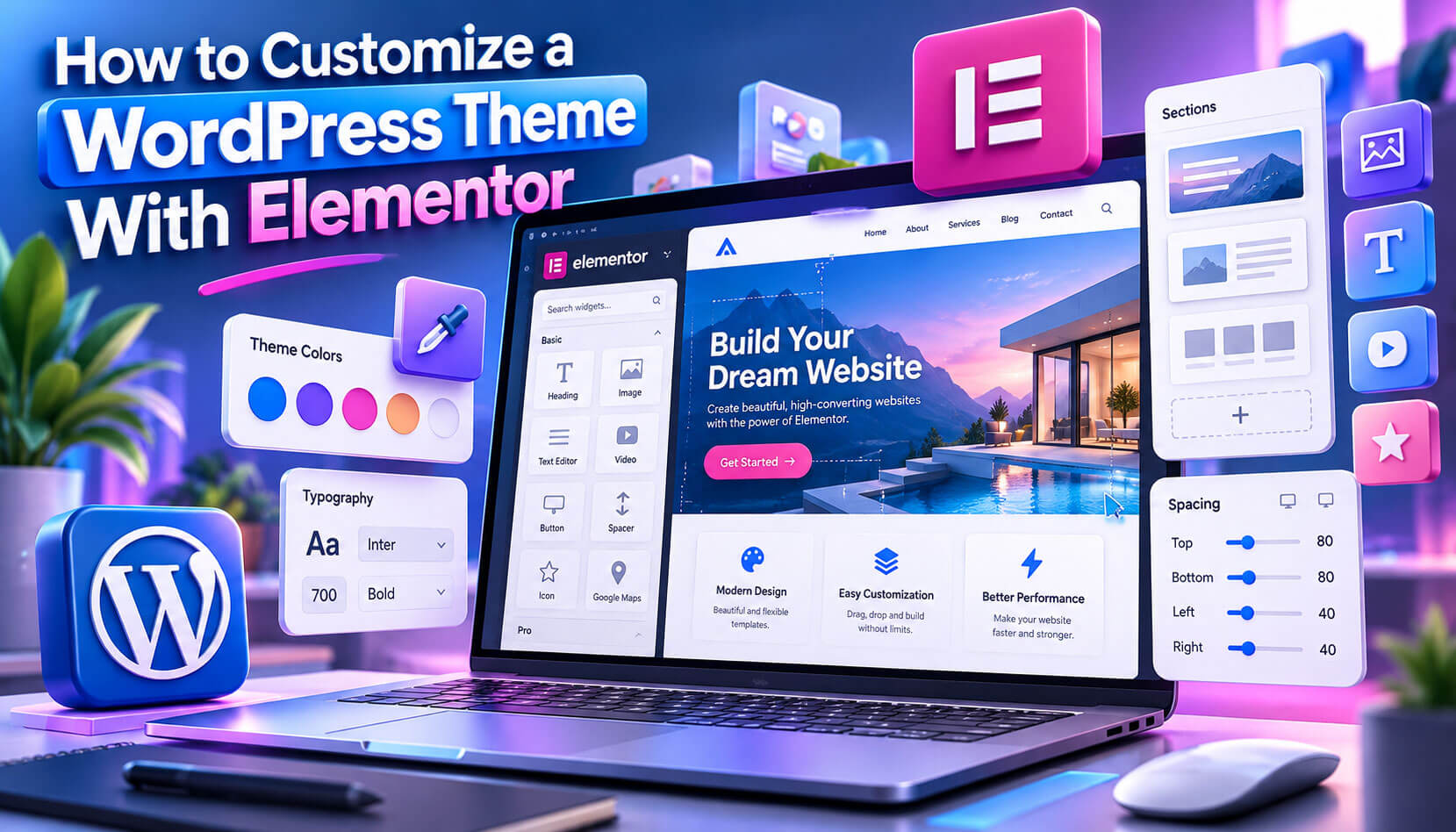
To customize a WordPress theme with Elementor means using Elementor’s drag-and-drop editor to control your site’s global colors, fonts, headers, footers and page templates. Elementor is a page builder plugin that works with most themes, so you can redesign the visible parts of your site without writing PHP or CSS.
This guide shows how to customize a WordPress theme with Elementor in the right order: choosing a compatible theme, setting Site Settings, building pages, creating a header and footer with the Theme Builder, and keeping the site fast. You will also see what the free version covers and what needs Elementor Pro.
Before You Customize a WordPress Theme With Elementor
A few setup choices make the rest of the work easier:
- Pick a lightweight theme. Hello Elementor, built by the Elementor team, is a minimal theme meant to be styled entirely in Elementor. Astra, GeneratePress, Kadence and OceanWP also work well.
- Back up your site and work on a staging site if the site is live.
- Install Elementor from Plugins > Add New, then activate it.
- Decide on free or Pro. The free plugin designs pages; site-wide headers, footers and templates need Pro or an add-on.
Also check that your hosting meets Elementor’s current system requirements, such as the PHP version and memory limit. A slow or limited server makes the editor lag and can cause loading errors.
If you manage client sites, plan user access before you start. Elementor’s Role Manager, under Elementor > Role Manager, can block specific user roles from the editor, and Elementor Pro adds a content-only option, so clients can update text and images without moving sections.
Elementor Free vs Elementor Pro for Theme Customization
What you can do when you customize a WordPress theme with Elementor depends on the version you use.
| Feature | Elementor (free) | Elementor Pro |
| Drag-and-drop page editing | Yes | Yes |
| Site Settings: global colors and fonts | Yes | Yes |
| Responsive editing for desktop, tablet, mobile | Yes | Yes |
| Theme Builder: header, footer, single, archive | No | Yes |
| Display conditions for templates | No | Yes |
| WooCommerce product templates | No | Yes |
Features change between releases, so check the current comparison on Elementor’s website before you buy. Many sites run well on the free version for a long time, so start free and upgrade only when you need a specific feature, such as the popup builder or WooCommerce templates.
Step 1: Set Global Colors and Fonts in Site Settings
Site Settings is where you customize a WordPress theme with Elementor at the site-wide level. Every widget can then use these global values.
- Open any page with Edit with Elementor.
- Click the menu icon and choose Site Settings.
- Under Global Colors, set your Primary, Secondary, Text and Accent colors.
- Under Global Fonts, choose your heading font and body font.
- Adjust Typography, Buttons, Images and Form Fields styles.
- Set the default content width under Layout.
When you change a global color later, every element that uses it updates automatically. Give custom colors clear names, such as Brand Blue or Dark Text, so everyone on the team picks the right shade and the brand palette stays consistent.
After saving your global settings, build a private style guide page that shows every heading, button and form style together. One glance at this page tells you whether a new font size or color works across all elements before visitors see the change.
Step 2: Design Pages With Containers and Widgets
Most of your daily work when you customize a WordPress theme with Elementor happens inside the page editor. Elementor builds layouts from containers, which arrange content with Flexbox or, in newer versions, a Grid container.
- Add a container, then drag in widgets such as Heading, Image, Button and Icon List.
- Use the Style tab for colors and typography, and the Advanced tab for padding, margin and motion effects.
- Save repeated sections as templates so you can reuse them on new pages.
For a full starting design, open the Kit Library under Templates. A kit imports a complete set of pages and global styles, which is the quickest way to customize a WordPress theme with Elementor from scratch.
On long pages, open the Navigator to see every container and widget as a tree. Rename containers, such as Hero or Pricing, and drag them in the tree to reorder sections without scrolling, which makes complex pages much easier to manage and hand over.
Step 3: Build a Header and Footer With the Theme Builder
The Theme Builder replaces your theme’s header and footer, which is the biggest change when you customize a WordPress theme with Elementor.
- Go to Templates > Theme Builder.
- Click Add New, choose Header, and name it.
- Pick a ready-made block or design your own with a Site Logo, Nav Menu and Button widget.
- Click Publish and set the display condition to Entire Site.
- Repeat the steps for the Footer.
Use Motion Effects if you want a sticky header that follows the visitor, and confirm that the mobile menu opens and closes correctly on real phones. If you use the free version, a free header and footer add-on from the WordPress plugin directory can do a similar job.
Step 4: Customize Single Post, Archive and 404 Templates
With Pro, the Theme Builder also controls dynamic templates:
| Template | What it controls | Typical display condition |
| Single Post | Blog post layout, author box, related posts | All posts |
| Single Page | Layout of standard pages | All pages |
| Archive | Category, tag and blog listing pages | All archives |
| Search Results | Search result layout | Search results |
| 404 Page | Page shown for broken links | 404 page |
Use Dynamic Tags to pull the post title, featured image and post meta into each template. Plan templates before you design them, and create one template per content type instead of many slightly different versions.
Preview single templates with several different posts before publishing, including one with a long title and one without a featured image. Testing these edge cases shows whether the template still looks balanced when content varies, and confirms that the Post Title widget uses the H1 tag.
Step 5: Check Responsive Design
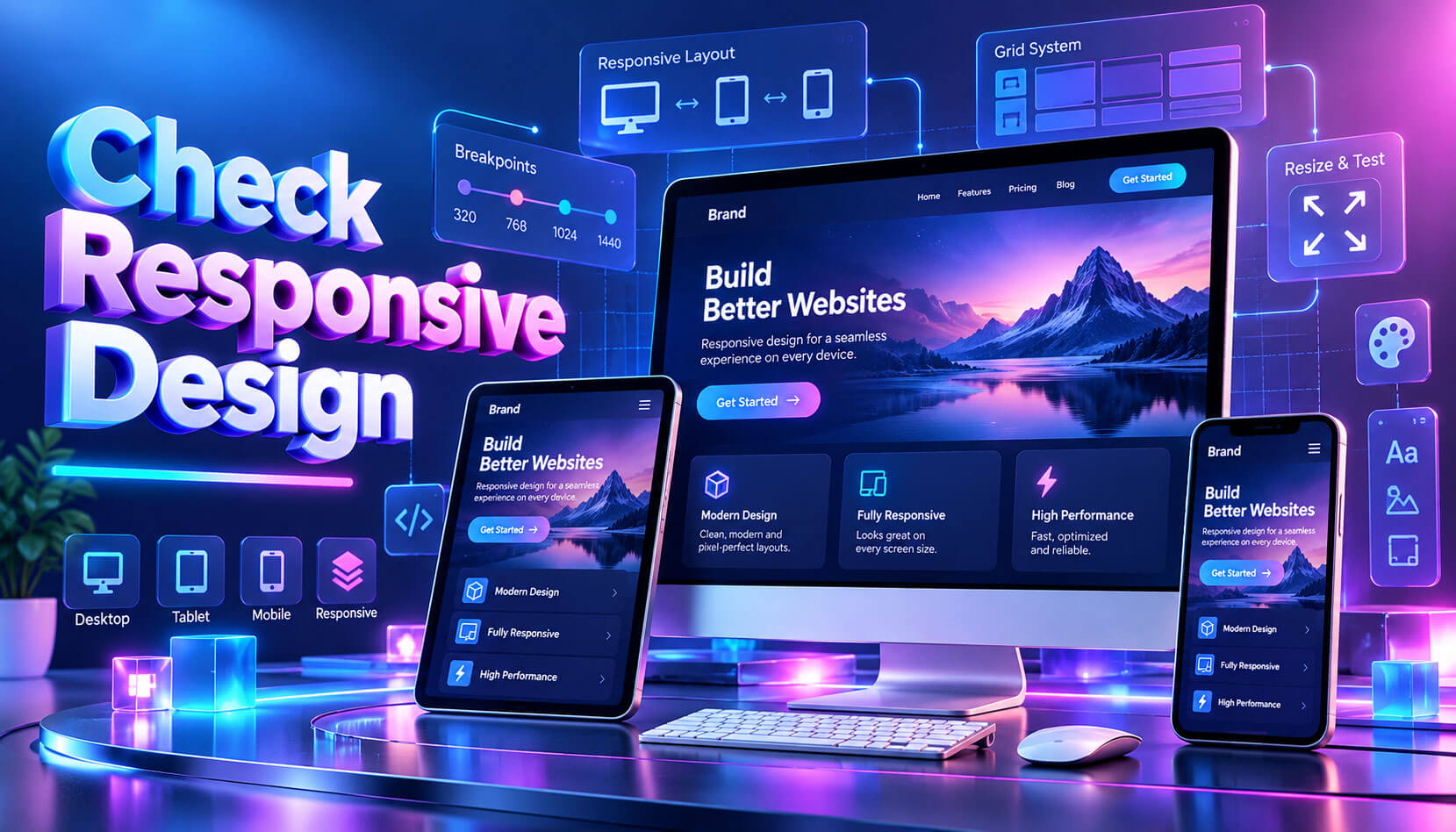
Every time you customize a WordPress theme with Elementor, switch to responsive mode at the bottom of the panel and check desktop, tablet and mobile views. You can set a different font size or padding, or even hide a widget, on each device.
Desktop values often look too large on small screens, so reduce heading sizes and section padding for phones. Also check that buttons are easy to tap and that no element makes the page scroll sideways.
Avoid hiding large sections on mobile as a quick fix. Hidden elements still load in the page code, so it is usually better to simplify the section for every device than to maintain separate desktop and mobile versions of the same content.
Step 6: Keep Elementor Fast
Page builders add scripts and styles, so speed needs attention:
- Use Hello Elementor or another lightweight theme.
- Use global colors and fonts instead of styling each widget separately.
- Avoid stacking many add-on plugins.
- Compress images and serve WebP files.
- Test key pages in PageSpeed Insights and fix any Core Web Vitals warnings it reports, starting with oversized images and unused widgets.
Run a speed test with PageSpeed Insights after each major design change. Removing unused widgets, sections and add-ons often improves loading speed more than changing any caching setting.
Elementor also offers optional features under Elementor > Settings > Features, and some of them improve how assets load. Enable stable performance features after testing them on a staging site, and avoid features still marked as alpha or beta on busy live sites.
Common Mistakes to Avoid
These mistakes appear often when people customize a WordPress theme with Elementor:
- Setting fonts in both the theme’s Customizer and Elementor, which causes conflicts
- Building the header in Elementor but leaving the theme’s header switched on
- Styling each heading by hand instead of using Global Fonts
- Forgetting to check the mobile layout
Another mistake is ignoring Elementor updates. Updates fix bugs and security issues but can also change features, so update on a staging site first and check your most important pages.
Save Time With Saved Templates
Elementor lets you save any container or full page as a template and reuse it later. Right-click a container, choose Save as Template, and it appears in the Templates library for every new page.
- Section templates: reusable layouts, such as a pricing table or a testimonial block.
- Page templates: complete layouts for landing pages, service pages or blog posts.
- Export and import: templates can be exported as JSON files and imported into another site.
Templates are one of the fastest ways to customize a WordPress theme with Elementor across a large site. Build a small library of approved sections, and every new page starts from a consistent, tested design system instead of a blank canvas.
Export and Import an Elementor Kit
A kit packages your Site Settings, templates and content so you can move a design to another site. Go to Elementor > Tools > Import/Export Kit, choose what to include, and download the file.
- Export a finished design to reuse it on a new client site.
- Import a kit onto a staging site to test a redesign.
- Keep an exported kit as an extra backup of your design settings.
Before importing a kit, check which items it will overwrite, such as global colors, fonts or existing templates. Importing onto a fresh installation is the safest choice, because it avoids mixing two design kits on the same site and creating conflicting global styles.
Add Custom CSS in Elementor
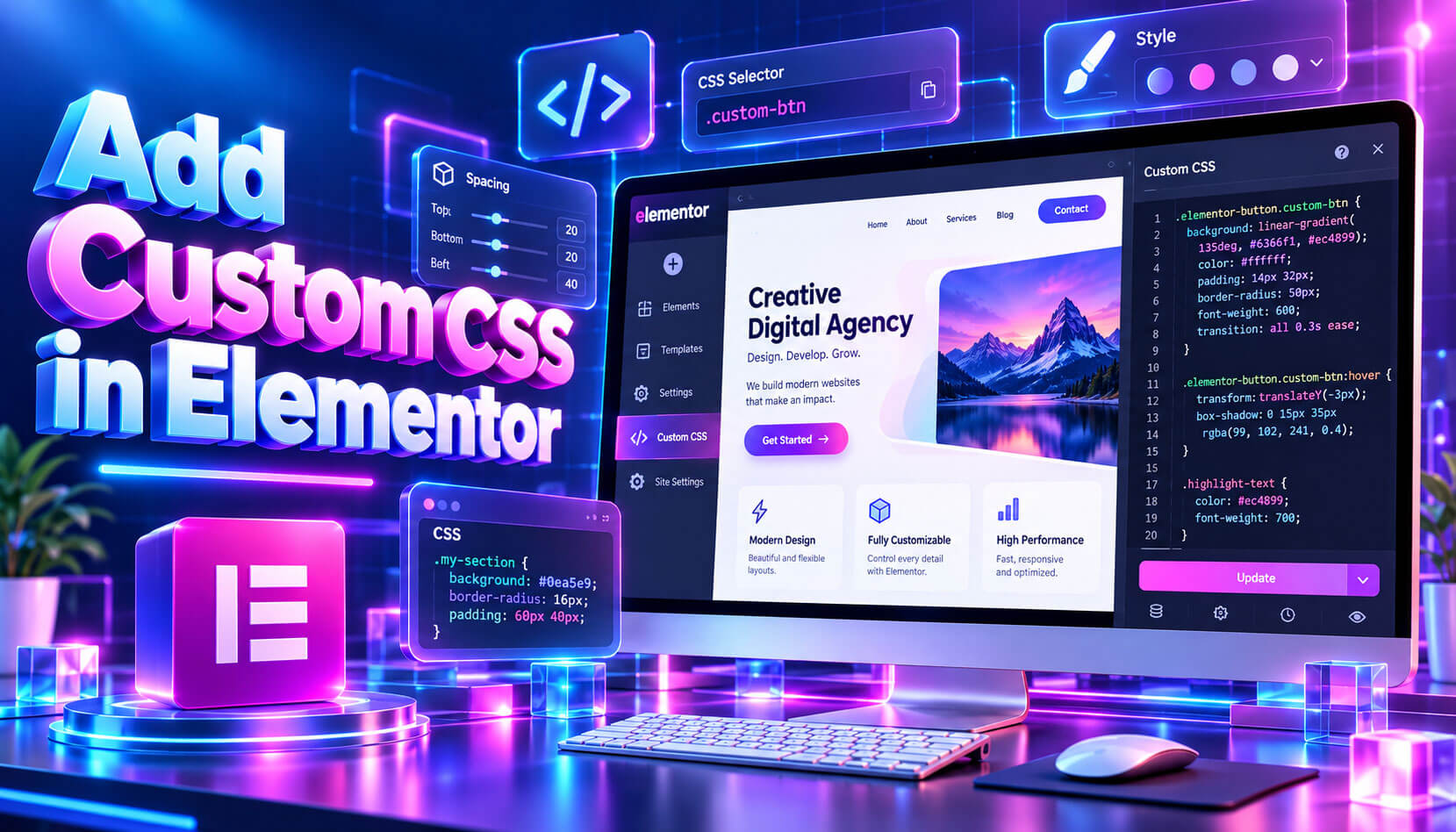
When a widget’s controls cannot create the look you want, CSS fills the gap. Elementor Pro includes a Custom CSS field in the Advanced tab of widgets, containers and pages, where the word selector targets only that element.
selector .elementor-heading-title {
letter-spacing: 0.05em;
}
If your plan does not include this field, add the rule to your theme’s Additional CSS and give the widget a CSS class in the Advanced tab. Keep element-level CSS short, because rules spread across many widgets are harder to find later than rules kept in one place.
Undo Mistakes With Revisions, History and Safe Mode
Elementor keeps two kinds of records. The History panel lists every action in the current editing session, so you can step back through recent changes. Revisions store saved versions of the page, which you can preview and restore at any time.
- Open History from the editor’s top bar, or press Ctrl/Cmd + Shift + H.
- Restore a revision when a published change breaks the layout.
- Turn on Safe Mode in Elementor > Tools when the editor will not load.
Safe Mode loads the editor without other plugins and with a default theme, which helps you find a conflict quickly. If the editor works in Safe Mode, a plugin or theme conflict is the likely cause, and you can test each one separately until the problem returns.
Elementor Keyboard Shortcuts That Save Time
Shortcuts make daily editing much faster once you learn a few of them.
| Action | Windows | Mac |
| Undo | Ctrl + Z | Cmd + Z |
| Redo | Ctrl + Shift + Z | Cmd + Shift + Z |
| Duplicate element | Ctrl + D | Cmd + D |
| Save | Ctrl + S | Cmd + S |
| Open Navigator | Ctrl + I | Cmd + I |
| Responsive mode | Ctrl + Shift + M | Cmd + Shift + M |
| Show all shortcuts | Ctrl + ? | Cmd + ? |
Start with undo, duplicate and save, because you will use them on every page. Once they feel natural, add the Navigator and responsive mode shortcuts to your routine, and open the full shortcut list whenever you forget one.
Build Accessible Designs in Elementor
Visual freedom makes it easy to forget the people who use assistive technology. A few habits keep Elementor pages accessible.
- Set the correct HTML tag, such as H2 or H3, in each Heading widget instead of choosing tags by size.
- Add alt text to images in the Media Library, so the Image widget can use it.
- Give icon-only buttons and links a descriptive label.
- Avoid placing light text over busy background images.
These steps also help search engines understand the page. An accessible layout with a clear heading structure reads better for everyone, including visitors on slow connections or small screens who rely on simple, well-ordered content.
Frequently Asked Questions
Can I customize a WordPress theme with Elementor for free?
Yes. The free version handles page design, global colors and global fonts. Headers, footers and dynamic templates need Elementor Pro or a third-party add-on.
Which theme is best to customize with Elementor?
Hello Elementor is designed for it. Astra, GeneratePress, Kadence and OceanWP also have strong Elementor compatibility.
Will I lose my design if I deactivate Elementor?
Your text and images stay in the database, but the layouts and styles built with Elementor stop displaying. Plan carefully before you customize a WordPress theme with Elementor if you might switch builders later.
Does Elementor work with block themes?
It runs on block themes, but most users pair it with a classic or Elementor-ready theme, because the Site Editor and Elementor’s Theme Builder overlap.
Is it hard to customize a WordPress theme with Elementor?
No. Every change appears on screen as you make it, so beginners can learn by trying. Start with Site Settings, then move on to page layouts.
Can I use Elementor with my existing theme?
In most cases, yes. If your theme’s header, title or sidebar gets in the way, hide them with the theme’s page settings, or switch to a lightweight theme such as Hello Elementor.
Read More: https://linkneon.com/customize-the-header-and-footer-in-wordpress/
Final Thoughts
You can customize a WordPress theme with Elementor in six steps: pick a light theme, set Site Settings, design pages, build the header and footer, review mobile layouts and keep the site fast. Once your global styles are in place, every new page stays consistent, and a lean setup with few add-ons keeps the site fast and easy to manage.
Before you add another Elementor add-on, check whether a built-in widget or Elementor Pro feature already covers the job. Each extra plugin loads more scripts and adds another update to manage, so a short plugin audit every quarter keeps your design flexible without slowing it down.