

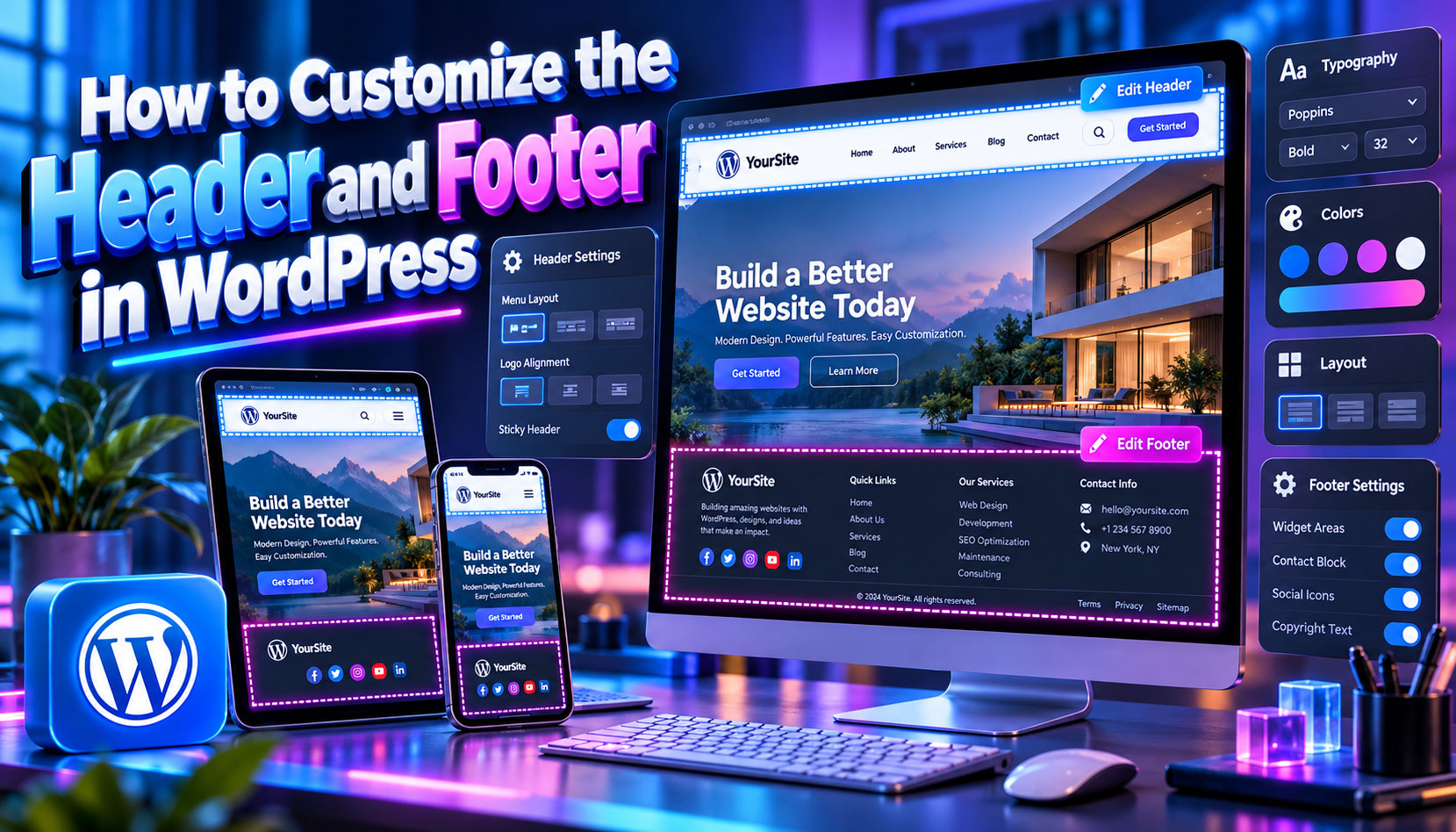
To customize the header and footer in WordPress means changing the two areas that appear on every page of your site. The header usually holds your logo, site title and navigation menu, while the footer holds copyright text, contact details, social icons and footer links.
This article explains how to customize the header and footer in WordPress for every setup: block themes with the Site Editor, classic themes with the Customizer, themes with a built-in header builder, and page builders such as Elementor. You will also learn how to change the default footer credit, add a sticky header and insert tracking code safely.
Why Customize the Header and Footer in WordPress?
Visitors see the header first and use the footer to find key links. A well-designed header and footer:
- Build brand recognition with a clear logo and colors
- Improve navigation and user experience
- Add a call-to-action button, such as “Book a Call”
- Show trust signals like contact details and social profiles
- Help search engines find important pages through internal links
Because these areas repeat on every page, even small improvements affect the whole site. A cluttered header distracts readers on every visit, while a clean one helps them reach your main content faster.
These areas also carry practical duties. Many sites need a privacy policy link, a cookie notice or an accessibility statement, and placing them in the footer once makes them available on every page without extra work.
How to Customize the Header and Footer in WordPress Block Themes
In block themes, the header and footer are template parts that you edit with blocks. This is the standard way to customize the header and footer in WordPress themes such as Twenty Twenty-Five. One edit to a template part updates it everywhere it appears, so preview a few page types before you save.
Edit the Header Template Part
- Go to Appearance > Editor.
- Click Patterns, then open Template Parts and choose Header.
- Select a block, such as the Site Logo, Site Title or Navigation block, and change its settings.
- Add blocks with the + button, for example a Buttons block for a call to action.
- Click Save.
Use the List View in the Site Editor to see the structure of your header. It shows each Group, Row and Column block, so you can select the right element and adjust alignment without editing the wrong block.
Keep the header template part small. A logo, a Navigation block, one button and perhaps a search icon are enough for most sites, and every extra block adds height that pushes your main content further down on phones.
Edit the Footer Template Part
- In the same Template Parts list, open Footer.
- Edit the text, add Social Icons, Navigation or Columns blocks.
- Click Save.
Many block themes include footer patterns with columns for links, contact details and social profiles. Insert one, replace the sample content with your own and remove any sections you do not need.
For a multi-column footer, use a Columns block inside the footer template part and keep each column focused on one topic, such as contact details, quick links or social profiles. Focused columns are easier to scan than one long block of links.
Use a Different Header on Some Pages
Create a new header template part, then open the page’s template in the Site Editor and swap the header block for the new one. This works well for landing pages that need a minimal header without navigation. Name each template part clearly, such as Header Minimal, so you can find it later.
How to Customize the Header and Footer in WordPress Classic Themes
Classic themes rely on the Customizer and widgets, so this is where you customize the header and footer in WordPress on older themes. Basic themes may offer only a logo and a menu, while multipurpose themes add full layout controls, so check your theme’s documentation before writing code.
Header Options in the Customizer
- Go to Appearance > Customize.
- Open Site Identity to upload a logo and site icon.
- Open Header or Header Image if your theme offers it.
- Open Menus and assign a menu to the Primary location.
- Click Publish.
If your theme supports a custom header image, pick one with enough empty space for text, and check how it crops on narrow screens before you publish.
If your theme offers a footer or secondary menu location, assign a separate short menu to it. A footer menu with legal and support pages keeps the main header menu focused on the pages visitors use most.
Footer Widgets and Copyright Text
- Go to Appearance > Widgets and add blocks to the footer widget areas.
- Look for a Footer or Copyright panel in the Customizer to edit the credit line.
Since WordPress 5.8, the Widgets screen uses blocks, so you can add paragraphs, images and social icons to footer areas the same way you edit posts.
Built-In Header and Footer Builders
Many popular themes include a drag-and-drop header and footer builder inside the Customizer. This makes it much easier to customize the header and footer in WordPress without a plugin.
| Theme | Header and footer builder |
| Astra | Header Footer Builder in the Customizer |
| Kadence | Header and footer builder in the Customizer |
| Blocksy | Header and footer builder in the Customizer |
| Neve | Header and footer builder in the Customizer |
| GeneratePress | Header and footer settings in the Customizer; Elements module in Premium |
Start with the theme’s preset header layouts, adjust the rows and elements, and switch to a page builder only when you need a design the theme cannot create.
Before choosing a built-in builder, check whether it lets you create different headers for specific pages, such as a minimal header for landing pages. This option is often part of a theme’s premium version, so confirm it before you buy.
Customize the Header and Footer in WordPress With Elementor
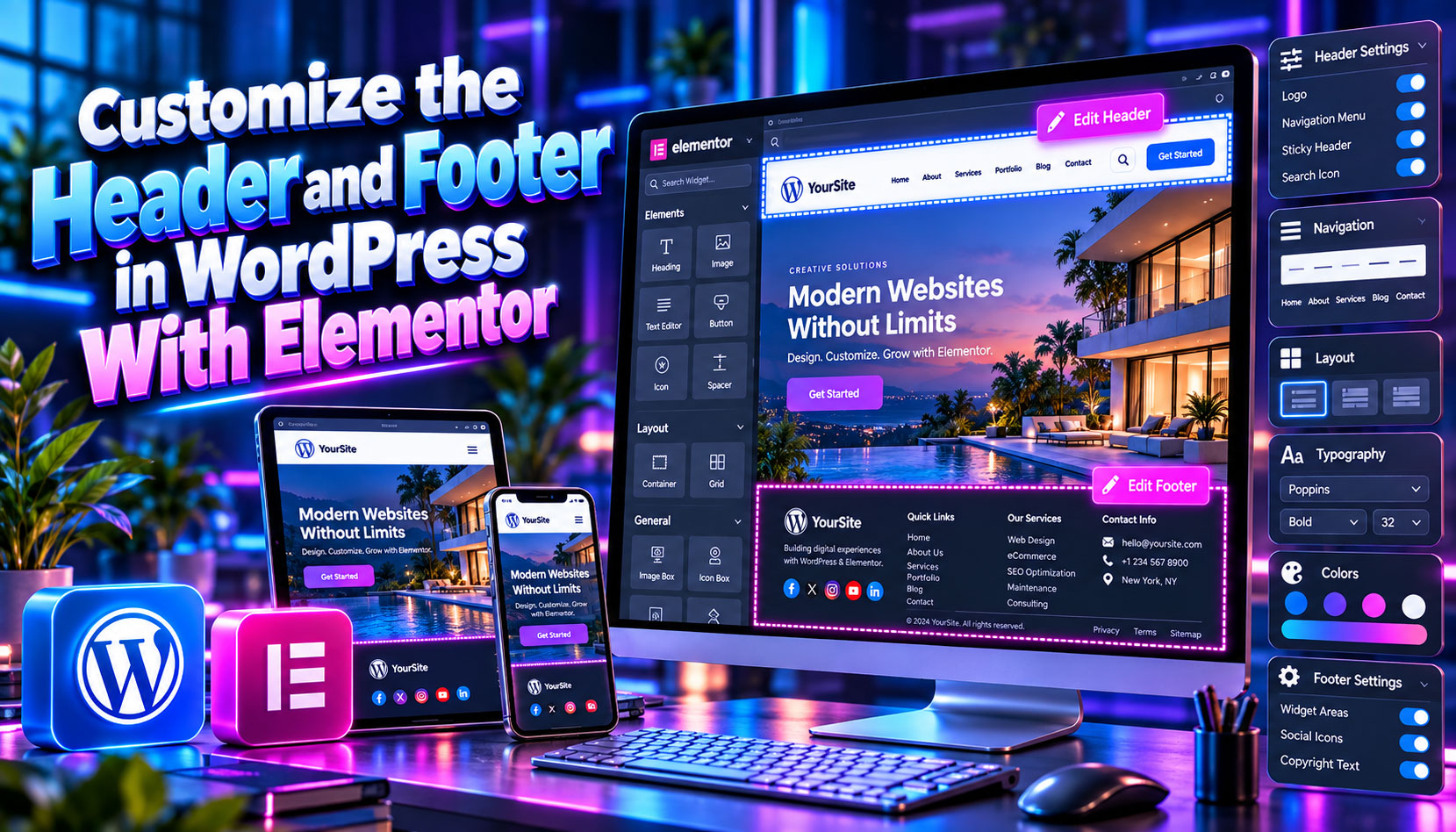
Elementor Pro’s Theme Builder can replace the theme’s header and footer completely with templates you design yourself. A display condition decides where each template appears, so you can show one header across the entire site and a different one on selected pages.
Set the theme’s own header options to the simplest layout, or disable them where the theme allows. This prevents duplicate menus and stops the page from loading code for a header nobody sees.
How to Customize the Mobile Header
Many visitors browse on phones, so the mobile header deserves its own check.
- Use a compact logo and a clear menu toggle
- Keep only the most important links in the mobile menu.
- Make buttons large enough to tap easily.
- Test the menu on real phones, not only in the editor preview.
In block themes, the Navigation block lets you choose when the menu collapses into an overlay. Classic themes with header builders, such as Astra and Kadence, have separate mobile rows and settings.
Decide what happens to the call-to-action button on phones. Some sites keep it visible next to the menu toggle, while others move it inside the mobile menu; keep the option that gets more taps from mobile visitors.
Header Elements to Consider
Plan these elements before you customize the header and footer in WordPress:
| Element | Purpose | Tip |
| Logo | Brand identity | Use an SVG or a 2x image for sharp display |
| Navigation menu | Main links | Keep top-level items short |
| Search icon | Quick search | Useful on blogs and stores |
| CTA button | Conversions | Use your accent color |
| Top bar | Phone, email, offers | Keep it to one line |
Not every site needs every element. A blog may only need a logo, a menu and a search icon, while a local business benefits from a visible phone number and a booking button.
Footer Elements to Consider
- About text with a short brand description
- Quick links to key pages
- Contact details: address, phone, email
- Social media icons
- Legal links: privacy policy and terms
- Copyright line with your business name
Order footer content by importance. Put contact details and key links first, then social icons and legal links. Visitors who scroll to the bottom often look for business hours or support options.
Phone numbers in the footer should use a tel: link, so visitors can call with one tap, and email addresses should open the visitor’s mail app. These small details turn the footer into a useful contact point instead of plain text.
How to Remove or Change the Footer Credit
The credit wording depends on your theme. Older default themes show “Proudly powered by WordPress”, while newer themes use different text.
- Block theme: open the Footer template part in the Site Editor, select the credit paragraph and delete or rewrite it.
- Classic theme: check the Customizer for a footer or copyright option. If none exists, edit footer.php in a child theme, never in the parent theme.
Replace the credit with something useful, such as your business name and the current year. Free directory themes allow this under the GPL license; for premium themes, check the license terms.
After you change the credit, check the footer year as well. Many themes and builders support a dynamic year, so the copyright updates automatically every January instead of showing an outdated date that makes the site look neglected.
How to Add a Sticky Header
Check your theme’s header options first; Astra, Kadence and Blocksy offer a sticky setting. If your theme does not, add this CSS:
header {
position: sticky;
top: 0;
z-index: 100;
}
The correct selector depends on your theme, so confirm it with your browser’s Inspect tool. On small screens, a tall sticky header can cover too much content, so many themes let you enable it on desktop only or shrink the header on scroll.
How to Add Code to the Header or Footer
To add Google Analytics, Search Console verification or a Meta Pixel, use a plugin such as WPCode. It inserts code through the wp_head and wp_footer hooks, so your code stays after theme updates. Remove old scripts when you stop using a tool, because every extra script adds loading time.
Mistakes to Avoid
Avoid these errors when you customize the header and footer in WordPress:
- Editing header.php or footer.php in the parent theme
- Overloading the header with too many menu items
- Using a large logo file that slows page speed
- Placing several competing call-to-action buttons in the header
Run a quick test after every change: click each menu item and footer link, check the menu on a phone, and view the header on both light and dark page backgrounds. This five-minute routine catches most broken links before visitors find them.
Make Your Header and Footer Accessible
Accessible navigation helps keyboard users, screen reader users and everyone else move through your site.
- Skip link: block themes add a “Skip to content” link automatically; check that your classic theme includes one.
- Clear labels: give icon-only buttons, such as search or menu toggles, a text label for screen readers.
- Landmarks: keep the header in a header element and the footer in a footer element, so assistive tools can jump between them.
- Keyboard access: make sure dropdown menus open with the Tab and Enter keys, not only on hover.
Test by pressing Tab from the top of any page. You should reach the logo, menu, search and button in a logical order. If you customize the header and footer in WordPress with a page builder, repeat this test, because some builder menus are harder to use with a keyboard.
Add a Language Switcher to the Header

Multilingual sites need an easy way for visitors to change language. Plugins such as WPML, Polylang and TranslatePress add a language switcher that you can place in the header menu, a widget area or a block.
- Show language names, such as English and Español, instead of flags, because a flag represents a country, not a language.
- Place the switcher in the same spot on every page, usually at the top right.
- Check the mobile menu, where switchers are easy to hide by accident.
A well-placed switcher helps international visitors stay on your site. Translate footer content too, including legal links and contact details, so every language version feels complete and visitors never land on a half-translated page.
Footer Layouts by Site Type
Different websites need different footer content. Use this table as a starting point.
| Site type | Recommended footer elements |
| Blog | Short about text, popular categories, newsletter signup, social icons |
| Local business | Address, phone number, business hours, map link, service area |
| Online store | Shipping and returns links, payment icons, customer support, account links |
| Portfolio | Contact button, social profiles, short bio, copyright |
| Software or SaaS | Product links, pricing, documentation, status page, legal pages |
Choose three or four columns at most. A footer that tries to include every link becomes a second sitemap that few visitors read, so keep only the links your audience actually uses and review them whenever you add new pages.
Frequently Asked Questions
Can I customize the header and footer in WordPress without coding?
Yes. The Site Editor, the Customizer and theme builders let you change logos, menus, colors and text without code.
Why can’t I find the header option in Appearance?
You are likely using a block theme. Go to Appearance > Editor > Patterns > Template Parts > Header.
Can I use a different footer on one page?
Yes. In a block theme, create a new footer template part and assign it in that page’s template. In Elementor Pro, set a display condition for that page.
Will theme updates remove my header changes?
No, if you customize the header and footer in WordPress through the Site Editor, Customizer or a page builder. Only direct edits to parent theme files are lost.
How do I add a search bar to the header?
In a block theme, add the Search block to the header template part. In a classic theme, check the header options in the Customizer, or add a search element if your theme has a header builder.
Read More: https://linkneon.com/change-fonts-and-colors-in-a-wordpress-theme/
Final Thoughts
You can customize the header and footer in WordPress with the tool that matches your theme: the Site Editor for block themes, the Customizer or a built-in builder for classic themes, and Elementor Pro for full design control. Keep both areas simple, check the mobile header on real phones, and update contact details whenever they change.
Treat the header and footer as working parts of the site, not decoration. Review your menu labels once or twice a year using real visitor behavior, remove links people rarely click, and make sure the footer still answers practical questions such as location, hours and support options.