

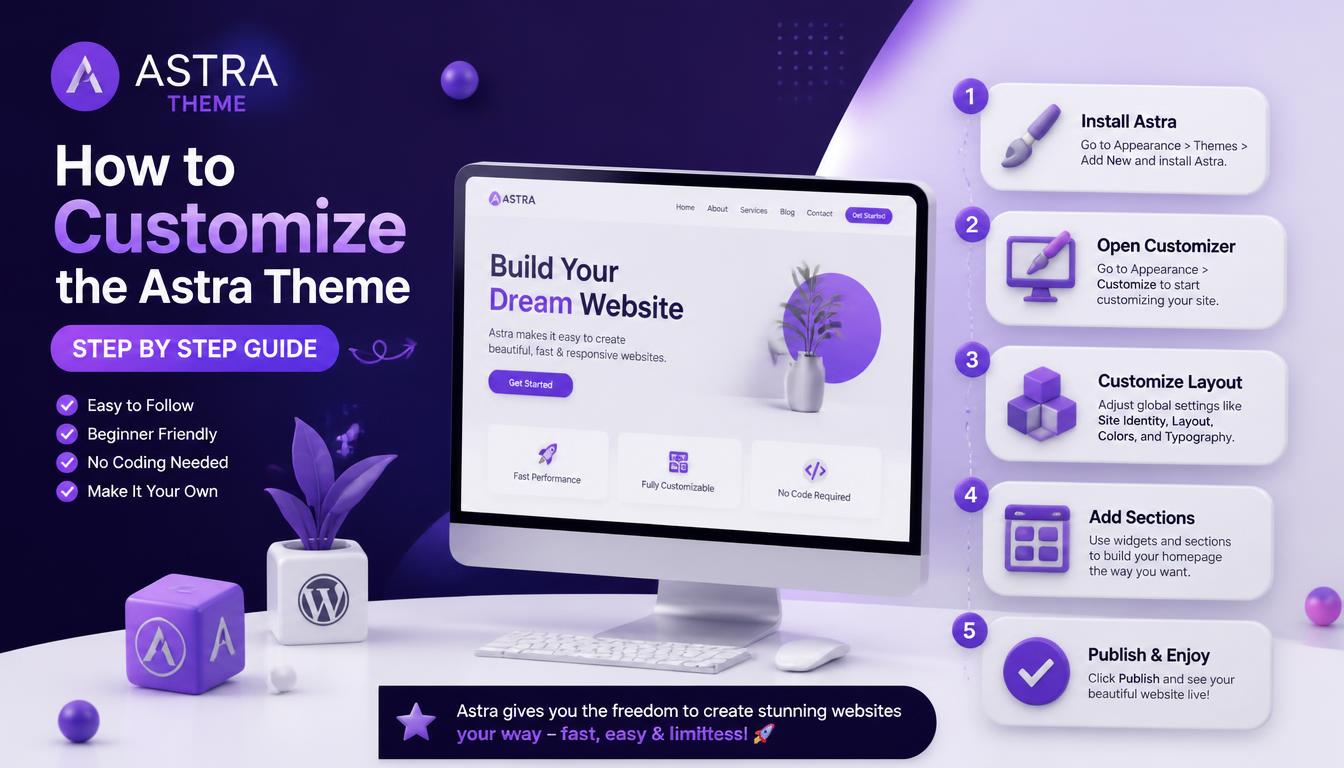
To customize the Astra theme, you work mainly inside the WordPress Customizer, where Astra adds its own panels for global styles, the header and footer, layouts, the blog and WooCommerce. Astra is a classic theme by Brainstorm Force, so its settings come with a live preview instead of the Site Editor.
This step-by-step guide shows how to customize the Astra theme from first setup to finished design: global colors and fonts, the Header Builder and Footer Builder, container layouts, blog and store pages, per-page settings and starter templates. It also explains which features need Astra Pro.
Before You Customize the Astra Theme
A little setup makes later changes easier and safer.
- Install and activate Astra from Appearance > Themes > Add New.
- Decide on a starter template now, because importing one later can replace your design settings.
- Create a child theme if you plan to add PHP or template changes. Astra offers a downloadable child theme on its website.
- Pick your page builder, if any. Astra works with the block editor, Elementor and Beaver Builder.
Making these choices first means you customize the Astra theme once, instead of redoing settings after a template import or a builder switch.
Also check your WordPress and PHP versions in Tools > Site Health before installing Astra Pro or a large starter template. Current versions help prevent import errors and make sure every Astra module works as expected from the first day.
Step 1: Set Global Colors, Fonts and Buttons
The Global panel controls the design of the whole site, so it is the right first stop when you customize the Astra theme.
- Go to Appearance > Customize > Global.
- Open Colors and set the global palette, text color, link color and background.
- Open Typography and choose body and heading fonts and sizes.
- Open Buttons and set colors, padding and border radius for every button.
- Click Publish.
Astra’s global palette also appears in the block editor’s color picker. When you change a palette color later, every block that uses it updates, which keeps posts and pages consistent with the theme.
Give each palette color a clear role, such as primary, accent, text and background, and keep one color reserved for buttons and links. When every color has a job, new pages stay consistent even when several people build them.
Step 2: Customize the Astra Header

Astra’s Header Builder splits the header into three rows: Above Header, Primary Header and Below Header. You drag elements such as the logo, menu, search, button and social icons into each row.
- Switch between the desktop and mobile view in the builder to design each one separately.
- Use the transparent header option for pages where the header sits over a hero image.
- Add a button element for a call to action, such as “Get a Quote”.
The mobile view has its own rows and its own menu toggle, so check it every time you customize the Astra theme header. Many layout problems on phones come from desktop-only changes.
Keep the number of header rows low. Most sites need only the Primary Header row; the Above and Below rows make sense for a promotion bar or secondary links, but every extra row takes vertical space on smaller screens.
Step 3: Customize the Astra Footer
The Footer Builder works the same way, with Above Footer, Primary Footer and Below Footer rows. Add widgets, menus, social icons and the copyright element, then set the number of columns for each row.
Astra’s copyright element supports dynamic tags such as [copyright], [current_year] and [site_title], so the year updates on its own. Replace the default credit text with your business name and any legal links your site needs.
Use the Above Footer row for a final call to action, such as a newsletter signup or contact button. Visitors who reach the bottom of a page are often interested, and a clear next step there can turn that interest into action.
Step 4: Change Container and Page Layout
- Set the default container layout and container style for the whole site in the Global settings.
- Choose left, right or no sidebar in the Sidebar panel.
- Set different layouts for pages, posts and archives where your theme version allows it.
Pick a site-wide default that suits most of your content, such as a narrower layout for articles. Then override it only on pages that need more space, such as landing pages built with a page builder.
Page builders and per-page settings can override these defaults. If a page does not follow your global container layout, open its Astra Settings panel first, because a page-level choice always wins over the site-wide setting.
Step 5: Customize Blog and Single Post Settings
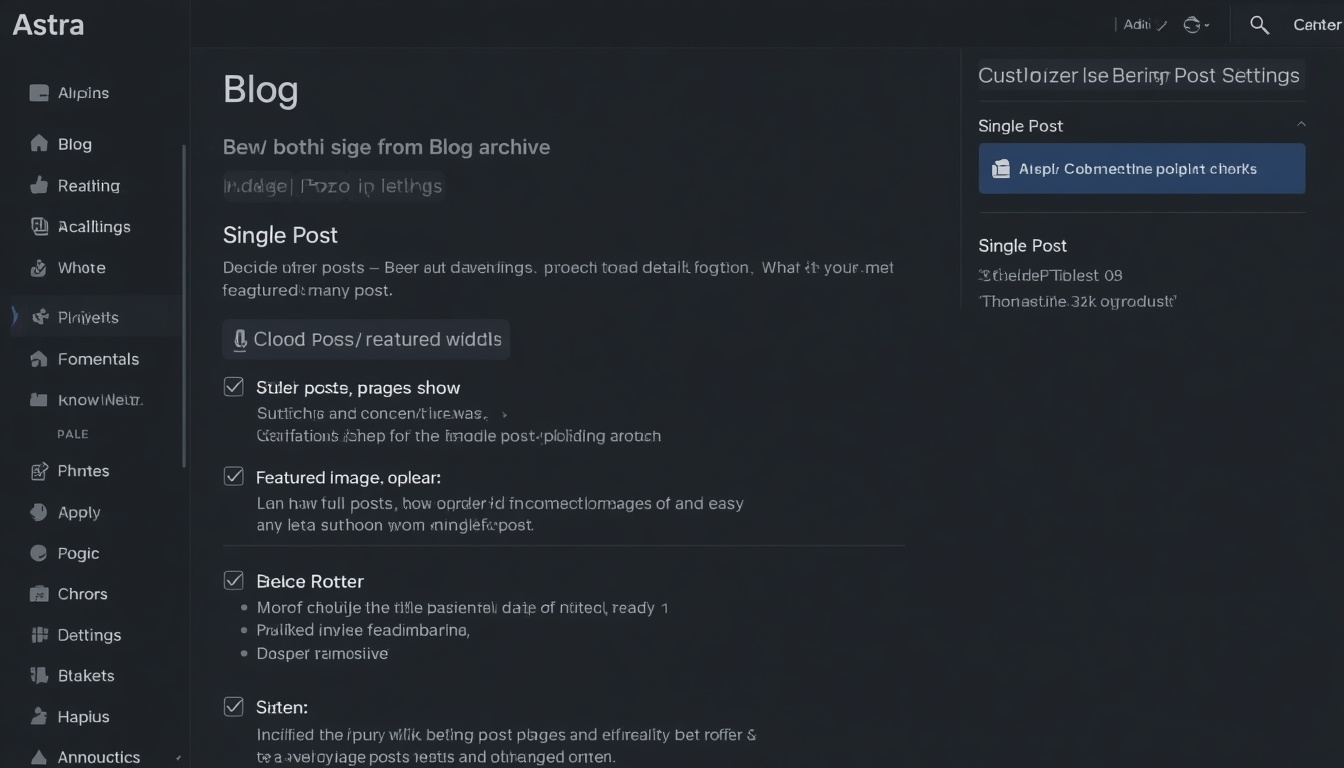
In the Blog panel, Astra separates the blog archive from single posts.
- Blog/Archive: choose the post layout, which meta details appear and whether featured images show.
- Single Post: set the content width, the order of the title and featured image, and post meta such as author and date.
These settings shape most of a content site, so decide them before you publish many posts. Changing the archive structure later is easy, but readers notice when single post layouts change often.
Decide whether archive pages should show full posts or excerpts. Excerpts with featured images make archives easier to scan and keep pages lighter, while full posts suit very short updates such as news notes or announcements.
Step 6: Customize WooCommerce Pages in Astra
If you run a store, open the WooCommerce panel in the Customizer. Astra adds options for the product catalog, such as the number of columns and products per page, along with styling for shop and product pages.
Check the shop page on mobile after each change, because product grids with many columns can become cramped on small screens. Astra Pro adds more advanced store layouts if the free options are not enough.
Add the cart element to the header for stores, so shoppers can reach their cart from any page. Astra’s Header Builder includes a cart element that shows the item count, which reminds visitors of products they have already chosen.
Step 7: Use Per-Page Astra Settings
When you edit a page, the Astra Settings panel in the editor lets you disable the title, header, footer or sidebar on that page only. This is the quickest way to customize the Astra theme for a landing page or a sales page.
Because these settings affect one page only, they are safe to experiment with. The rest of your site keeps its standard header, footer and layout while you test a different design on a single page.
Keep a short list of pages where you changed Astra Settings. Per-page changes are easy to forget, and the list helps you find them later when a page does not match the rest of the site after a redesign.
Step 8: Import and Adjust a Starter Template

The Starter Templates plugin imports complete demo sites built for the block editor or popular page builders. Import one, then customize the Astra theme settings and replace the demo text and images with your own.
Choose a template close to your final structure, because changing colors and text is much faster than rebuilding sections. After importing, delete the demo pages, posts and images you will not use.
After importing, check the Customizer for leftover demo content, such as sample phone numbers in the header or placeholder social links in the footer. These details are easy to miss and can confuse visitors if they stay on the live site.
Astra Free vs Astra Pro
| Feature | Astra (free) | Astra Pro |
| Global colors, fonts and buttons | Yes | Yes |
| Header and Footer Builder | Yes | Yes, with more elements |
| Transparent header | Yes | Yes |
| Sticky header | No | Yes |
| Mega menu | No | Yes |
| Custom layouts in theme hook locations | No | Yes |
| Advanced WooCommerce layouts | Limited | Yes |
You can customize the Astra theme well with the free version. Consider Pro only when you need one of its specific modules, and check Astra’s website for the current feature list, because modules change over time.
Astra Pro is a plugin that works alongside the free theme, so you keep Astra active and install Pro as an extra. Your free settings stay in place, and Pro simply adds new panels and modules to the Customizer.
Common Mistakes When Customizing Astra
- Importing a starter template after styling the site, which can overwrite your global settings.
- Designing only the desktop header and forgetting the mobile rows.
- Setting fonts in both Astra and a page builder, which causes conflicts.
- Editing Astra’s theme files directly instead of using a child theme.
Most of these mistakes come from doing steps out of order. Following the sequence in this guide, from global settings to individual pages, avoids nearly all of them.
Another mistake is changing settings on the live site during busy hours. Make larger Astra changes on a staging copy or at quiet times, so visitors never see a half-finished header or a broken layout while you work.
Explore the Astra Dashboard
After activation, Astra adds its own dashboard to the WordPress admin, usually labeled Astra. It works as a control center for the theme.
- Quick links open each Customizer panel directly, such as Global, Header Builder or Blog.
- A modules area lists the theme’s features and, with Astra Pro, lets you turn premium modules on or off.
- Links to Starter Templates, documentation and support are collected in one place.
Use the dashboard as your starting point every time you customize the Astra theme. It saves time on large projects, because you can jump straight to the panel you need instead of scrolling through every Customizer section.
Add Custom Content With Astra Hooks
Astra includes action hooks, which are named spots in the theme where you can insert your own content with code. For example, astra_header_before runs just before the header, and astra_footer_after runs after the footer.
<?php
// Add a notice above the header (place in your child theme’s functions.php)
add_action( ‘astra_header_before’, function() {
echo ‘<div class=”site-notice”>Free shipping on orders over $50</div>’;
} );
Hooks let you add notices, scripts or extra sections without editing Astra’s template files. Astra Pro also offers a visual way to place content in these hook locations through its custom layouts feature, so you can do the same job without writing PHP.
Speed Up Astra With Performance Settings
Astra is known as a lightweight theme, and a few settings make it even faster.
- Load Google Fonts locally: Astra can serve Google Fonts from your own server instead of Google’s, from the Performance panel in the Customizer.
- Preload local fonts: tells the browser to fetch font files early.
- Disable unused modules: fewer active features mean less CSS and JavaScript.
After changing these settings, clear your cache and test the homepage and a blog post. Small savings on every page add up quickly, especially on a content site that receives thousands of page views each month.
Astra Setups for Different Site Types
| Site type | Key Astra settings |
| Blog | Narrow content layout, blog archive grid, post meta options, reading-friendly typography |
| Business site | Transparent header on the homepage, header button, footer contact columns |
| Online store | WooCommerce panel settings, cart icon in the header, product grid columns |
| Online course | Integration with LearnDash or LifterLMS for course and lesson layouts |
| Portfolio | Full-width layout, minimal header, large featured images |
These setups are starting points, not fixed rules. Choose the row closest to your project, apply those settings first, and then customize the Astra theme further as your content strategy becomes clearer and you learn what visitors use most.
Update Astra Safely

Astra’s free theme updates from the WordPress dashboard like any theme from the WordPress.org directory. Astra Pro is a separate plugin that updates through your license key.
- Read the changelog before major updates.
- Keep Astra and Astra Pro on current versions together.
- Back up the site and test on staging when an update lists big changes.
Keeping the free theme and the Pro plugin current prevents missing options and layout glitches. An active license key is needed for Pro updates, so renew it before it expires if your design depends on premium modules such as the mega menu or sticky header.
Responsive Controls in Astra
Many Astra settings include device icons for desktop, tablet and mobile. Click the icon next to a setting, such as font size or spacing, to set a different value for each screen.
- Reduce heading sizes on mobile so long titles do not wrap awkwardly.
- Adjust container padding for small screens.
- Choose a mobile menu style, such as a dropdown or an off-canvas flyout, in the Header Builder.
Responsive controls are where Astra saves the most time compared with writing media queries by hand. Review each device after every major change, because a setting adjusted only for desktop can make mobile layouts look crowded or unbalanced.
Frequently Asked Questions
Is the Astra theme free?
Yes. The free version includes global styles, the Header and Footer Builder, blog settings and per-page options. Astra Pro is an optional upgrade with extra modules.
Can I customize the Astra theme with Elementor?
Yes. Astra works with Elementor, Beaver Builder and the block editor. Use Astra Settings to disable the title and sidebar on builder pages.
How do I change the copyright text in Astra?
Open the Footer Builder, select the copyright element and edit the text. You can use dynamic tags such as [current_year] so the year updates automatically.
Why does my Astra header look different on mobile?
The Header Builder has separate mobile rows and settings. Switch to the mobile view in the builder and adjust the elements there.
Does Astra work with the block editor?
Yes. Astra’s global palette and typography carry into the block editor, so blocks match your theme settings while you write.
Read More: https://linkneon.com/customize-a-wordpress-theme-with-elementor/
Final Thoughts
You can customize the Astra theme in eight steps: global settings, header, footer, layout, blog, WooCommerce, per-page options and starter templates. Working in this order keeps the design consistent and saves time, because each step builds on decisions you have already made.
Once your design is in place, write down your key Astra choices, such as palette colors, font names and header layout. This short style record helps anyone who edits the site later keep new pages consistent with the look you built.