

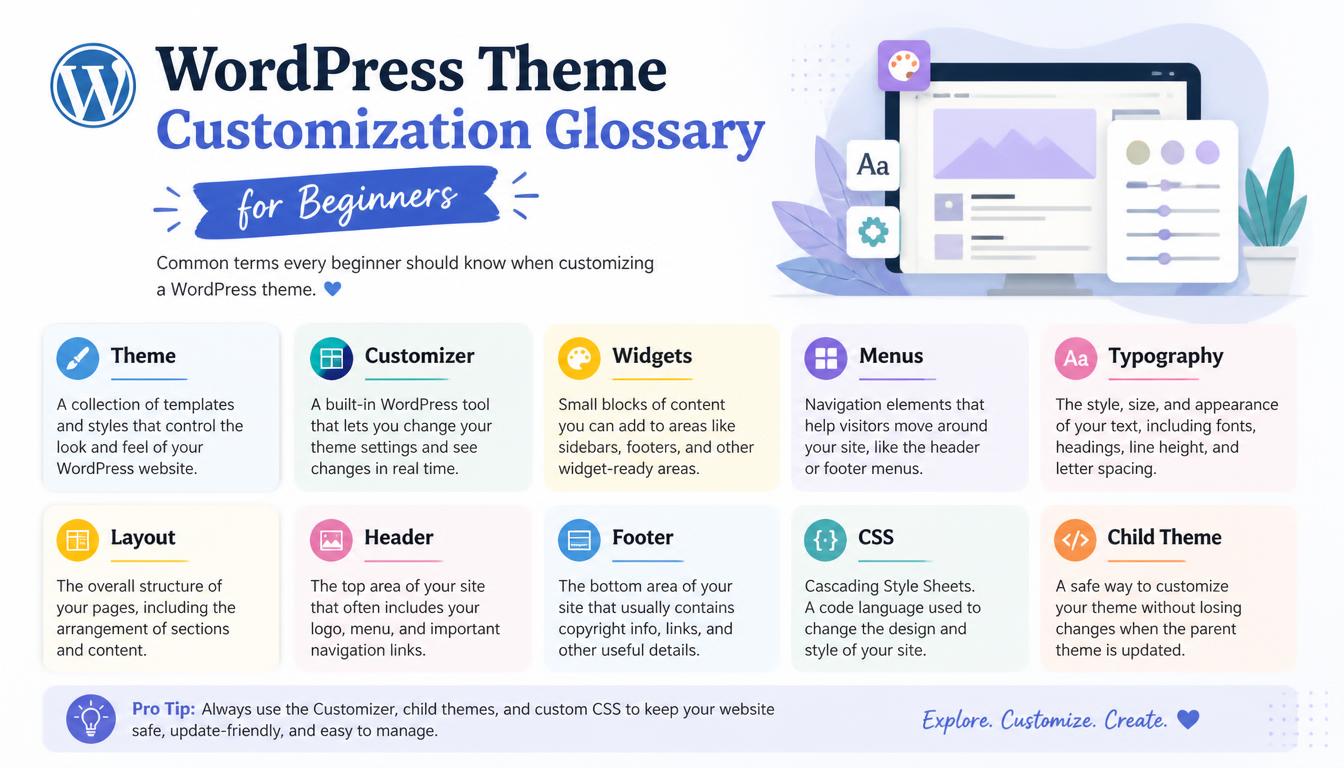
This WordPress theme customization glossary explains the terms you meet when you change a site’s design, from block theme and Site Editor to theme.json, child theme and Core Web Vitals. WordPress tutorials often assume you already know these words, which makes simple tasks feel harder than they are.
The terms below are grouped by topic: theme basics, editing tools, design and structure, code, page builders, and performance and accessibility. Each definition is short and plain, so you can understand each term at a glance.
How to Use This Glossary
- Scan the topic tables to find a term quickly.
- Use your browser’s Find feature (Ctrl+F or Cmd+F) to search for a single word.
- Read the sections in order if you are new to WordPress, because later terms build on earlier ones.
You do not need to memorize every term. Return to this page whenever a tutorial, theme document or support reply uses a word you do not recognize. Over time, common terms such as template, block and stylesheet will become familiar through practice.
Think about the change you want to make first. If you want a different header, start with templates and template parts. If a button looks wrong on a phone, look at responsive design, CSS selectors and media queries. This makes the glossary easier to use than reading every technical term before you begin.
Theme Basics
Start with the theme types, because they affect which editing tools and settings are available.
| Term | Meaning |
| WordPress theme | A set of files that controls how a WordPress site looks and how its content is displayed. |
| Block theme | A theme built entirely from blocks and edited in the Site Editor. Twenty Twenty-Five is an example. |
| Classic theme | A theme that uses PHP templates. Design changes may use the Customizer, theme settings or code. |
| Hybrid theme | A classic theme that adopts some block features, such as theme.json or block template parts. |
| Parent theme | The original theme that a child theme inherits from. |
| Child theme | A theme that inherits from a parent and stores separate customizations that parent updates do not overwrite. |
| Starter theme | A bare theme, such as Underscores (_s), used by developers as a starting point. |
| Default theme | An official WordPress theme named after a year, such as Twenty Twenty-Five. |
| Theme options panel | Extra settings a theme adds, usually inside the Customizer or its own admin page. |
| GPL license | The open-source license used by WordPress and directory themes, which allows modification. |
The most important distinction here is between block themes and classic themes. Block themes rely on the Site Editor, while classic themes rely on the Customizer, so knowing your theme type makes every other term easier to apply.
When a tutorial does not say which theme type it uses, look at its screenshots. A sidebar with Styles and Templates points to a block theme, while panels next to a live preview point to a classic theme, so you can tell quickly whether the steps apply to your site.
Theme vs. Plugin: Which One Controls the Change?
A theme usually controls presentation: page layouts, typography, colors and the way content appears. A plugin usually adds a feature, such as a contact form, an online store or a booking system. Some products overlap, especially page builders, but this distinction helps you decide where to look for a setting.
For example, changing the space around a blog title is normally a design task. Adding appointment booking is normally a functionality task. Before editing theme files, check whether the feature belongs to a plugin. Otherwise, you may spend time changing a theme that does not control the problem.
When Is a Child Theme Useful?
A child theme is useful when you need to override theme templates or keep custom theme code separate from the parent. Editing a parent theme directly can cause your changes to disappear when that theme is updated.
You do not need a child theme for every visual adjustment. Changes made through supported editor settings or an Additional CSS field are stored separately from parent theme files. However, a child theme does not guarantee that every customization will stay compatible with future parent updates. Test important layouts after an update.
Editing Tools
These are the built-in tools you will meet most often when you change a theme.
| Term | Meaning |
| Gutenberg | The project name for the block editor, also used for the plugin that tests new editor features. |
| Block | A single piece of content or layout, such as a paragraph, image or button, in the block editor. |
| Site Editor | The tool under Appearance > Editor for editing templates, template parts, patterns and styles in block themes. |
| Full Site Editing (FSE) | The set of features that lets you edit every part of a site, including headers and footers, with blocks. |
| Global Styles | Site-wide settings for colors, typography and layout in block themes. Requires WordPress 5.9 or higher. |
| Style variations | Preset combinations of colors and fonts that a block theme offers. Color and typography variations arrived in WordPress 6.6. |
| Style Book | A Site Editor view that previews how every block looks with your current styles. |
| Customizer | The tool under Appearance > Customize for changing settings in classic themes with a live preview. |
| Additional CSS | A field for custom style rules, available in the Customizer and in the Site Editor’s Styles panel. |
| Additional CSS class | A field under Advanced in a block’s settings where you add your own class name for styling. |
| Theme File Editor | A built-in code editor for theme files, found under Appearance or Tools depending on the theme type. |
| Font Library | A Site Editor feature, added in WordPress 6.5, for uploading and installing fonts. |
| Revisions | Saved earlier versions of templates and styles that you can restore. |
Most of these tools save your changes in the database, not in theme files. That is why changes made in the Site Editor, the Customizer or Additional CSS survive theme updates.
Because these settings live in the database, a full site backup must include the database as well as files. A backup of theme files alone will not restore your Customizer settings or Site Editor changes.
Page Editor vs. Site Editor
The page editor is where you change the content of an individual page, such as its introduction, images and contact details. The Site Editor also gives you access to shared layouts in a block theme. Editing a template there can affect several pages that use that template.
Suppose you want to change the phone number inside one contact page. That is usually a page content change. If you want the same phone number in the footer of every page, you would edit the shared footer instead. Checking what you have selected before saving helps prevent changes from appearing in unexpected places.
Why Your Dashboard May Look Different
An option shown in a tutorial may be missing because the tutorial uses a different theme, WordPress version, plugin or user role. For example, a block theme normally offers the Site Editor, while a classic theme may provide the Customizer and its own settings. A missing menu does not automatically mean your installation is broken.
Check the active theme under Appearance > Themes before following instructions. Menu labels can change, so focus on whether you are editing page content, a shared template or a site-wide style.
Design and Structure
These terms explain how individual blocks, reusable sections and full page layouts fit together.
| Term | Meaning |
| Template | The layout used for a type of page, such as the single post, page or archive template. |
| Template part | A reusable area inside templates, such as the header or footer. |
| Template hierarchy | The rules WordPress follows to choose which template displays a page. |
| Block pattern | A ready-made group of blocks, such as a hero section, that you insert and edit. |
| Synced pattern | A pattern that updates everywhere it is used when you edit it, formerly called a reusable block. |
| Navigation block | The block that displays menus in block themes. |
| Query Loop block | The block that lists posts, used for blog and archive pages. |
| Widget area | A region in classic themes, such as a sidebar or footer, where you place widgets. |
| Menu location | A named place in a classic theme, such as Primary, where a menu appears. |
| Site identity | The site title, tagline, logo and site icon. |
| Content width | The maximum width of the main content column. |
| Color palette | The set of colors a theme makes available site-wide. |
Templates define full layouts, template parts provide shared areas such as headers, and patterns supply ready-made sections you drop into pages. Understanding how these three work together makes the Site Editor much easier to navigate.
Many of these design terms also appear in page builders under different names. A template part in WordPress works much like a global header template in a builder, so learning one set of terms makes the other easier to understand.
Templates, Template Parts and Patterns in Practice
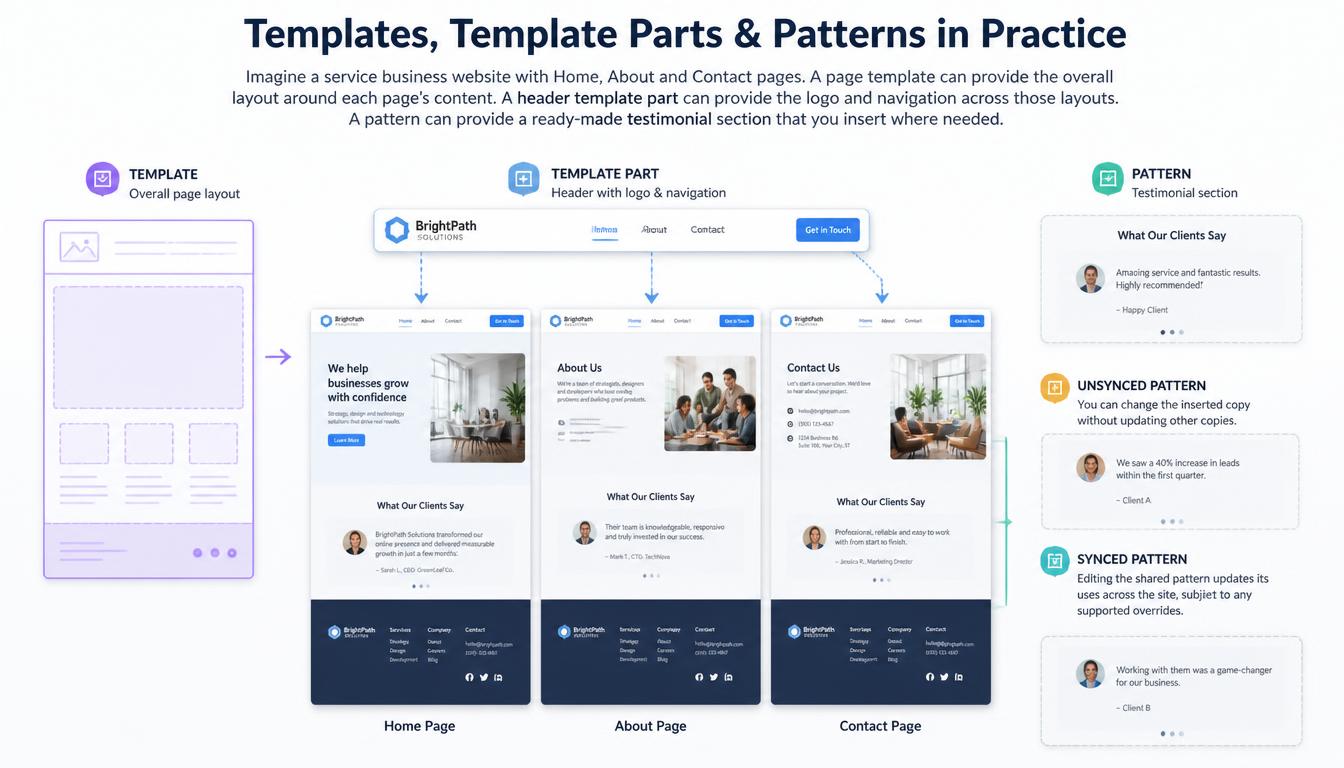
Imagine a service business website with Home, About and Contact pages. A page template can provide the overall layout around each page’s content. A header template part can provide the logo and navigation across those layouts. A pattern can provide a ready-made testimonial section that you insert where needed.
If the testimonial section is an unsynced pattern, you can change the inserted copy without updating other copies. If it is a synced pattern, editing the shared pattern updates its uses across the site, subject to any supported overrides.
Margin, Padding and Layout Spacing
Two useful design terms are margin and padding. Margin is the space outside an element. Padding is the space between an element’s content and its border. If a button’s text feels cramped, increase its padding. If the whole button sits too close to a paragraph, adjust the surrounding margin or block spacing.
Also check the difference between content width and full width. A narrow text column can make long paragraphs easier to read, while a full-width background can stretch across the screen. You can often combine a wide section background with a narrower content area, keeping the design open without making every line of text too long.
Code Terms
Developers use these terms most often, but they also help non-coders follow tutorials and talk to developers.
| Term | Meaning |
| theme.json | A configuration file supported by block and classic themes for settings and styles, including colors and typography. |
| style.css | A required theme file containing its identifying header; it can also hold CSS. Child themes include a Template header. |
| functions.php | A theme file that adds PHP features, loads styles and registers menus. |
| Hook | A point where code can run (action) or change data (filter), such as wp_head or wp_footer. |
| wp_enqueue_style | The PHP function that loads a stylesheet correctly. |
| Shortcode | A short piece of code enclosed in square brackets that inserts content, such as a form, into a page. |
| Custom post type | A content type beyond posts and pages, such as products or portfolio items. |
| CSS selector | The part of a CSS rule that targets elements, such as a class or ID. |
| Specificity | A selector’s weight, used to resolve competing CSS declarations after earlier cascade rules are considered. |
| Media query | A condition that applies CSS for features such as viewport width, print output or reduced-motion preferences. |
| CSS custom properties | Reusable CSS variables; WordPress generates them from theme.json presets. |
| Staging site | A private copy of your site for testing changes safely. |
| FTP or SFTP | A way to access site files directly, useful when the dashboard is unavailable. |
You do not need to write code to benefit from these definitions. Knowing words such as hook, selector and specificity helps you follow instructions and explain a problem to a developer. Start with the term connected to your task rather than trying to learn every file and function at once.
When you copy code from a tutorial, check its date and the WordPress version it targets. Older snippets may use functions or hooks that have changed. Test unfamiliar code on a staging site before adding it to your live site.
CSS Class vs. CSS Selector
A CSS class is a label you assign to an element. A selector is the part of a CSS rule that targets that label. For example, you might enter service-card in a block’s Additional CSS class field, then target it with .service-card in your stylesheet. The dot belongs in the CSS selector, not in the class name field.
If a style does not appear, first check that the class is attached to the correct element and that the stylesheet is loading. Another rule may also take priority. Browser developer tools can show which declarations are active, helping you investigate before adding more CSS rules.
theme.json vs. Additional CSS
The theme.json file provides a structured way to define theme settings and styles. It can control available color choices, font sizes and other design options. Additional CSS lets you write style rules for particular elements or situations. The two can work together; they are different ways of managing parts of a design.
If you only want to change one card’s border, a small CSS rule may be enough. If you are developing a theme and want a consistent color palette throughout the editor and front end, theme.json may be the better place to define it.
Page Builder Terms
If you design with Elementor, Divi or Beaver Builder, these terms will help you follow their settings and tutorials.
| Term | Meaning |
| Page builder | A plugin that adds a drag-and-drop editor for designing pages. |
| Theme builder | A page builder feature for designing headers, footers and templates. |
| Container | A layout element that holds widgets; Elementor offers Flexbox and Grid containers. |
| Display conditions | Rules that decide where a template appears, such as the entire site or one category. |
| Global colors and fonts | Site-wide values in a page builder that every widget can reuse. |
| Dynamic tags | Placeholders that pull live data, such as the post title, into a template. |
Page builder terms differ slightly between products. Each builder names its features in its own way, so a term here may not exactly match the label you see in its interface.
When you hire a designer, ask which builder they use. Builder-specific terms in a project brief, such as dynamic tags or display conditions, only make sense when both sides work with the same tool.
Global Settings vs. Individual Widget Settings
Global colors and fonts help keep a site consistent. When several buttons use the same global color, changing that shared value can update those buttons together. A button with its own custom color may stay unchanged. This explains why a site-wide adjustment sometimes affects most elements but misses a few.
Before restyling widgets one by one, check whether they use global values or local overrides. Use shared settings for repeated design choices, then apply individual settings where you need an exception. This can make future edits easier, especially on a site with many service or product pages.
Theme builder features also vary by product and subscription. Check whether your installed builder supports the header, footer or dynamic content feature used in a tutorial. A template designed with one builder may require that builder to remain active to keep its intended appearance.
Performance and Accessibility
Theme customization also affects loading speed, readability and how easily visitors can use a site.
| Term | Meaning |
| Core Web Vitals | Google’s set of real-user experience metrics: LCP, INP and CLS. |
| LCP (Largest Contentful Paint) | How long the largest eligible image or text block in the viewport takes to render. |
| INP (Interaction to Next Paint) | A responsiveness metric based on the delay from an interaction until the next visual update. |
| CLS (Cumulative Layout Shift) | A visual stability metric that measures unexpected layout shifts during a page visit. |
| WCAG | The Web Content Accessibility Guidelines published by the W3C. |
| Color contrast | The difference between text and background colors; WCAG AA generally requires 4.5:1 for normal text. |
| Responsive design | A layout that adapts to phones, tablets and desktops. |
| Cache | Stored copies of pages or assets that reduce repeated work. Stale cached files can hide design changes. |
| CDN | A content delivery network that serves files from servers close to visitors. |
| WebP | An image format that is usually smaller than JPEG or PNG at similar quality. |
These terms connect design choices to real results. Large images affect LCP, heavy scripts affect INP, and late-loading fonts or ads affect CLS. Keeping these links in mind helps you build a design that looks good and still loads quickly.
Check the Design on a Real Phone
A desktop preview can hide problems that become obvious on a smaller screen. A three-column section may become cramped, long menu labels may wrap, and a wide table may extend beyond the page. Check important pages on a real phone as well as in the editor’s responsive preview.
Try the menu, forms and buttons instead of checking appearance alone. Make sure text remains readable when zoomed, links are easy to identify, and keyboard users can see which control has focus. Good contrast is one part of accessibility; a complete check also considers navigation, labels and how content is understood.
Understand Speed Tests and Cached Changes
A speed report can contain both real-user data and a simulated test, and these do not measure exactly the same conditions. Smaller or newer sites may not have enough real-user data for every report.
If you save a design change but still see the old version, a cache may be serving an earlier copy. Check the relevant caching plugin, hosting cache, CDN and browser cache. Clear or invalidate the affected cache when necessary, then check the public page again. There is no need to clear every cache after every minor edit if changes are already visible.
Additional WordPress Features
These features extend what blocks, patterns and the editor can do. Availability and interface labels depend on your WordPress version, theme and installed plugins.
| Term | Definition |
| Block Hooks | An API introduced in WordPress 6.4 for automatically placing blocks relative to other blocks in supported contexts. |
| Block Bindings API | Added in WordPress 6.5, it connects block attributes to dynamic data, such as custom fields, without building custom blocks. |
| Interactivity API | Also added in WordPress 6.5, it gives developers a standard way to add interactive behavior, such as filters or lightboxes, to blocks. |
| Pattern overrides | Introduced in WordPress 6.6, they let you change specific content inside a synced pattern on one page while keeping the design linked. |
| Section styles | Block style variations, expanded in WordPress 6.6, that apply a set of colors and typography to a group of blocks at once. |
| Data views | The newer list and grid screens in the Site Editor for browsing pages, templates and patterns. |
| Zoom out | An editor view that shrinks the canvas so you can arrange whole sections and patterns instead of single blocks. |
You will not use every feature right away, but knowing the names helps you follow release notes and WordPress updates. Most of them improve the Site Editor and make block themes more flexible without extra plugins.
What These Features Mean for Beginners
Most beginners do not need to configure developer APIs to customize a site. Block Bindings can connect supported block attributes to data, while the Interactivity API helps developers build interactive behavior. Knowing the names is useful when reading a plugin description or discussing a feature with a developer.
Patterns and styles are more likely to affect everyday editing. For example, a supported pattern override can let you change selected text in one instance while keeping its shared design. Check which fields are editable before treating every part of a synced pattern as independent.
SEO Terms Related to Themes
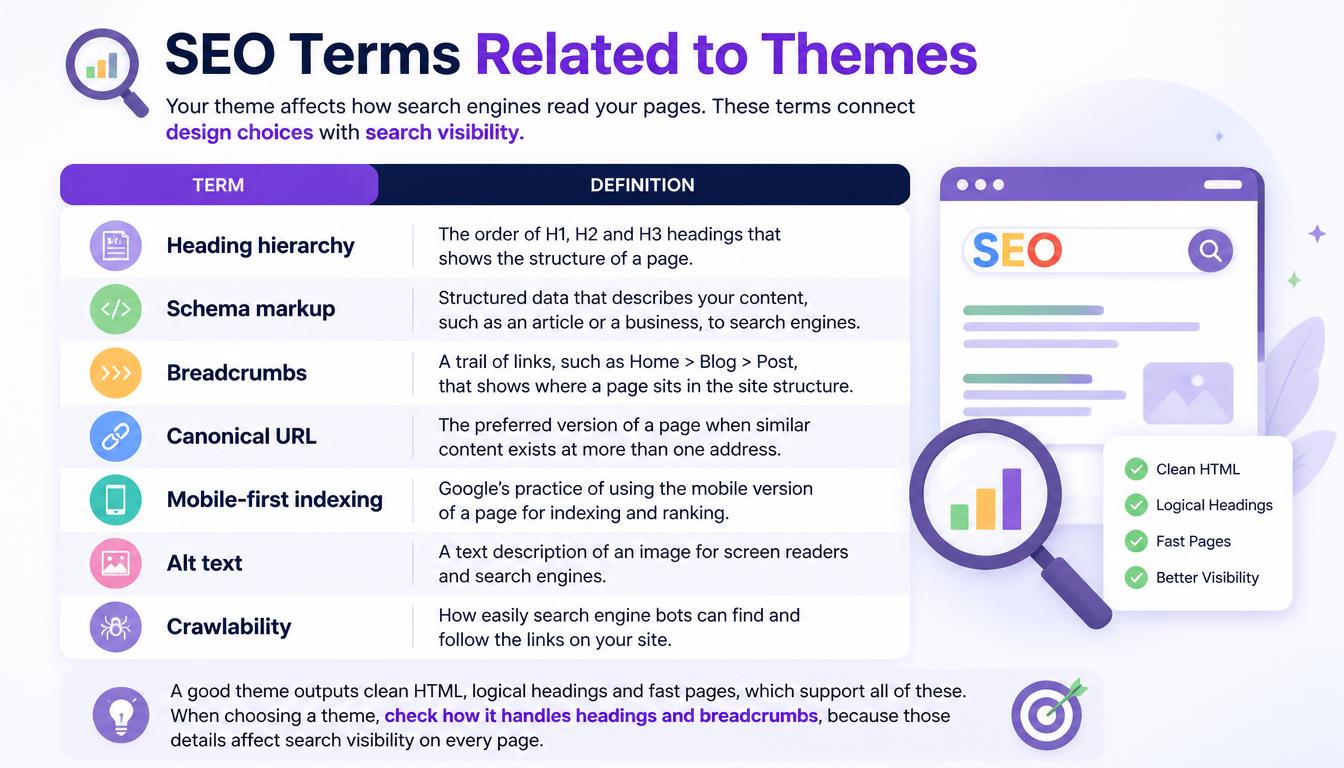
Your theme affects how search engines read your pages. These terms connect design choices with search visibility.
| Term | Definition |
| Heading hierarchy | The order of H1, H2 and H3 headings that shows the structure of a page. |
| Schema markup | Structured data that describes your content, such as an article or a business, to search engines. |
| Breadcrumbs | A trail of links, such as Home > Blog > Post, that shows where a page sits in the site structure. |
| Canonical URL | The preferred version of a page when similar content exists at more than one address. |
| Mobile-first indexing | Google’s practice of using the mobile version of a page for indexing and ranking. |
| Alt text | A text description of an image for screen readers and search engines. |
| Crawlability | How easily search engine bots can find and follow the links on your site. |
A good theme outputs clean HTML, logical headings and fast pages, which support all of these. When choosing a theme, check how it handles headings and breadcrumbs, because those details affect search visibility on every page.
Keep Headings and Images Meaningful
Choose a heading level based on the page’s structure rather than the size you want the text to appear. Use the main page title for the central topic, then organize supporting sections logically. Adjust font sizes with design controls instead of choosing a heading level only because it looks larger.
For images, write alt text that explains the image’s purpose in context. A screenshot showing where to find the Styles panel needs a different description from a decorative background. Avoid turning image descriptions into lists of keywords. Check the public page after customization to confirm that headings, images and navigation still make sense together.
Frequently Asked Questions
How do I know whether I have a block theme or a classic theme?
Check your active theme and the options under Appearance. A block theme normally offers the Site Editor under Editor. Classic themes often provide Customize or their own settings panel. Menu availability also depends on your account permissions and site configuration.
What is the difference between the Customizer and the Site Editor?
The Customizer changes settings in classic themes. The Site Editor edits templates and styles with blocks in block themes.
What is the difference between a template and a template part?
A template is a full page layout. A template part is a reusable section, such as the header, placed inside templates.
What is the difference between a block pattern and a template part?
A block pattern is a prepared group of blocks that can be synced or unsynced. An unsynced copy can be edited independently. A template part is a shared structural section, such as a header, that appears in templates.
Do I need to learn code terms?
No. Many changes to colors, fonts, spacing and layouts can be made through visual controls. Basic code terms become useful when you follow a CSS tutorial, use a child theme or ask a developer for a more specific customization.
Will changing my theme delete my posts and pages?
Switching themes normally keeps posts, pages and media in the database. However, layouts, menus, widget areas and theme-specific features may need attention. Test the new theme on staging so you can check the design and important functions before changing the live site.
Why did a template change affect several pages?
Those pages may share the same template or template part. Editing a shared layout changes the pages that use it. If you want a unique design for one page, check whether you can create and assign a separate template instead.
Do I need both a page builder and the Site Editor?
Not necessarily. Your theme and design needs determine which tools are useful. Before adding a builder, check whether the existing editor can create the layout you need. Using fewer overlapping design tools can make it easier to understand where each setting is controlled.
Read More: https://linkneon.com/most-customizable-wordpress-themes/
Conclusion
Use this WordPress theme customization glossary when a tutorial, theme setting or support reply introduces an unfamiliar term. Start by identifying your theme type, then decide whether the change belongs to a single page, a shared template or a global style.
As you practice, connect each term to a real task: changing a button color, adjusting a page layout or updating a shared footer. Make one clear change at a time, preview the result and keep a backup before larger edits. This makes new vocabulary easier to remember and helps you customize with more confidence.